Creating Profile-Based Group Profile Assignment
In the Profile-based group profile assignment mode, you can associate a Salesforce profile with the ServiceMax Group profile.
To create profile-based group profile:
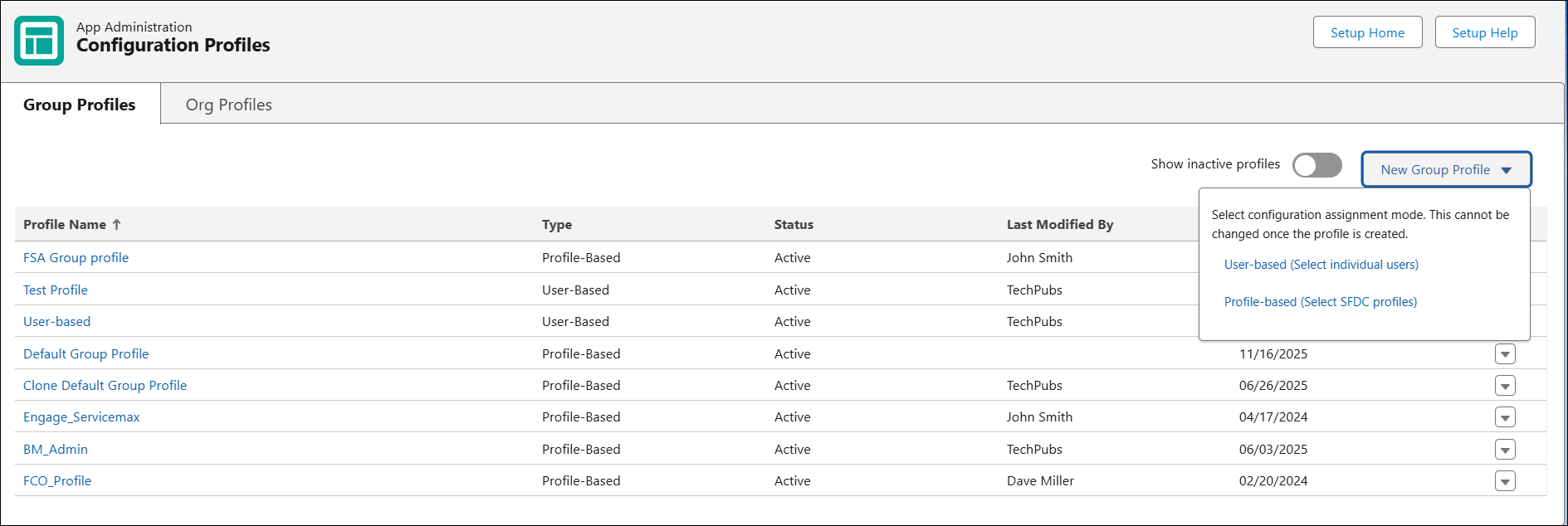
1. Go to > > . The Group Profiles list view page is displayed.
2. Click the New Group Profile and select Profile-based Group Profile Assignment mode from the drop-down.
The Information and Assignment tab is displayed with the following information.
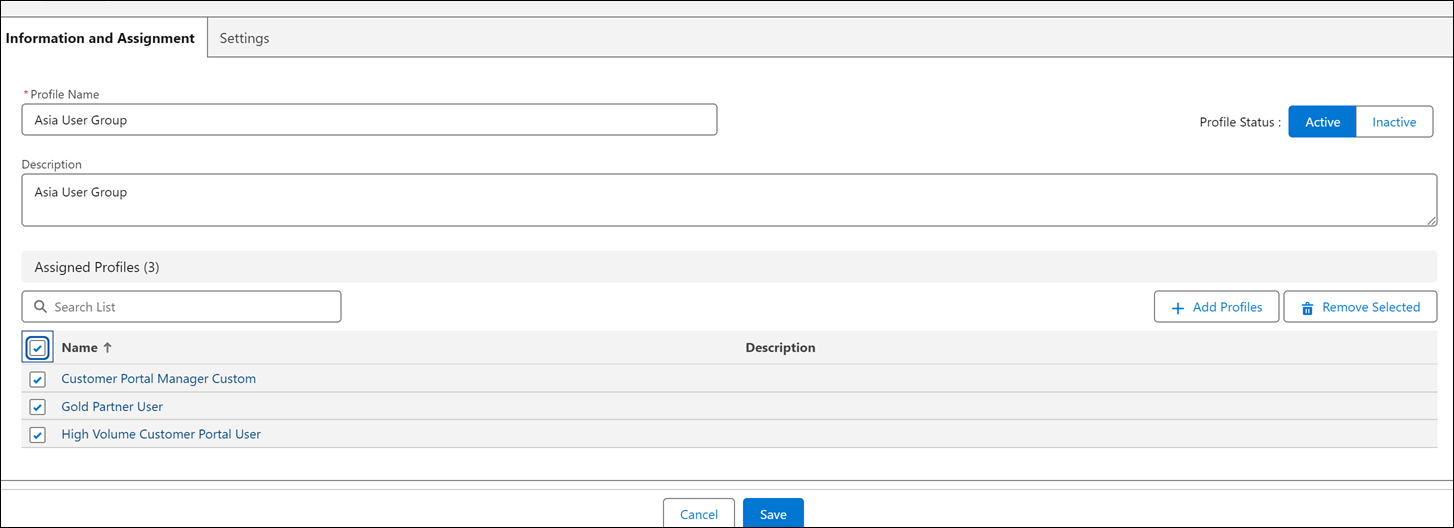
3. Enter the Profile Name and Description.
4. In the Assigned Profiles section, click Add Profiles to add Salesforce profiles to the ServiceMax Group Profile.
The Add Salesforce Profiles pop-up window is displayed.
 |
If editing an existing group profile, Existing Selections indicate currently associated profiles, and New Selections indicate newly selected profiles.
|
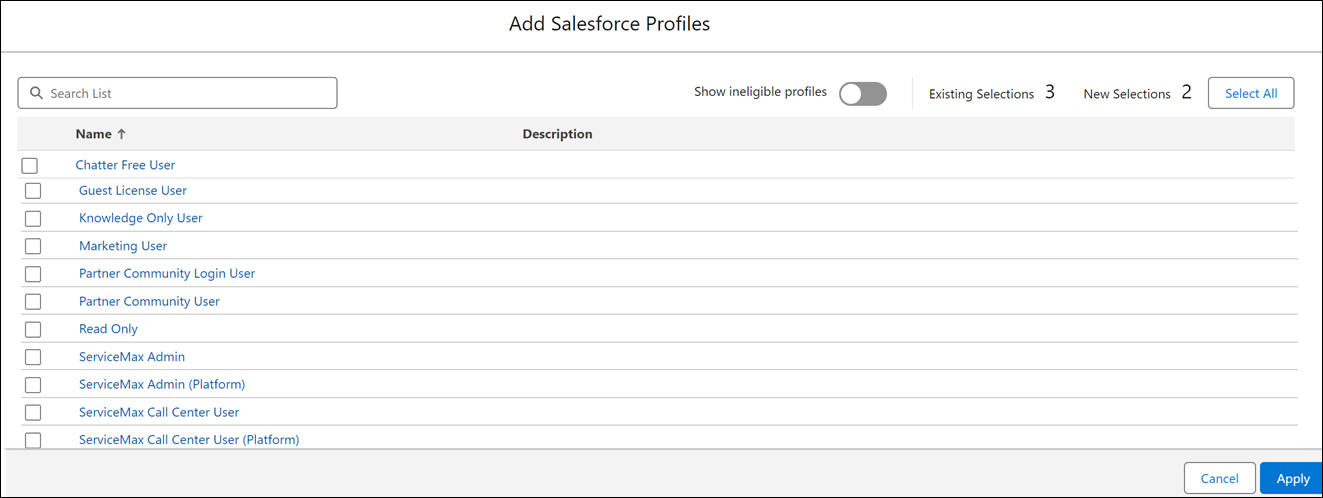
You can perform the following actions on the Add Salesforce Profiles page:
|
Action
|
Description
|
|---|---|
|
Show ineligible profiles
|
Toggle on this button to display Salesforce profiles that are already associated with another ServiceMax Group profile. An I icon is displayed for such users displaying the ServiceMax Group Profile name to which this Salesforce profile is associated. The checkbox for the ineligible profiles is disabled.
|
|
Select All
|
Click this button to select all the profiles from the list.
|
|
Search List
|
Search for the specific profiles using keywords.
|
5. Select one or more Salesforce profiles to be associated with the ServiceMax Profiles and click Apply.
6. Click Save.
You can also perform the following actions on the Information and Assignment tab:
• Profile Status: Toggle to set the Group Profile status to Active or Inactive.
• Search List: Search for specific Salesforce Profiles in the list.
• Remove Selected: Remove the selected Salesforce Profiles associated with the ServiceMax Group profile.