Assigning Entitlement for a Work Plan
You can perform entitlement check on a Work Plan record added to a Work Order or Service Product to to determine whether it is covered under a Service Contract or Warranty. This helps ensure that customers receive the entitled service and are billed appropriately when no coverage applies to the Work Plan. As part of the entitlement, you can assign appropriate contract or warranty to the work plan so that right coverages and unit price are applied during billing.
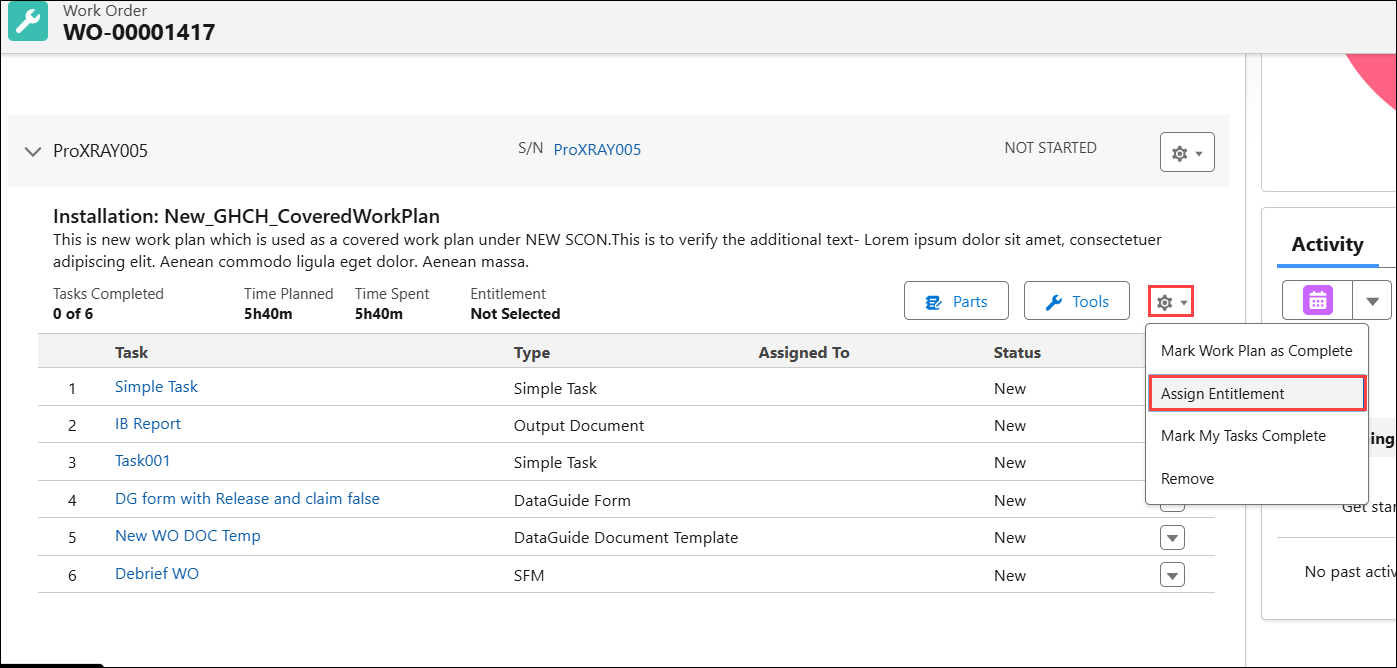
You can perform a manual entitlement check by clicking Assign Entitlement from the action menu on the Work Plan.
The coverages are displayed based on the entitlement rule configured for the Work Order record. For more information see, Creating an Entitlement Rule for Work Order.
If multiple coverages are available, you can select the appropriate one from the list. When no matching coverage is found, the Not Covered option is displayed.
When performing an entitlement check, you can:
• View existing coverage details if the Work Plan is already covered under a Service Contract or Warranty.
• Review other available coverages linked to the Work Plan record.
• Reassign entitlement based on the most suitable coverage. Only one coverage can be assigned at a time. You can also select No Coverage to proceed without assigning coverage.
• Navigate to the associated Warranty or Service Contract record to view detailed information.
• Add Entitlement Notes during assignment to record relevant information.
• Ensure that entitlement assignments remain consistent with organizational policies and compliance requirements.
To Assign entitlement for a Work Plan:
1. From the Home page, go to the Work Order object.
2. Open a Work Order record for which you want to assign entitlement for a work plan.
3. Go to the Service Products & Tasks tab.
4. For a Work Plan, click the Settings icon and select Assign Entitlement. Also, you can click Select One in the Coverage if the auto-entitlement returns multiple matching coverages.
 |
When the auto-entitlement engine runs on the work plan and finds multiple matching coverages, theMultiple options available, Select One option is displayed. Clicking this option displays Assign Entitlement modal for the work plan.
|
The Assign Entitlement modal is displayed with the valid Service Contract and Warrant coverages available for the Work Plan. Also, it shows the existing coverage details if the Work Plan is already covered under a Service Contract or Warranty. If the entitlement is not performed, the Perform Entitlement Check status is displayed.
|
|
• The columns under Service Contracts and Warranties are displayed based on the Entitlement Settings. You can customize these columns to view specific information based on your requirements. For more information, see Customizing Service Contract and Warranty Columns.
• You cannot perform entitlement check on completed work plans.
|
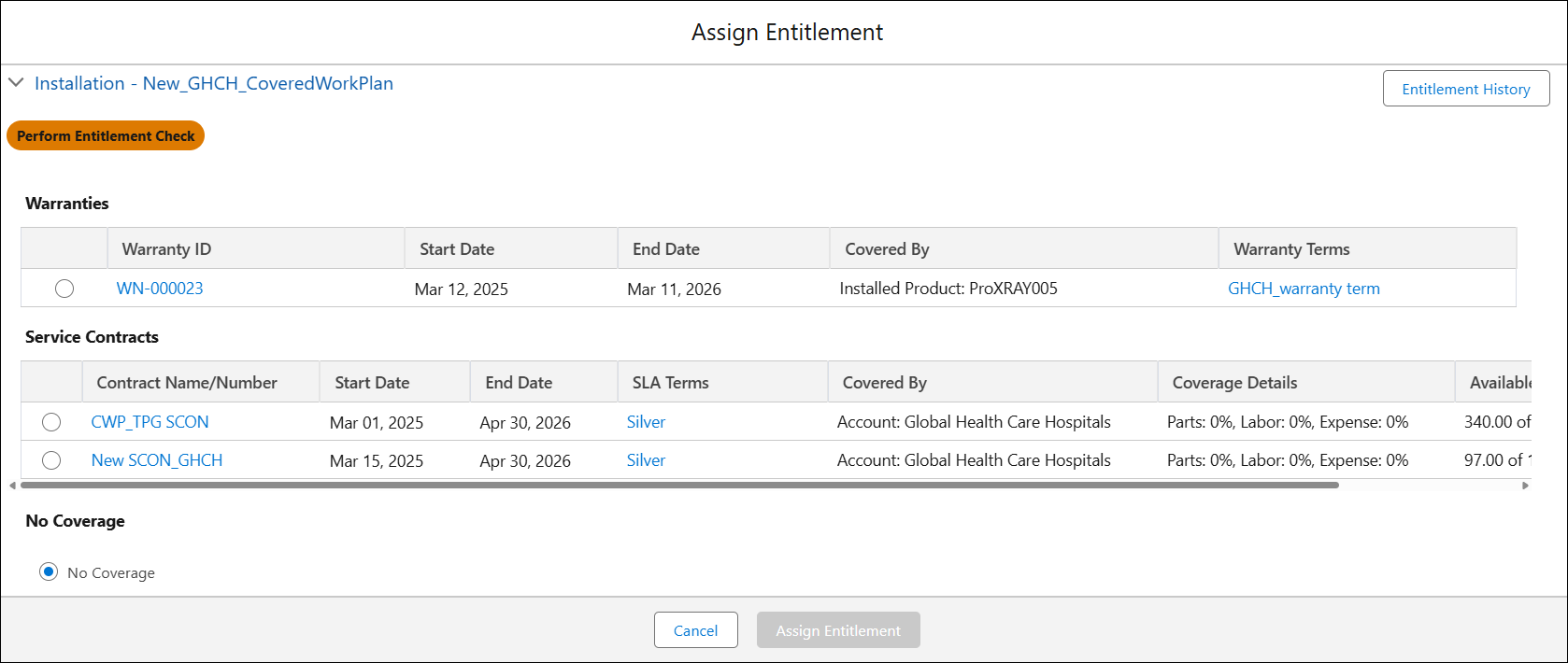
5. Select a Service Contract or Warranty you want to apply to the Work Plan. Alternatively, select No Coverage if you do not want to assign any coverage to the Work Plan.
6. In the Entitlement Notes, enter relevant information you want to record related to the entitlement based on your requirements.
7. Click Assign Entitlement.
Once coverage is selected on the Work Plan, the Is entitlement performed field is set to true and Entitlement Notes is updated on the Work Plan record.
|
|
When you perform Assign Entitlement and there are no matching coverages, the No Coverage option is automatically selected. clicking Assign Entitlement will perform the entitlement check, and the system updates the status as Not Covered.
|
Actions Available in Assign Entitlement Modal
In the Assign Entitlement modal, you can also perform the following actions:
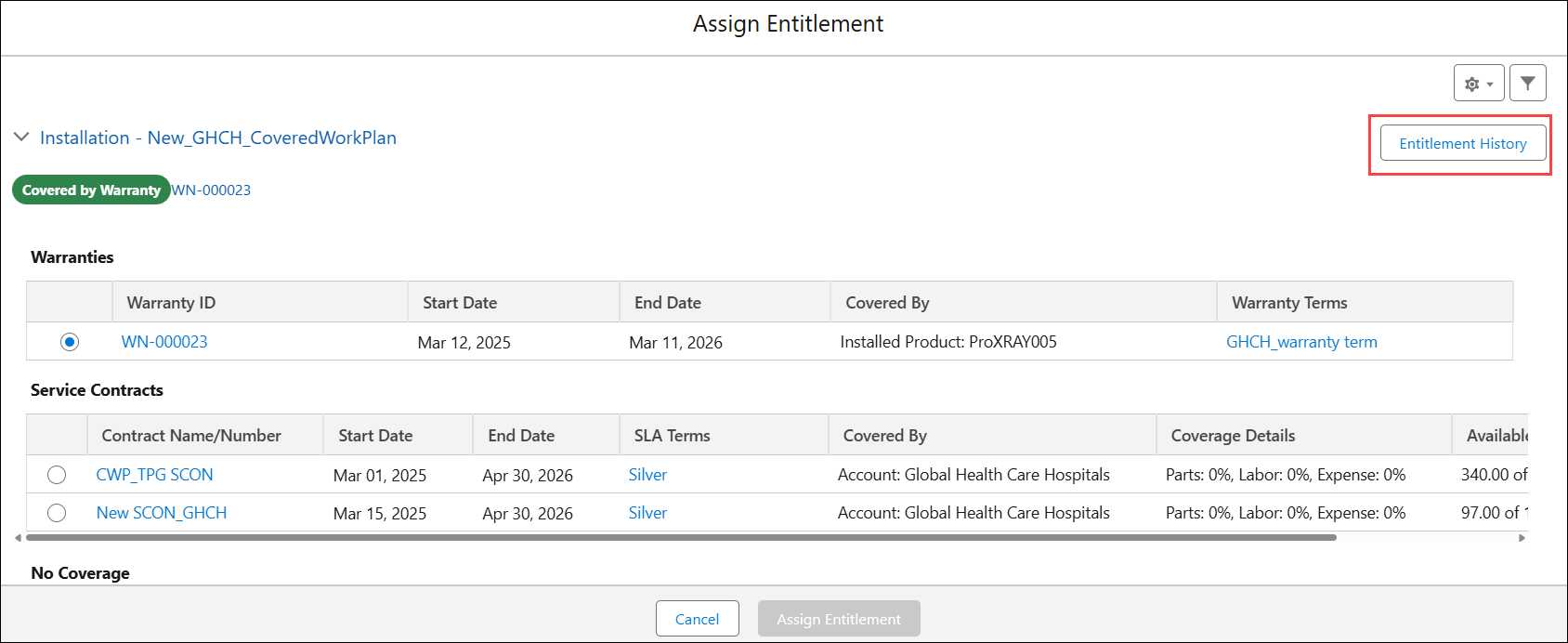
• Click Entitlement History to view the record of entitlement changes over time for the Work Plan.
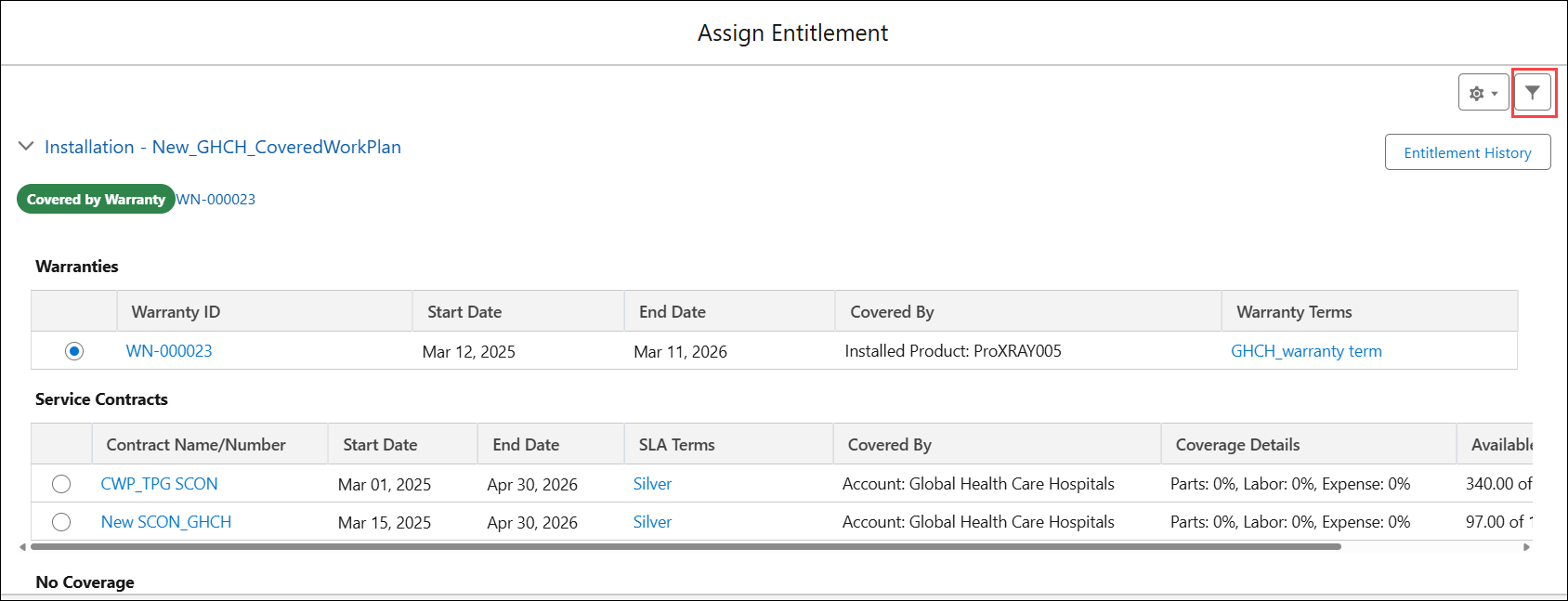
• Click Filter icon to refine or extend your search, view additional coverages, or narrow down coverage details to make correct choice of assignment. For more information, see Filtering Coverages.
• Customize Service Contracts and Warranties columns to view specific information when assigning coverages. For more information, see Customizing Service Contract and Warranty Columns.
Use Case
Validating service entitlements per installed product within a work order
Role: Field Service Engineer
A field service engineer at Iniscope International opens a work order that includes two service products: a Soniscape SSI 1000 under a full-coverage contract and an SSI 800 with no active contract. The work plan assigned to each service product triggers an entitlement check at the service product level, identifying that parts for the SSI 800 are not covered and require a separate purchase order. The engineer reviews the entitlement status before starting work, avoids post-service billing disputes, and obtains the required approval for out-of-contract services before proceeding with any repair activity.