Adding a Technical Attribute Template Task
In the Work Order, you can add a Technical Attribute Template type of task to a Work Plan associated with the Service Product. This allows planners and technicians to capture the actual condition and performance of the installed product, ensuring maintenance quality and compliance. It also predicts potential downtime and takes corrective or preventive actions.
 |
• You cannot add Technical Attribute Template to a General Task linked with the Work Order. The option is available only on task added to a Work Plan associated with a Service Product.
• If you add a Work Plan that includes a Technical Attribute Template task type under General Tasks,the related technical attributes task are displayed in disable state. You can remove such tasks from work plan post assignment.
|
To add a Technical Attribute Template task:
1. Open the work order for which you want to add the service task.
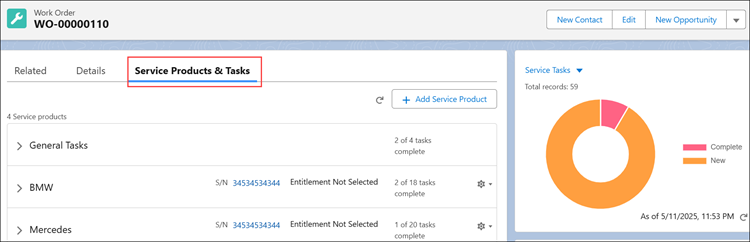
2. Click the Service Products & Tasks tab.
Associated service products, service tasks, or work plans, if any, are displayed.
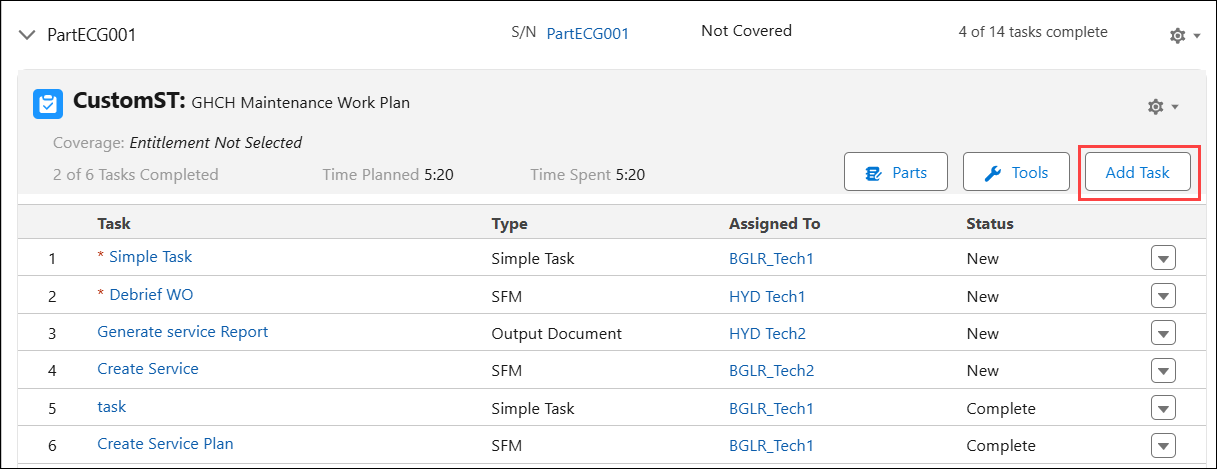
3. Expand a Service Product and click Add Task under a Work Plan.
The Add Service Task window is displayed.
4. On the top-right, click Linked Activity drop-down and select Technical Attribute Template.
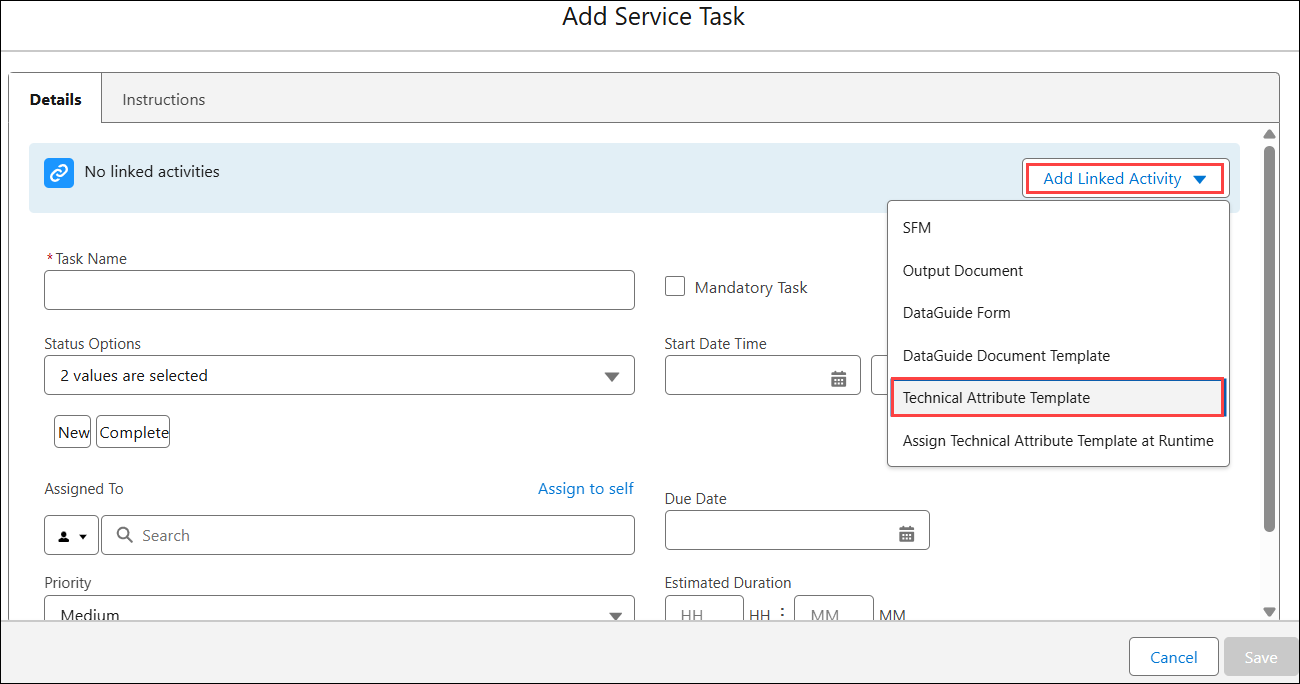
By default, the Technical Attribute Template search is filtered with the associated Installed Product. You can remove the filter to view the list of Technical Attribute Templates created in the org.
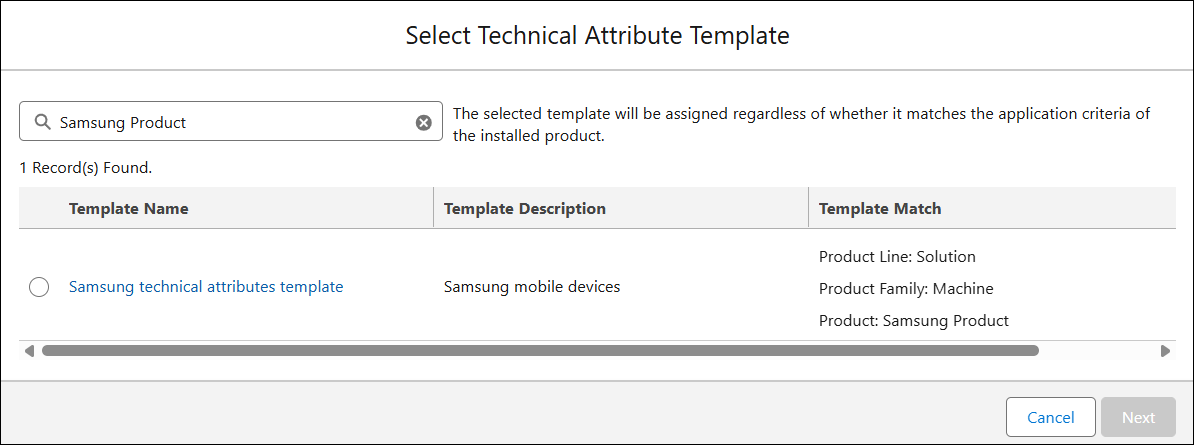
5. Search for and select the Template and click Next.
|
|
• You can search by Template Name, Template Description, or Template Match, including Product Line, Product Family, and Product.
• The selected template will be assigned regardless of whether it matches the application criteria of the Installed Product.
|
6. In the Details tab, enter the information as described in the following table.
|
Field
|
Description
|
|---|---|
|
Fields with * are mandatory.
|
|
|
Task Name*
|
Enter a name for the task.
The Task Name is automatically updated based on the selected template name, with “Record” appended to it.
|
|
Mandatory Task
|
Select this checkbox if you want this task to be completed mandatorily as a part of the completion of work order.
|
|
Status Options
|
Select additional statuses based on the life cycle of the task. For example, In Progress.
Two values - New and Complete - are selected by default. You cannot remove these values.
|
|
Start Date Time
|
You can set the Start Date time of the task, or leave it blank.
|
|
Assigned To
|
Assign the task to a service group member or a service team. The following are the options:
• Assign to self: Click this option to assign the task to yourself. This option can be used by the service engineer executing the task.
• Assign to a Service Team Member: Select Service Team Member in the drop-down and then select a service engineer.
• Assign to a Service Team: Select Service Team in the drop-down and then select a service team.
|
|
Due Date
|
Select an intended completion date for the task.
|
|
Priority
|
Select the priority for the task.
|
|
Create labor line on Work Order when status is changed to complete
|
Select this checkbox to create labor lines after the task is completed. The Labor Lines are the Work Detail Lines of the Line Type, Labor, which include information about the service tasks and time consumed by technicians to complete those tasks.
|
|
Estimated Duration
|
Enter the estimated duration for the task in hours and minutes.
|
7. Click the Instructions tab.
8. Add instructions for the task and upload attachments in the same way as you do in Adding Simple Task to the Work Plan.
9. Click Save.
|
|
The process linked with the advanced task cannot be changed after it is saved. You must remove the task or create a new task if the task is no longer relevant.
|
The Technical Attribute Template task is added to the Work Plan.
You can execute this task to record technical attributes. For more information, see Executing Technical Attribute Tasks.