Deleting Task Dependencies in a Work Plan
In a Work Plan, you can delete all dependencies for a task or delete a specific dependency that is no longer required based on your requirements.
The following topics are covered in this article:
Deleting a Dependency for a Task
1. From the Home page, go to the Work Plan Library tab.
The Work Plan Library page is displayed with the existing work plans.
2. Open a Work Plan.
3. Go to the Dependencies tab.
The list of dependent tasks and their related blocking tasks is displayed.
4. For a task, click the drop-down icon next to the related Blocking Task and select Delete Dependency.
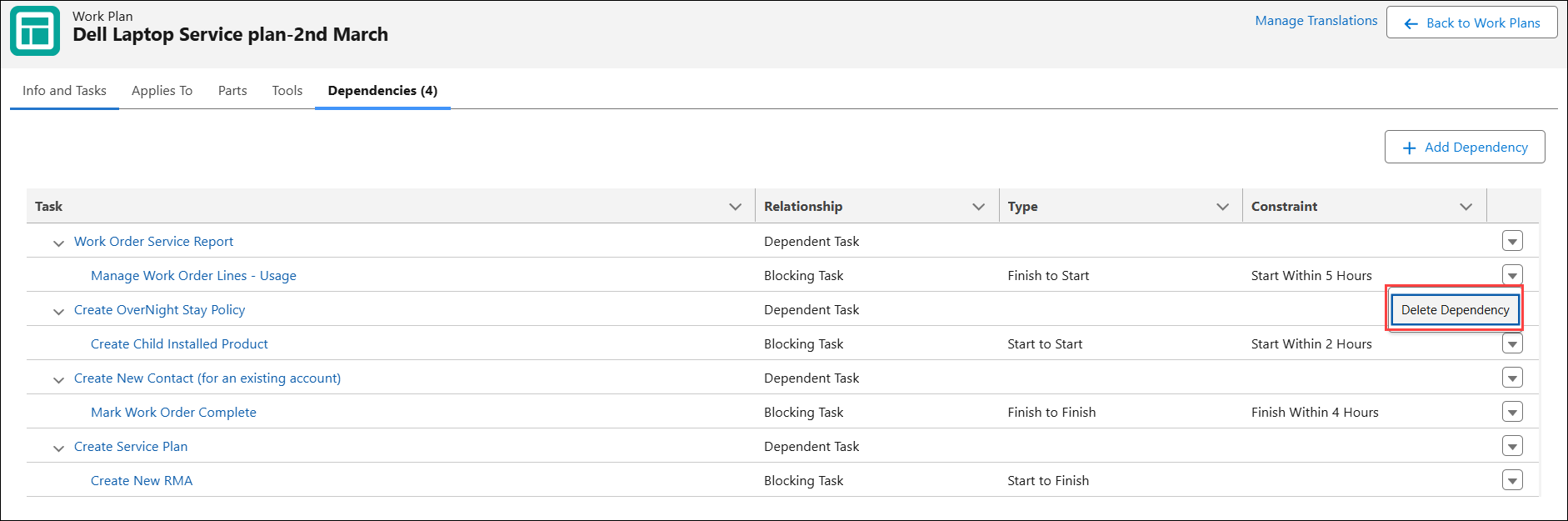
The Delete Confirmation pop-up window is displayed.
5. Click Delete.
Deleting All Dependencies for a Task
1. From the Home page, go to the Work Plan Library tab.
The Work Plan Library page is displayed with the existing work plans.
2. Open a Work Plan.
3. Go to the Dependencies tab.
The list of dependent tasks and their related blocking tasks is displayed.
4. Click the drop-down icon next to the Dependent Task and select Delete All Dependencies.
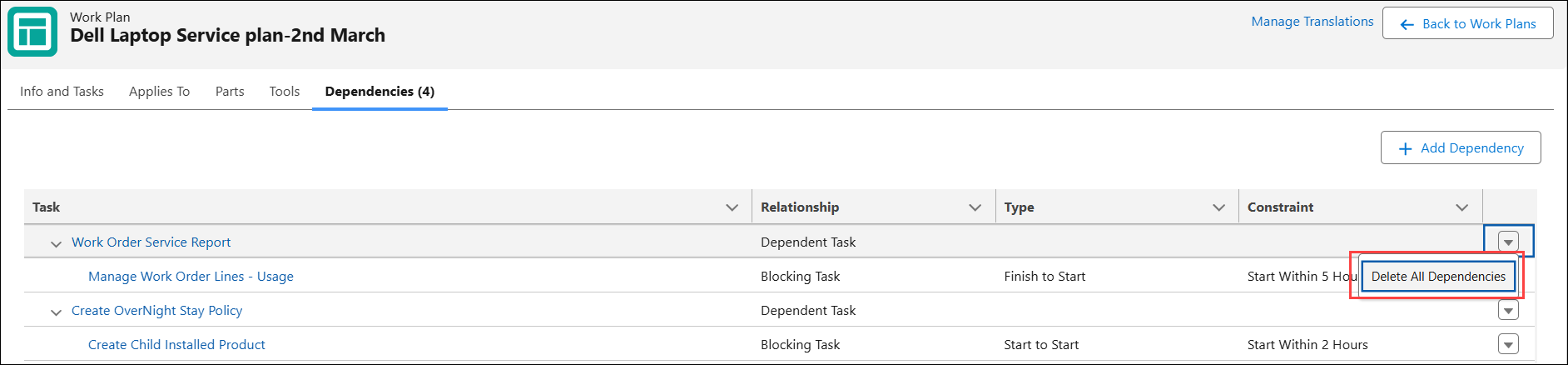
The Delete Confirmation pop-up window is displayed.
5. Click Delete.
 |
• When all task dependencies are deleted from a work plan in the Work Plan Library, the Dependency Group record created for the work plan is also deleted. For more information, see Managing Dependency Group Records.
• When all task dependencies associated with a Work Order are deleted from the Manage Dependencies UI, the Dependency Group reference is removed from the Work Order. If the dependency group is not associated with any other Work Order Dependency records, the Dependency Group record is deleted.
|