Viewing Record Names in AI Action Responses in Go Windows App
You can view and open record details from record names that appear in AI Action responses in Windows Go. When AI actions include linkified record names, you can tap those names to open the record’s details view without leaving the AI Action context.
To open a record from an AI Action response,
1. Run an AI Action that can return ServiceMax or Salesforce records, such as Work Orders, Accounts, or Contacts.
2. When the AI Action response appears, review the content.
3. Look for record names that are displayed as links. Linked record names are styled as clickable items in the response.
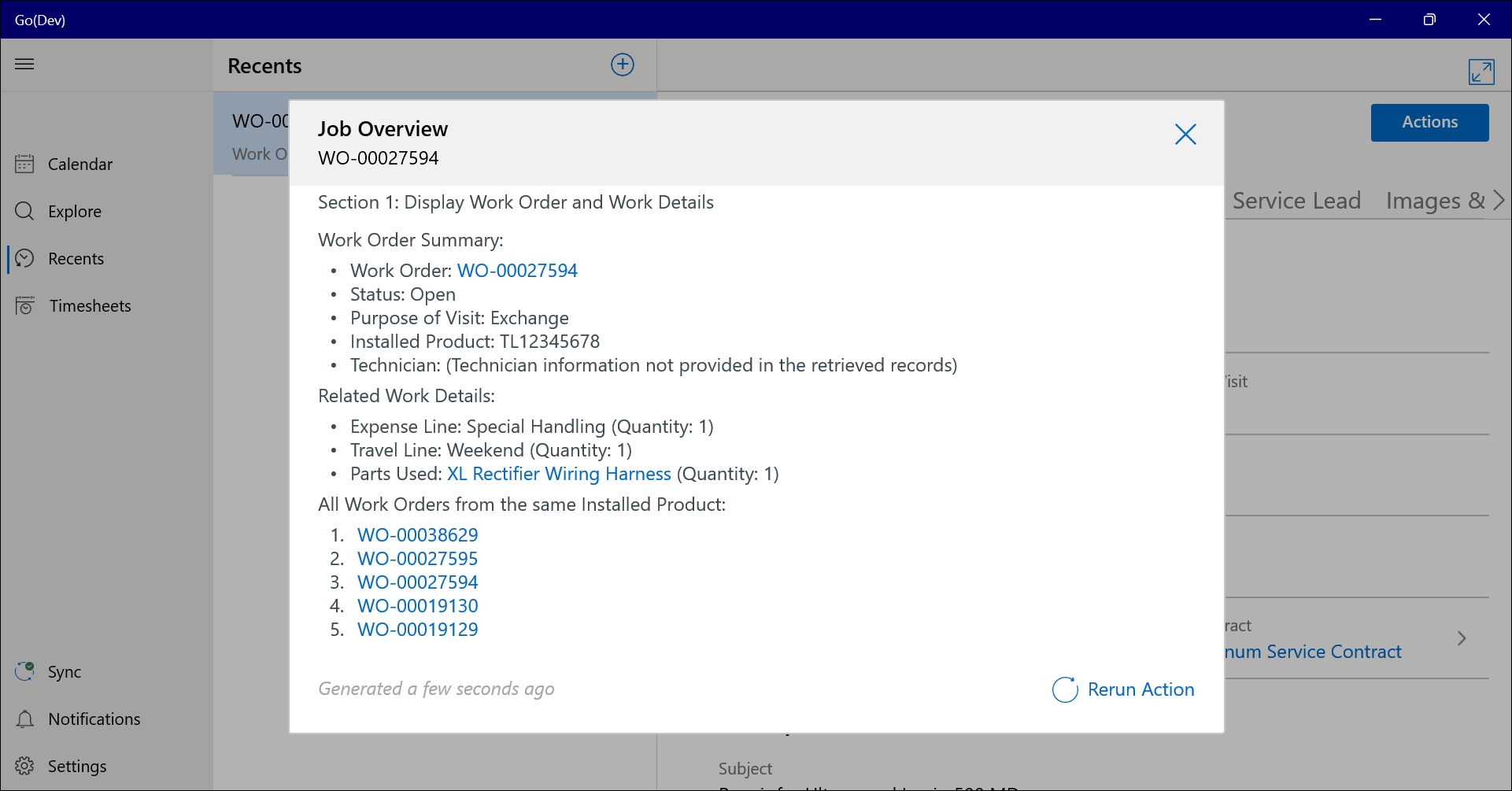
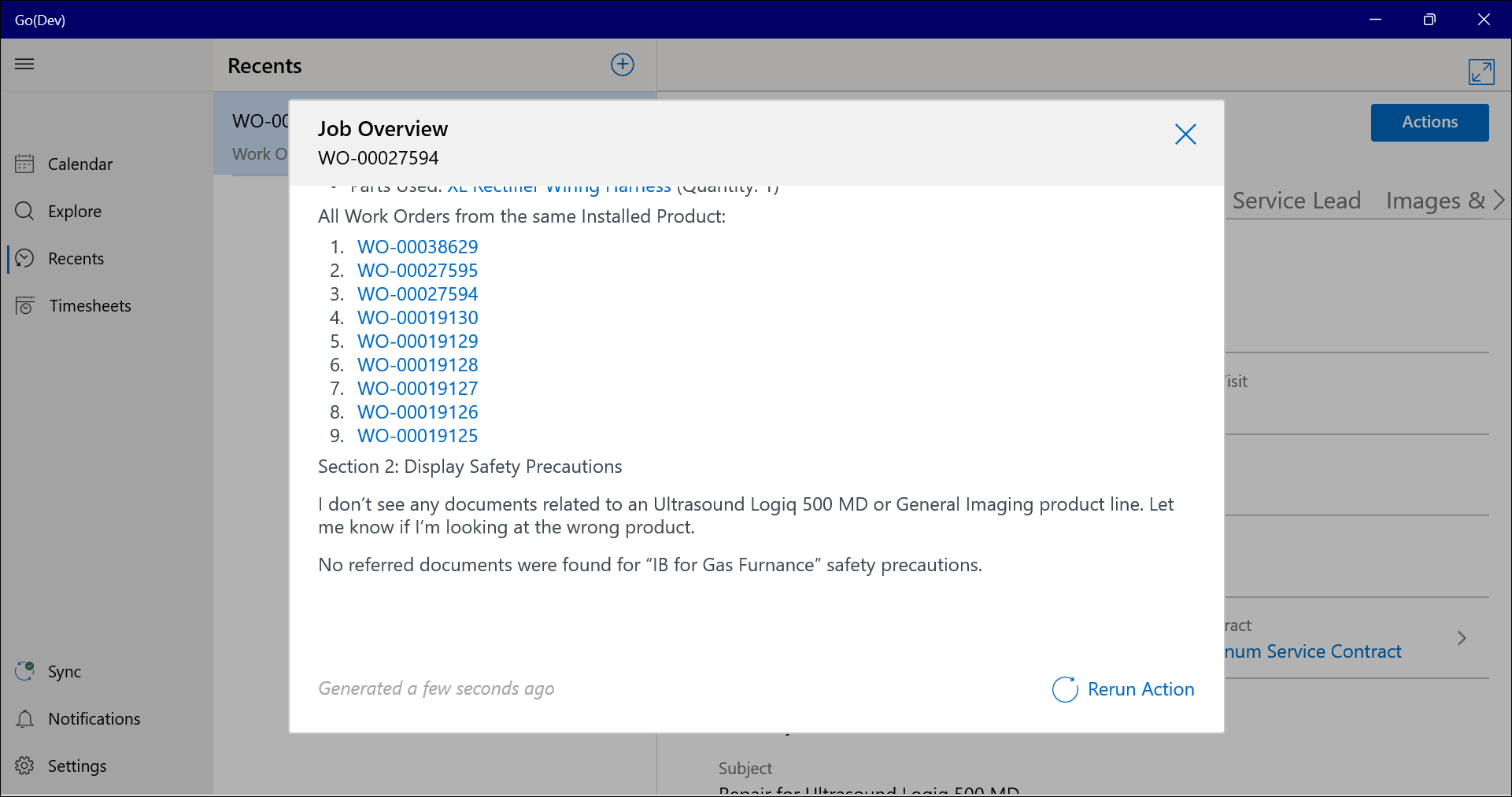
4. Tap the linked record name you want to open.
5. If the record is already available on your device, the app opens the record details view in a new screen within the current tab.
6. If the record is not yet available on your device:
◦ The app automatically downloads the record.
◦ After the download completes, the app opens the record details view.
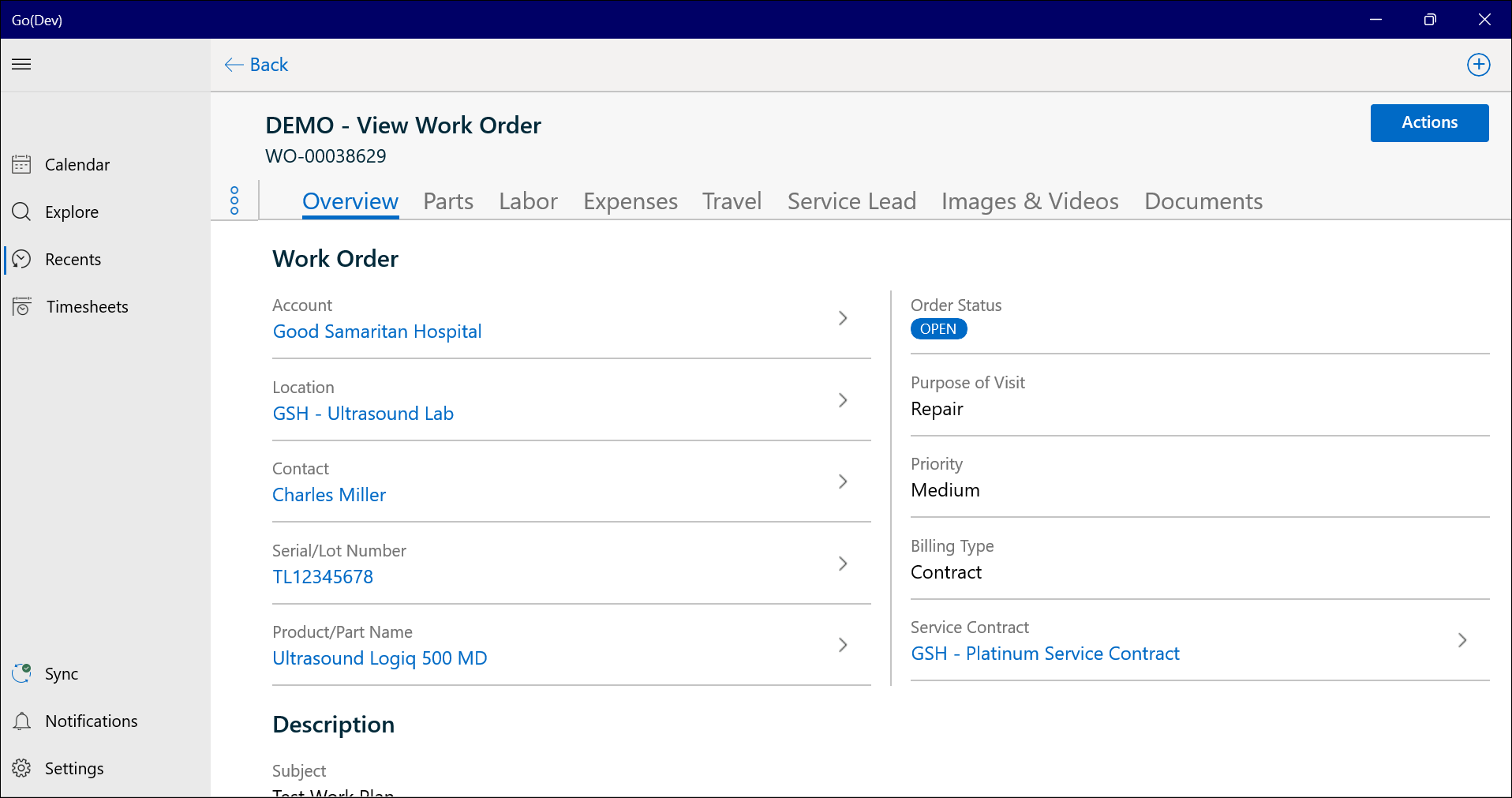
7. Review the record details and, if needed, take actions on the record, such as updating fields or related items.
8. When you are done, use the Back navigation in Go to return to the AI Action response.
The AI Action response reopens so you can continue reviewing other linked records or results.
9. If required, repeat the steps to open additional linked record names from the same AI Action response or run another AI Action.
You can also navigate to other tabs or screens after opening a linked record. When you return to the original tab and screen, you can still use the Back navigation to go back to the AI Action response if it is still in your navigation stack.
 |
If you leave the AI Action screen, the run continues. Return within 10 minutes to view the last response with timestamp or re-run it for updated results.
|