About Licenses
The Licenses page enables administrators to carry out the following tasks:
• View allocation of different types of licenses.
• View usage of different types of licenses.
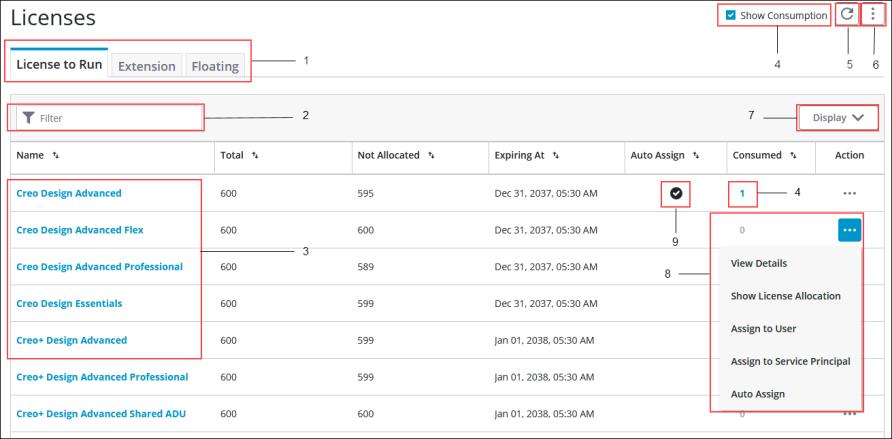
1. Types of Licenses that can be allocated.
2. Filter—Type the name of a license to search for.
3. Name of the license.
4. Displays the licenses that are currently in use.
5. Refreshes the display of licenses.
6. Right-click and click Show Expired Licenses to display the licenses that have expired.
7. Controls the fields to be displayed.
8. Enables the following actions for a license:
View Details—Displays the detailed information for the selected license.
Show License Allocation—Lists the users or profiles that are assigned a license.
Assign to User—Assigns the selected license to a user.
Assign to Service Principal—Assigns the selected license to a service principal.
Auto Assign—Automatically assigns the selected license to all new users.
9. Indicates whether a license is automatically assigned to every new user.
About Creo+ Licenses
The following types of Creo+ licenses are available:
• License to Run—This is a basic license that allows you to run Creo+. An organization purchases a fixed number of License to Run licenses for Creo+. A License to Run is required in order to launch Creo+.
PTC offers the following two types of Creo+ License to Run:
◦ Named License—The administrator assigns a named license to a specific user. Only the assigned user can use the named license. The number of assigned named licenses cannot exceed the number of purchased licenses for an organization.
◦ Shared License—The administrator can assign shared licenses to multiple named users. Assigned users can use the shared license concurrently. The number of concurrent users of a shared license cannot exceed the number of purchased shared licenses.
For example, if an organization has purchased 10 shared licenses, the shared licenses can be assigned to 20 users, but only 10 of the assigned users can use the license at the same time.
Once a user starts using a shared license, the license is locked to that user for the next 24 hours.
• Named Extension—Advanced features for an application are available with a named extension license. Like a Named License to Run, the administrator assigns named extension licenses to users based on their role in the organization.
• Floating License—Floating licenses allow Creo+ applications to run on any machine on your network that can communicate with the PTC Portal. The PTC Portal keeps track of how many licenses are checked out, and will grant or deny licenses to users based on license availability.
One or more floating licenses are assigned to a profile. Any user who is a member of a profile can use a floating license, if it is available.
See the topic “To List, Get, or Release a Floating License” in the Related Links for more information about floating licenses.
The following table details the rules governing the different types of license entitlement:
Named License to Run | Shared License to Run | Named Extension License | Floating License | |
|---|---|---|---|---|
Type of Entitlement | Assigned to a single named user. | Shared by multiple named users. When a user starts using the license, it is locked to them for the next 24 hours. [even if they stop using it after 5 minutes] | Named extension licenses are for some advanced extension packages and are meant to be used along with a named user License to Run. Assigned to named users based on their role in the organization. | Floating licenses for different applications are made available to all the members of a role based profile. |
Recommended Type of User | For frequent users. | For infrequent users. | For frequent users of extension packages. | Available to all members of the profile that contains the floating license. |
Number of Allowed Users per license | Only one named user can be assigned a named License to run. | The number of concurrent users is equal to the number of shared licenses purchased by the organization. | Only one named user can use the named Extension license. | All members of a profile can use a floating license as long as it is not in use. Users are able to return the floating license during their session. Exiting or closing an application also releases the floating license back to the profile for most applica- tions. See the topic “To List, Get, or Release a Floating License” in the Related Links for more information. |
Number of Sessions allowed on One Machine. | 1 to n sessions on the same machine. | 1 to n sessions on the same machine. | 1 to n sessions on the same machine. | 1 to n sessions on the same machine, with the same profile. Starting two sessions on the same machine but with different profiles consumes a floating license for each unique application. For example, if a user starts a session with Profile 1 and floating licenses A,B, and C and Profile 2 with floating licenses B,C, and D, only 1 floating license is consumed for B and C. |
Number of Machines that the License can Run on Concurrently | Can be run on a maximum of two machines at the same time. | One shared license can be used on one machine at a time. If a single user logs onto two machines, two shared licenses are consumed. | Can be run on a maximum of two machines at the same time. | If a user uses a floating license on two machines concurrently, two licenses are consumed. |
Compatibility with other Types of Licenses | Can be assigned along with a named Extension licenses. Cannot be assigned along with shared License to Run. Can be assigned along with floating licenses that are part of a profile a user is a member of. | Cannot be assigned to a user with a named Extension license. Can be assigned along with floating licenses that are part of a profile a user is a member of. | Can only be assigned to a user with a named License to Run. Cannot be assigned to a user with a shared License to run. Can be assigned along with floating licenses that are part of a profile a user is a member of. | Can be assigned along with any other type of license. |