Configuring Service Principals for Creo+
Perform the following steps to configure a service principal for Creo+:
Creating a Service Principal from the PTC Admin Center
To create a service principal from the PTC Admin Center, perform the following steps:
1. As an Administrator, log into the PTC Admin Center.
2. Create a service principal by following the steps detailed in the topic —Create a Service Principal.
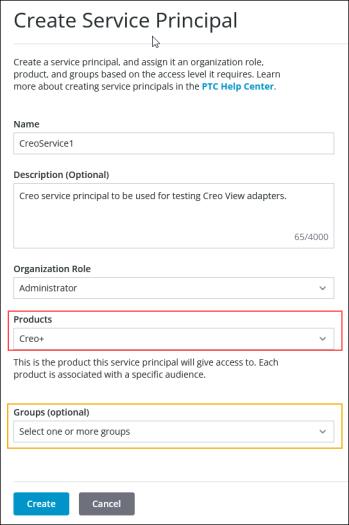
 | Do not select a group as it is not supported for Creo+. |
Assigning a License to the Service Principal from the Creo+ Portal
To assign a license to the service principal perform the following steps:
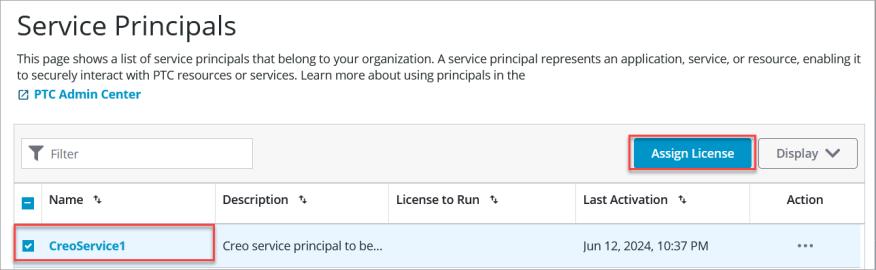
1. After creating a service principal from the PTC Admin Center, return to the Creo+ Portal. The service principal that you created is listed on the Service Principals page.
2. Select the service principal that you want to use and click Assign License to open the Assign License dialog box.
3. Select an available named license to run from the License to Run list.
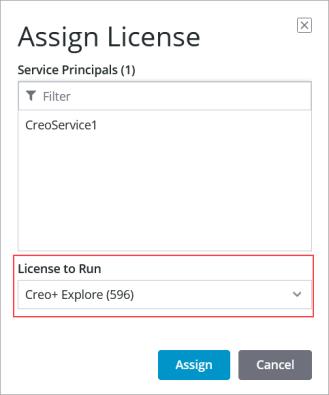
4. Click Assign to assign the license to the service principal. The service principal can now be configured to run Creo+.
Activating a Service Principal from the PTC Control Center
To activate a service principal to run Creo+ perform the following steps:
1. As an Administrator, download and install the PTC Control Center and Creo+ on the computer on which you want to use the service principal.
2. Open the PTC Control Center and click  at the top right corner.
at the top right corner.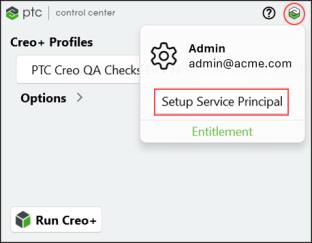
3. Click Setup Service Principal and select the service principal that you want to activate from the list. Click Activate to activate the service principal.
The PTC Control Center logs you out, and then automatically logs into Creo+ with the credentials of the activated service principal.
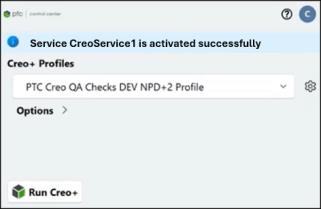
You can now run Creo+ using the activated service principal.
Stopping a Service Principal
You can stop or deactivate a service principal in one of the following ways :
• From the PTC Control Center—Open the PTC Control Center and click at the top right corner.
at the top right corner.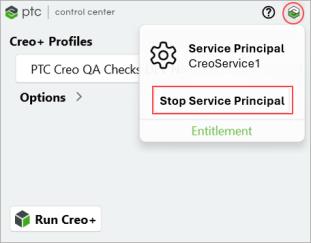
Click Stop Service Principal.
• From the command prompt—Navigate to the following location of the remote computer on which the activated service principal is running:
<driveletter>:\Users\<username>\AppData\Local\Programs\PTC\Creo\ControlCenter
Run the following command to stop or deactivate the service principal:
creoinfo.exe -erase-sp
To stop the service principal and exit the PTC Control Center in a single command run the following command:
creoinfo.exe -shutdown -erase-sp
Troubleshooting Service Principals in Creo+
Issue | Possible Reason for Failure | Workaround/Solution |
|---|---|---|
Windows notification shows “The Administrator has removed the service <service principal name>. The service is logged out from PTC Control Center” | This means that the Administrator has deleted an active service principal from the Creo+ Portal while a Creo+ session was not running. | Contact your Administrator to create a new service principal and activate it on the computer from which it must run Creo+. |