Generating a Knowledge Article from a Hotline Request
|
Prerequisites
|
|---|
|
• AI knowledge capture must be enabled for the hotline.
• You must be a staffer in the hotline where the request was received.
|
You can generate a knowledge article from a hotline request conversation to preserve the expert answers for future reference.
To generate a knowledge article from a hotline request:
1. Open the hotline request conversation.
2. On the request banner, click Create New Memo.
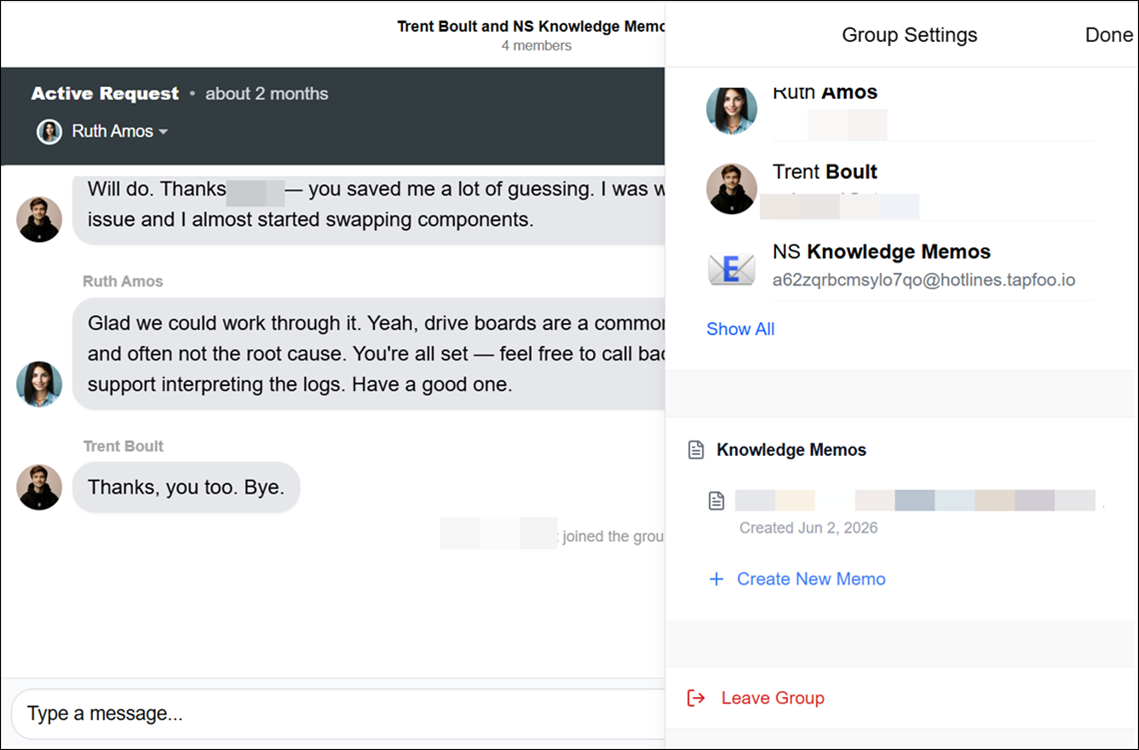
 |
The article composer opens alongside the conversation transcript. A loading indicator appears while ServiceMax AI generates the article draft.
|
3. Review the generated article title and body text.
|
|
The transcript shows only messages that existed when the composer was opened. New messages received after opening do not appear in the transcript. You can scroll through messages and open attached images, files, and videos for reference. The transcript is read-only, no context menu is available on messages, and you cannot annotate or send images from the transcript.
|
4. Edit the article title and body as needed.
|
|
Article titles must be unique within the organization.
|
5. Click Save Memo.
|
|
An error message will be displayed if the duplicate title exists, change the title before saving.
|
The knowledge article is saved and linked to the hotline request conversation. It is automatically uploaded to the ServiceMax AI Knowledge Access agent. The request banner shows an indicator confirming an article has been created. Any hotline staffer in the same hotline can create additional articles from the same request.