Creating a Current-Day Optimization Record
 |
Current-Day Optimization is a Production Beta feature in Service Board 25.1.
|
After you configure and activate a System Job to run Current-Day Optimization at defined intervals, your next step is to create a Current-Day Optimization record, After you complete the steps in this procedure, Current-Day Optimization runs automatically, or you can trigger it manually.
To create a Current-Day Optimization record:
1. In Max Admin, click System Management ( ) > > , and then in the list view, in the top left corner, click Create (
 ).
).
) > > , and then in the list view, in the top left corner, click Create ().2. On the record page, in the Name field, enter a name for the record, and then in the Job Criteria field, click to open the Edit Rule dialog box.
3. In the Edit Rule dialog box, select one or more Job fields or Job-related object fields to define the Jobs you want to include in the optimization, and then in the bottom right corner, click Apply.
|
|
For more information on the Edit Rule dialog box, see Defining Data Scanner Rules in Service Board for Implementers.
|
4. Do one of the following:
◦ In the SMQL Query Criteria for Resources field, configure a valid SMQL query to target appropriate Resources, for example:
svmx_service_team = '<uuid-of-the-service-team>'
|
|
You can use the built-in :jobs parameter to reference the Jobs filtered from the SMQL query. If you use this parameter, be sure that there is a direct or indirect relationship from the relevant Resources to the Jobs, for example, resource.sub_region.pending_jobs in :jobs).
|
◦ Create a custom Operation that takes the:jobs parameter as input to execute complex logic and return a MaxObject list of valid Resource records, and then in the Custom Query Operation for Resources field, select the Operation.
|
|
• You can use either an SMQL query or a custom operation, but not both at the same time.
|
5. In the Optimization Setting field, configure the predefined Current-Day Optimization Setting record, or configure and select a custom Optimization Setting record.
|
|
• The selected Optimization Setting record must have a 1–day scheduling horizon.
• For more information, see Configuring Schedule Optimization.
|
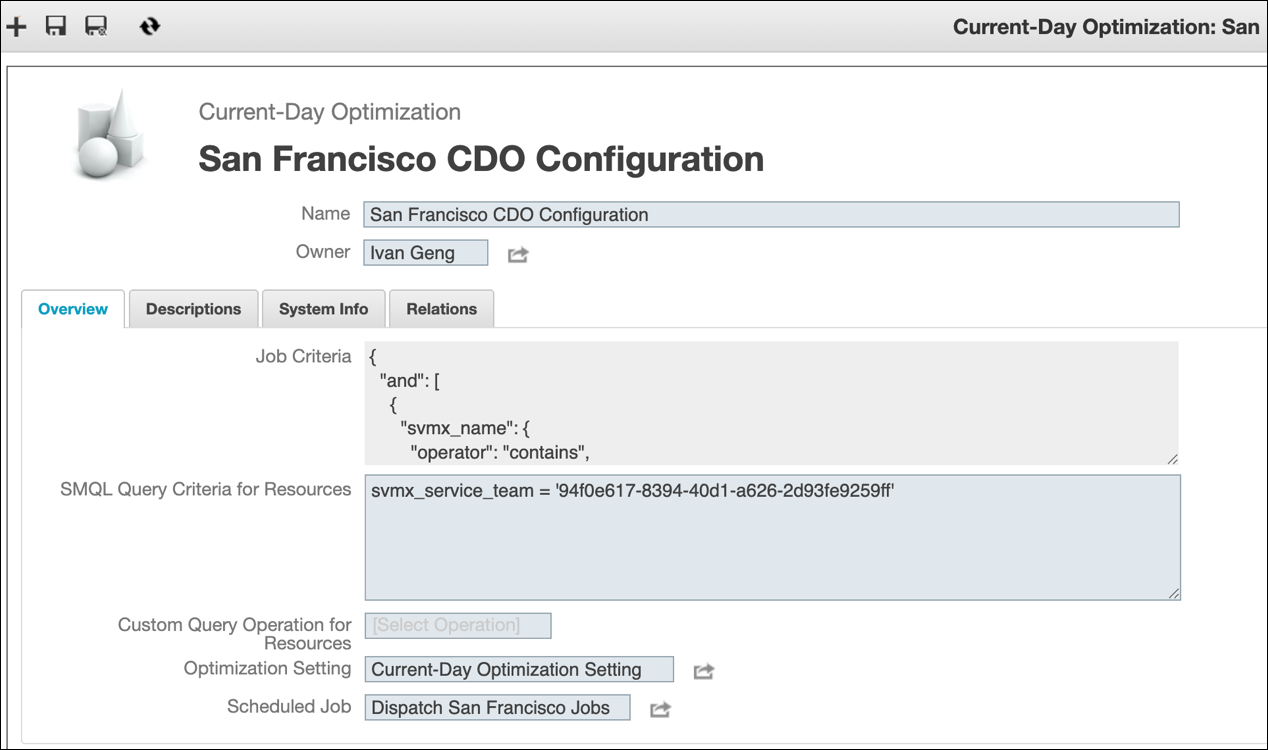
6. Confirm that all your field values are valid and that either an SMQL query or a custom operation is configured, and then in the top left corner, click Save and Close ( ).
).
).