Adding Color-Coding Settings
On the Colors tab, colors are predefined for default fields of each available item. You can select additional fields and define display colors to provide quick visual indicators when conditions change, such as when Job, Appointment, or schedule updates occur. For example, you can change the left border color of Job Cards or the color of Appointment blocks that have specific field values. To modify color-coding settings, you must first add the colors you want to use to color-selection palettes for the fields you want to modify.
 |
Color personalization is disabled by default. To make these settings available, your Service Board administrator must enable the Enable Color Personalization setting.
|
To add color-coding settings:
1. Click Application Settings ( ) > , and then scroll to the item whose colors you want to configure, for example, Job.
) > , and then scroll to the item whose colors you want to configure, for example, Job.2. In the list, click the field for which you want to add color settings, for example, Purpose of Visit, and then click Add ( ).
).
).3. In the newly added row, in the Value drop-down list, click a value, for example, Installation, and then in the Color column, click the gray box to open the color palette.
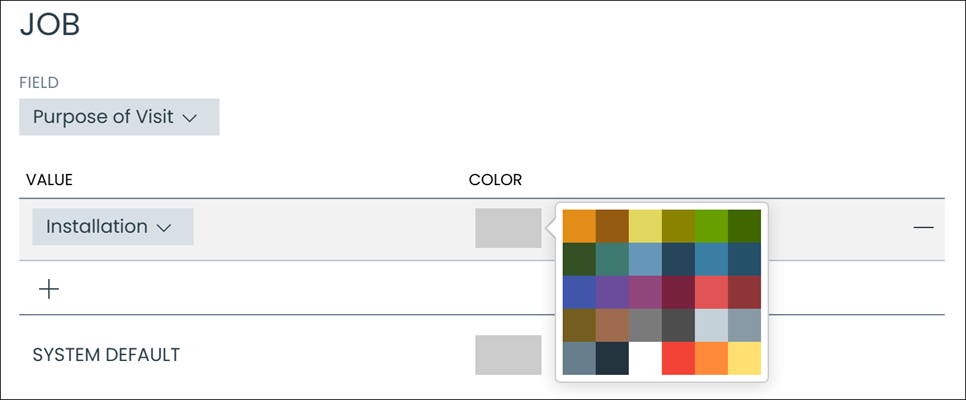
4. On the color palette, select a color, and then click Save to instantly apply your settings.
|
|
Job color settings are applied to Job Cards, and also to Job Pins and tooltips on the Map.
|
Adding Color-Coding Settings in Classic Mode
| | The Classic user interface retires on November 8, 2026. All features are available in the Service Board Modern interface. We recommend switching to Service Board Modern at your earliest convenience to access the latest features. |
On the Colors tab, colors are predefined for default fields of each available item. You can select additional fields and define display colors to provide quick visual indicators when conditions change, such as when Job, Appointment, or schedule updates occur. For example, you can change the left border color of Job Cards or the color of Appointment blocks that have specific field values. To modify color-coding settings, you must first add the colors you want to use to color-selection palettes for the fields you want to modify.
| | Color personalization is disabled by default. To make these settings available, your Service Board administrator must enable the Enable Color Personalization setting. |
To add color-coding settings:
1. Click Application Settings () > , and then scroll to the item whose colors you want to configure, for example, Job.
) > , and then scroll to the item whose colors you want to configure, for example, Job.2. In the list, click the field for which you want to add color settings, for example, Purpose of Visit, and then click Add ().
).3. In the newly added row, in the Value drop-down list, click a value, for example, Installation, and then in the Color column, click the gray box to open the color palette.

4. On the color palette, select a color, and then click Save to instantly apply your settings.
| | Job color settings are applied to Job Cards, and also to Job Pins and tooltips on the Map. |
Related Topics