Viewing Parts in a Solution
Open and review the parts associated with an Investigation Solution to see the recommended components and quantities for the resolution.
The Parts (n) link on a Solution indicates that parts are associated with the Solution. Hover over the link to preview parts and quantities.
To view parts on a Solution:
1. Open the relevant Work Order.
2. Select the Investigations tab.
3. In the Solutions section, locate the Solution with a Parts link.
The link indicates one or more parts exist on that Solution.
4. Hover over the Parts link to preview parts and quantities.
A popup displays a summary table with Part Name and Qty columns for each associated part.
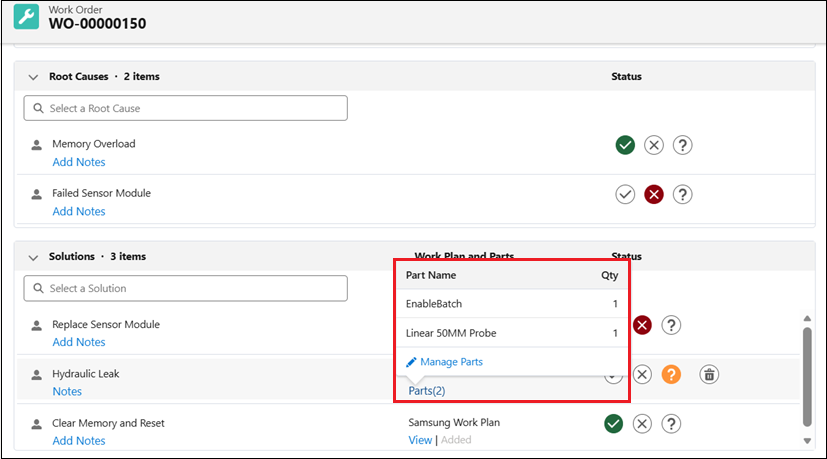
5. To view the complete list, click Manage Parts at the bottom of the preview popup.
The Manage Parts pop-up window is displayed, showing the following information for each part:
◦ Part Name: The name of the part.
◦ Qty: The quantity specified for the part.
All parts for the Solution appear here. Removing an Investigation Solution also removes its parts from the interface.
Related Topics