Editing Parts in a Solution
Update the parts list on an Investigation Solution by adjusting quantities, adding new parts, or removing existing ones as the investigation progresses.
You can edit parts to update quantities, add new parts, or remove existing parts for a Solution.
To edit parts in a Solution:
1. Open the relevant Work Order.
2. Select the Investigations tab.
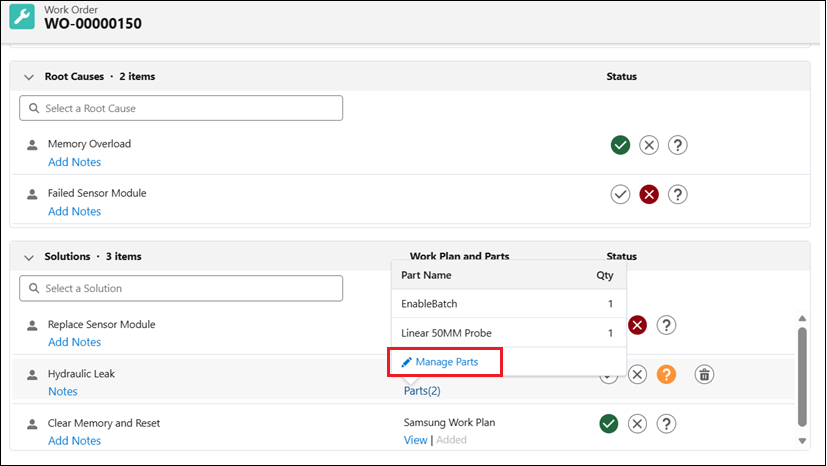
3. In the Solutions section, locate the Solution with the Parts link.
4. Select the Parts link to view the parts list.
5. Select Manage Parts.
The Manage Parts window displays all available parts. Previously selected parts are indicated by a checked checkbox, and their current quantities appear in the Qty column.
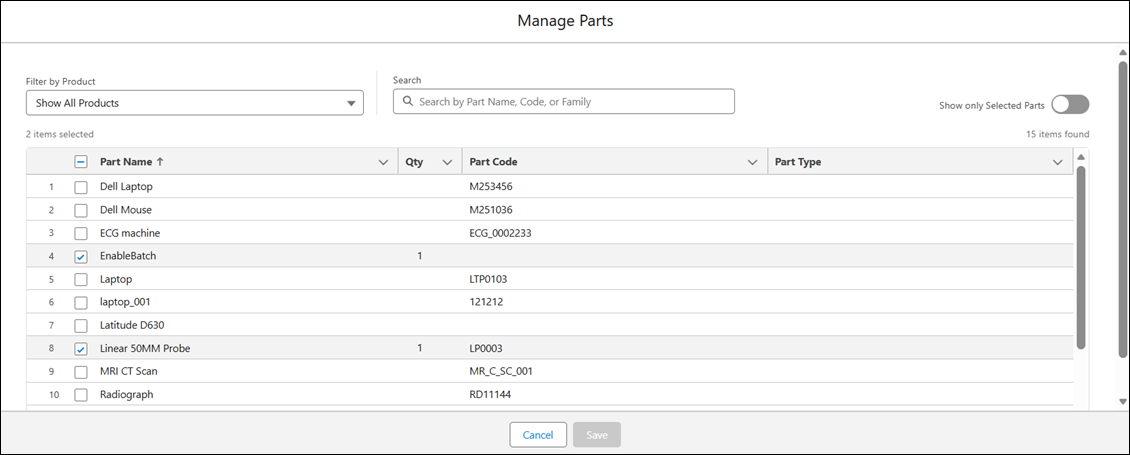
6. In the Manage Parts window, perform one or more of the following:
◦ Update quantity (single part): Hover over the Qty field for a part and select the pencil icon. In the inline editor, enter a new value and select Apply to confirm or Cancel to discard the change. The updated quantity appears in the Qty column.
 |
When only one part is selected for a Solution, updating the value in the Qty field applies the change automatically without showing Apply or Cancel.
|
◦ Update quantity (multiple parts): Select multiple parts using the checkboxes. Select the pencil icon on any Qty field. In the inline editor, select Update N selected items (where N is the number of selected parts), enter the quantity, and select Apply. All selected parts update to the specified quantity.
◦ Add parts: Search for and select parts from the list. The system sets the Qty value to 1 by default for each newly selected part. Update the quantity if required. For more information, see Adding Parts to a Solution.
◦ Remove parts: Clear the checkbox next to the part. For more information, see Removing Parts from a Solution.
7. Select Save.
Changes are saved to the Solution, and the Parts (n) link updates to reflect the updated parts and quantities.
|
|
• Filter guidance: Use the Filter by Product dropdown to narrow results when adding parts. If Product Structure is enabled, the filter defaults to the Installed Product structure. Select Show All Products to view all parts.
• Unsaved changes behavior: If you click Cancel or close the window without saving, a Discard Changes? confirmation dialog appears with the message: "Unsaved changes will be lost upon cancel/close. Do you want to continue?"
Select Yes to discard all changes and close the window. Select No to return to the Manage Parts window and continue editing.
|
Related Topics