Updating Parts Consumption for Non-Serialized Parts
As a technician, you can update parts consumption during your service of non-serialized part from your stock. A non-serialized part refers to inventory items that are not individually tracked by unique identifiers like serial numbers. Instead, these parts are managed in bulk, typically by quantity or weight, and are often interchangeable.
Perform the following steps to update part consumption of non-serialized parts.
1. Open the Go app with your valid credentials, and then navigate to Appointment Detail > Work Order record.
The Work Order Detail screen is displayed.
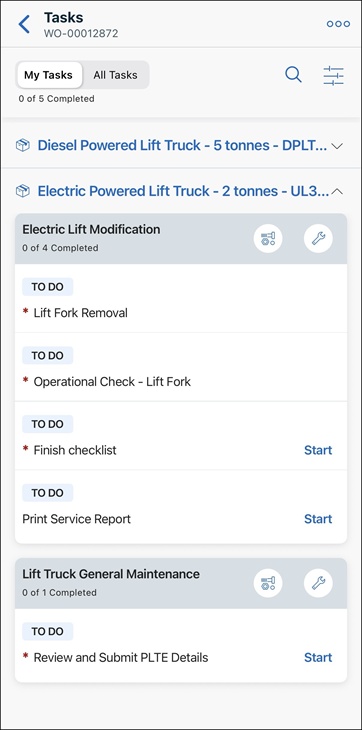
2. From the Actions menu, tap the View Service Task option.
The list of associated tasks is displayed.
 |
By default, My Tasks view is displayed to show the list of tasks that are assigned only to you.
|
3. For the required task, tap the parts icon. The Parts screen is displayed with the list of parts. The list displays the planned and used quantities for each part. It also displays the total count of the planned and used parts on top of the list.
4. Tap a part whose planned quantity is more than the used quantity. The Part Details screen is displayed with the On Hand quantity. On Hand quantity refers to the recommended parts quantity available in your stock. If the part is not in your inventory, the On Hand label is not displayed on the screen.
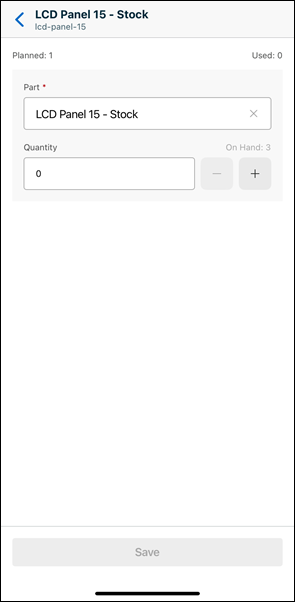
5. To add a different part from the recommended part list, remove the existing part from the Part field, and then search and select the required part.
|
|
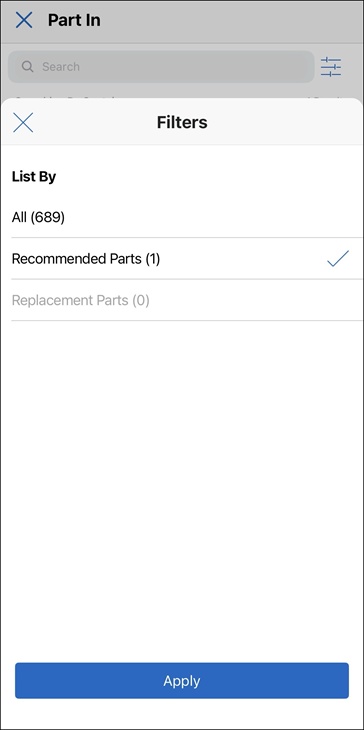
You can tap the filter icon next to the search box to filter the parts list. Select All to show all parts, Recommended Parts to show parts configured as recommended parts for the original part, or Replacement Parts to show parts configured as replacement parts for the original part.
|
6. Update the Quantity field with the number of consumed parts.
|
|
• You cannot enter a quantity more than the On Hand quantity.
• You cannot update the quantity if the On Hand quantity is 0 or a negative number.
|
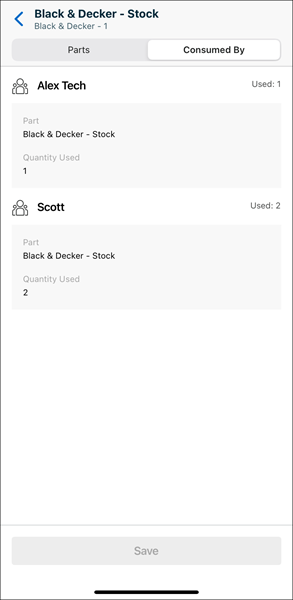
7. If the part is consumed by other technicians as a part of the same work plan, a Consumed By tab is displayed. Tap the tab to see the details about parts consumed by other technicians.
|
|
The list is sorted by technicians’ names in an alphabetical order.
|
8. Tap Save.
A confirmation message is displayed that the part is updated, and you are redirected to the parts list. The list is updated with the used quantity based on your updates on the Quantity field.
|
|
It is recommended for you not to log in to your Go app on multiple devices and consume parts. It may result in bad data and cause inventory updates to fail.
|
Related Topics