Setting a Default Landing Tab for an SFM
Each SFM in the Go App can have its own default landing tab. After you set a preference, the SFM opens to that tab every time you access it. The preference persists across app resets, upgrades, and reinstalls. If the selected tab becomes unavailable, the SFM falls back to the Overview tab automatically.
Android and iOS
To set a default landing tab in SFM:
1. Open the Go App and navigate to a work order record.
2. Open a View SFM or Edit SFM that contains multiple related section tabs.
3. Open the Default Landing Tab screen using the more options (3 dots) menu.
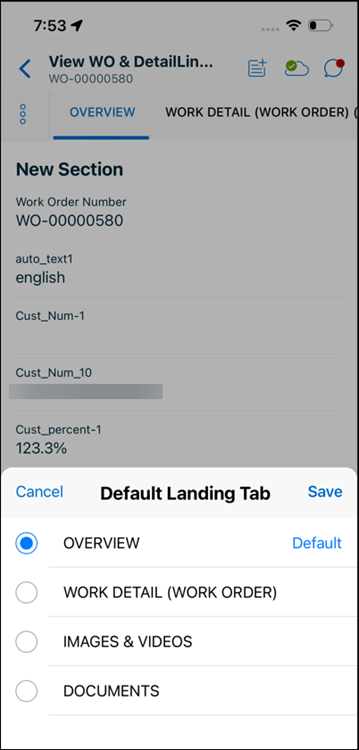
4. Select the tab you want as the default landing tab.
5. Tap Save.
Windows
To set a default landing tab in SFM:
1. Open the Go App and navigate to a work order record.
2. Open a View SFM or Edit SFM that contains multiple related section tabs.
3. Open the Default Landing Tab screen using the more options (3 dots) menu.
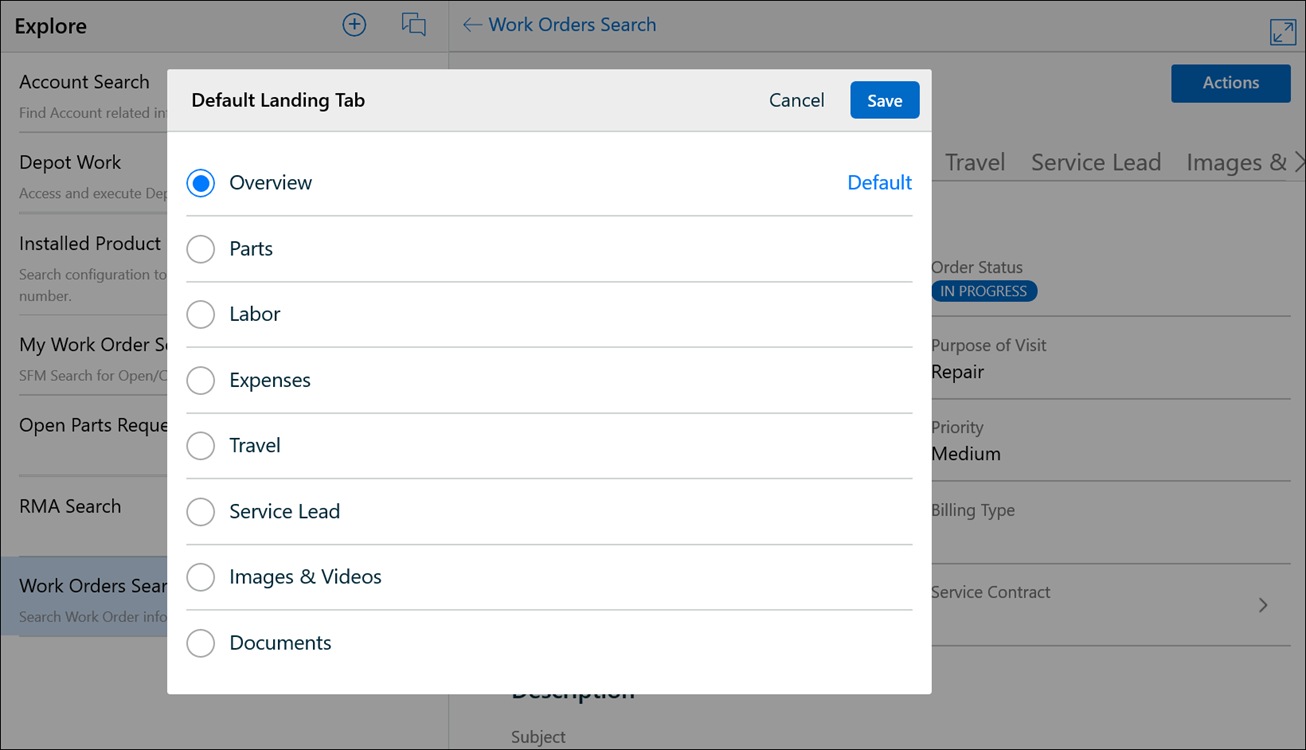
4. Select the tab you want as the default landing tab.
5. Click Save.
The selected tab is saved as the default landing tab for this SFM. The next time you open the same SFM, it opens directly to the tab you selected. To change the default, repeat these steps and select a different tab.