Hiding Team Members Toolbar in Calendar Day View
Use Cases of Hiding the Members Toolbar in Team Calendar
• Maximizing Calendar Viewing Space: On mobile devices or smaller screens, hiding the members toolbar provides more space to view calendar events, making it easier to see more appointments, details, or overlapping events without scrolling.
• Focusing on Schedule Details: When a user wants to concentrate on the day’s schedule or specific event details, hiding the toolbar removes visual distractions and allows for a cleaner, more focused calendar view.
• Temporary Reduction of UI Clutter: Users who have already selected their desired team members may want to temporarily hide the toolbar to reduce clutter and streamline the interface, especially during busy periods or when presenting the calendar to others.
• Improved Readability for Complex Schedules: For days with many events or overlapping appointments, hiding the toolbar can help users better analyze and interpret the schedule without obstruction from additional UI elements.
• Presentation or Demonstration Mode: When sharing the screen or demonstrating the calendar to others, for example, in meetings or training sessions, hiding the toolbar can provide a cleaner, more professional appearance.
• Personal Preference and Customization: Some users may simply prefer a minimalist interface. Allowing the toolbar to be hidden supports user customization and a more personalized experience.
Perform the following steps to hide the members toolbar from the Calendar Day View.
1. Log into the Go app with your valid credentials.
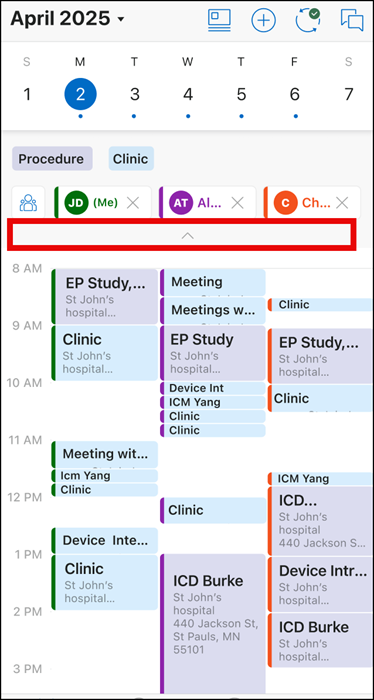
The Calendar screen is displayed with the team member pills on the top.
 |
By default, the members toolbar is displayed in the Calendar Day View.
|
2. Tap the up arrow as highlighted in the above screenshot.
The members toolbar is hidden giving you more space on the Calendar screen.