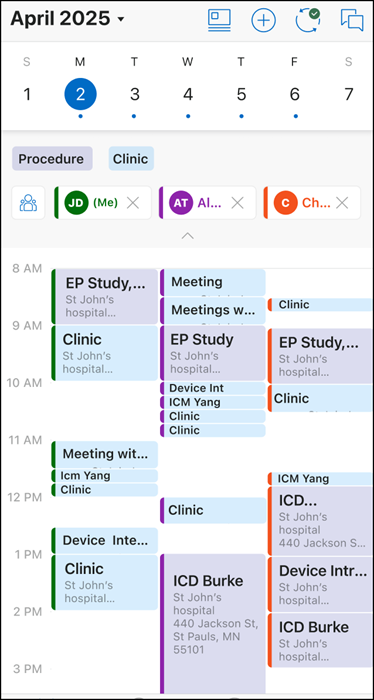
Adding Team Members to Calendar Day View
Use Cases for Adding Team Members to the Team Calendar
• Collaborative Scheduling: Technicians can add colleagues to the Team Calendar to view everyone’s assignments side-by-side, making it easier to coordinate jobs and avoid scheduling conflicts.
• Resource Availability Checks: Before accepting a new job or reassigning a work order, a technician can add relevant team members to quickly check their availability and workload for the day or week.
• Team Lead Oversight: Supervisors can add all direct reports to monitor their schedules, ensuring balanced workloads and identifying gaps or overlaps in coverage.
• Onboarding and Training: New team members can be added to the calendar so that mentors or trainers can track their assignments and provide support as needed.
|
Prerequisites
|
|---|
|
You must reset the Go app and run an initial sync when the Team Calendar option is enabled.
|
You can add your team members to the Day View of your calendar to see events assigned to them.
1. Log into the Go app with your valid credentials.
The Calendar screen is displayed with the pill with your initials followed by Me on the top.
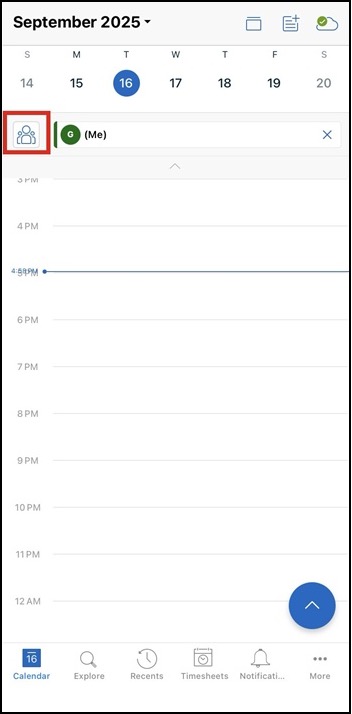
2. Tap the Manage Members icon next to your name.
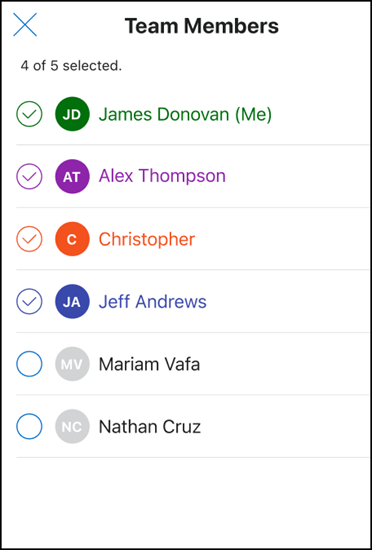
The Team Members screen is displayed with the list of your team members.
 |
• You can see your name pinned at the top of the list.
• You can see group members belonging to your service team, listed alphabetically by their names.
• You can select up to five members only.
|
3. Select the members for which you want to see the events, and tap Apply.
Work Order events and non-Work Order events assigned to your team members are displayed on your calendar based on their schedules.