Accessing Scheduled Tasks in the Calendar
This topics explains accessing scheduled tasks in the calendar
The calendar displays scheduled tasks alongside Work Order and non-Work Order events, giving you a complete view of your planned work for the day or week. Scheduled tasks appear as Scheduled Task on the Calendar with a consistent visual style that makes them easy to identify.
Scheduled Task on the Calendar are available in the same calendar views as other events, including Day, Week, and Agenda views. Days that contain one or more events show a dot, helping you quickly identify busy days.
|
Prerequisites
|
|---|
|
• Tasks are scheduled and assigned to the technician.
• You have access to the calendar in the ServiceMax Go app.
|
Android and iOS
To access scheduled tasks in the calendar:
1. Open the Go app and tap Calendar.
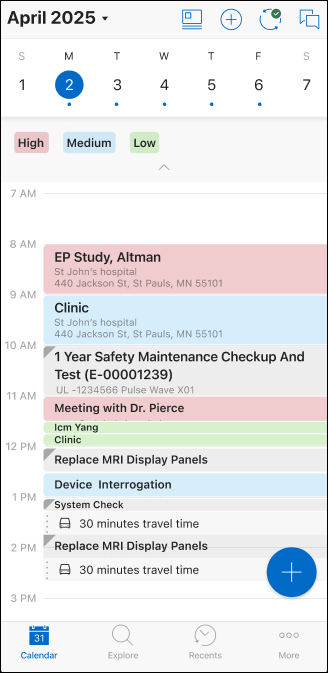
2. Select a Day, Week, or Agenda view.
3. Review the calendar for the following details.
◦ Days with scheduled events show a dot.
◦ Scheduled Task on the Calendar appear alongside other events using a standard task color and indicator.
◦ Drive time is displayed with the task if it is configured for the event.
 |
You cannot reschedule a Scheduled Task on the Calendar.
|
Windows
To access scheduled tasks in the calendar:
1. Open the Go app and click Calendar.
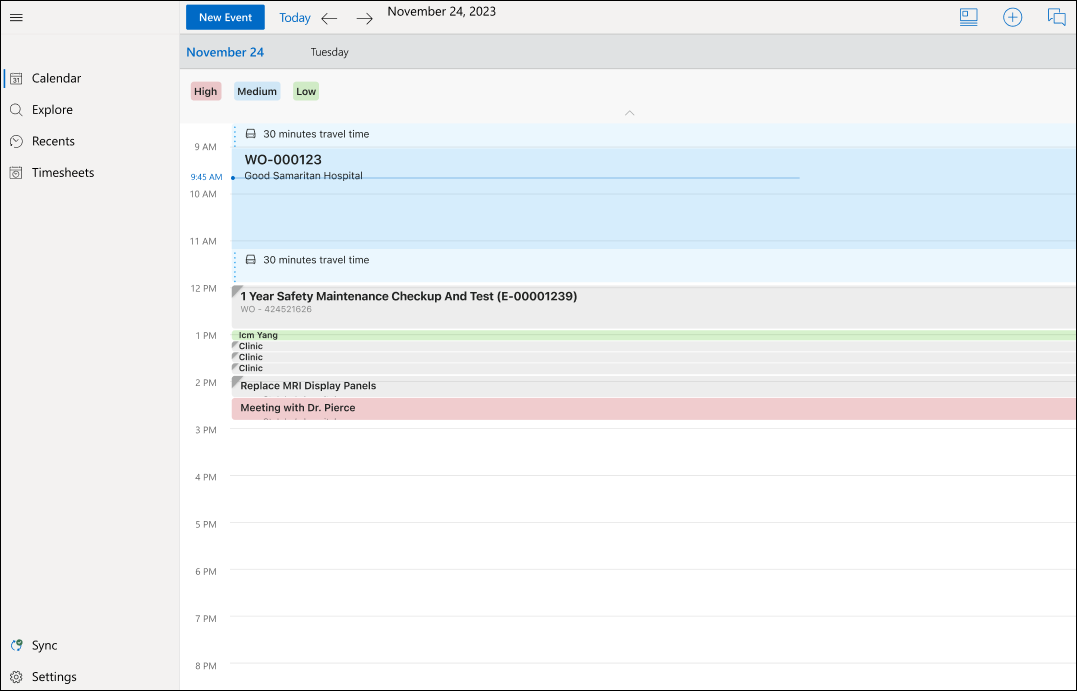
2. Select a Day, Week, or Agenda view.
3. Review the calendar for the following details.
◦ Days with scheduled events show a dot.
◦ Scheduled Task on the Calendar appear alongside other events using a standard task color and indicator.
◦ Drive time is displayed with the task if it is configured for the event.
|
|
You cannot reschedule a Scheduled Task on the calendar.
|