Updating Due Date in Kanban Mode
You can update the due date of a queue item in all the modes except the Technician card in the Summary Mode. The Technician card has a column Task Due Date instead of Due Date because this card is task centric. The queue items that are Past Due are highlighted in red.
To update the due date of a queue item:
1. Go to the Depot Queue tab and select Kanban mode. For more information, see Viewing Queue Items in Kanban Mode.
2. Click a work plan link. The Metrics Drawer for Work Plan opens.
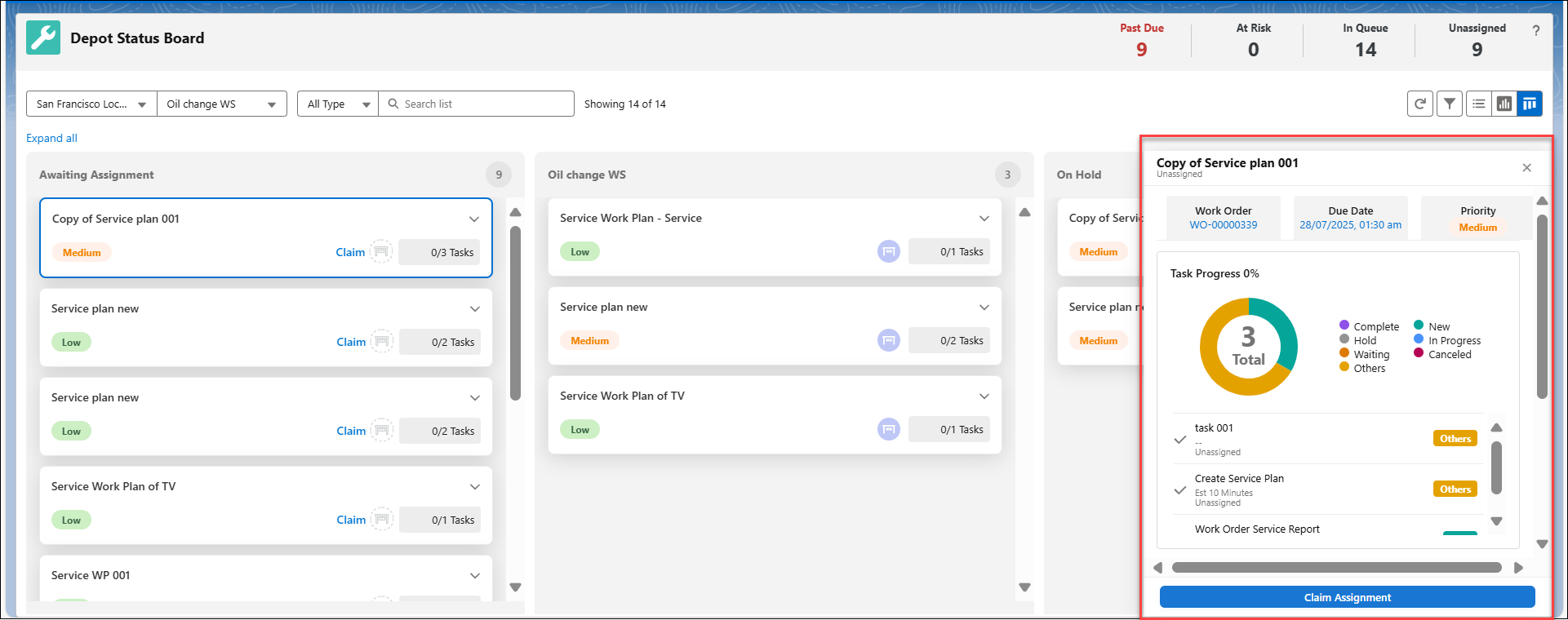
3. Click the due date value which you want to update. The due date window opens.
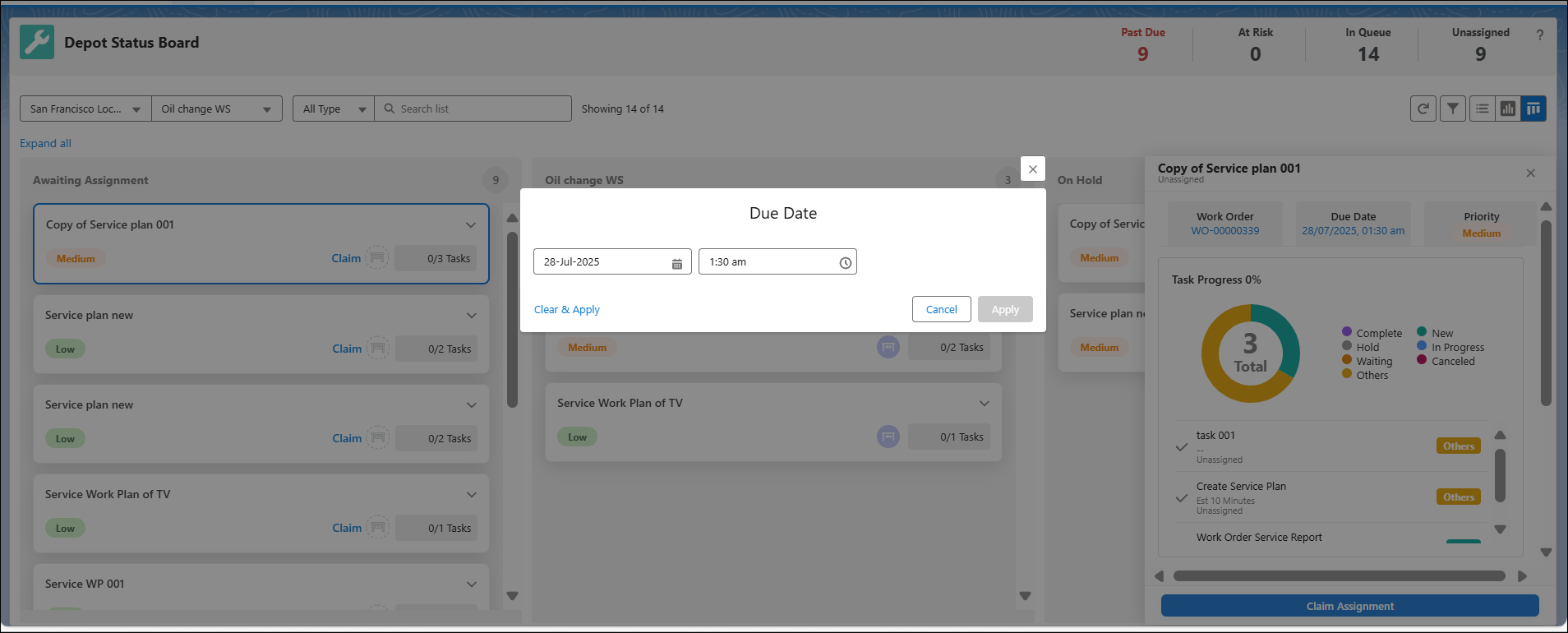
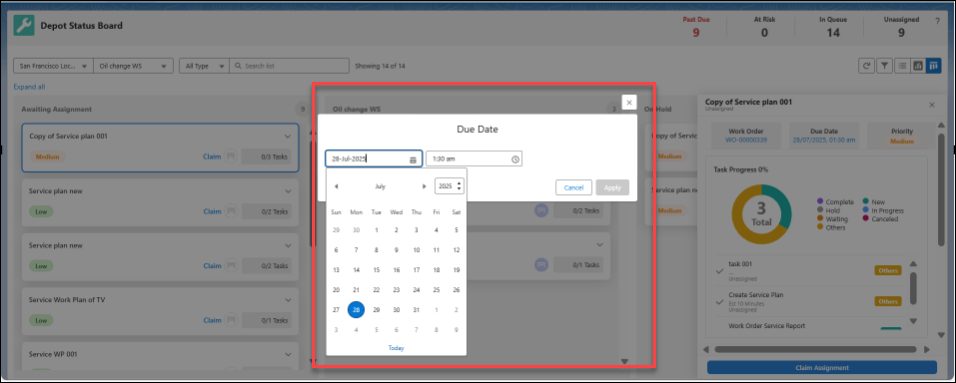
4. Click Calendar icon to select the date, month, and year you want to update.
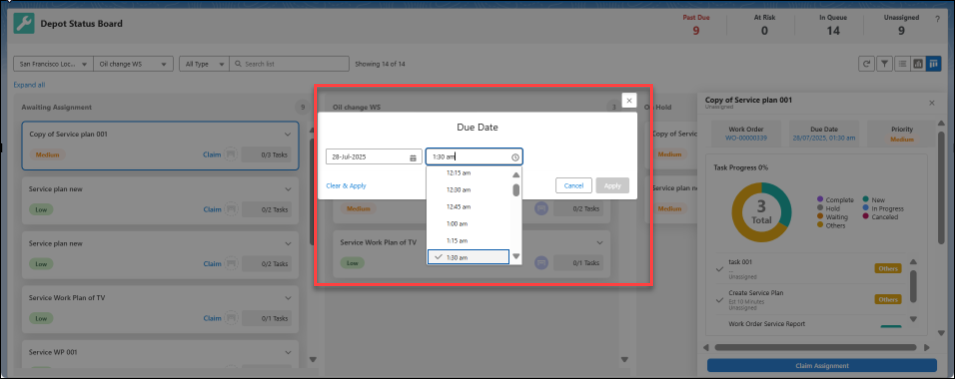
5. Click Clock icon to select the time from the drop-down.
6. Click Apply to save your changes. The due date and time gets updated for the queue item.
 |
You can also exit the selection pop-up window using Cancel.
|
Reference Topics