Refreshing Queue Items in Summary Mode
The refresh icon updates every 3 minutes, but only if there is an update in the depot queue item field. It is visible across all views, except in the Technician card within the Summary view.
You can view the latest records by clicking 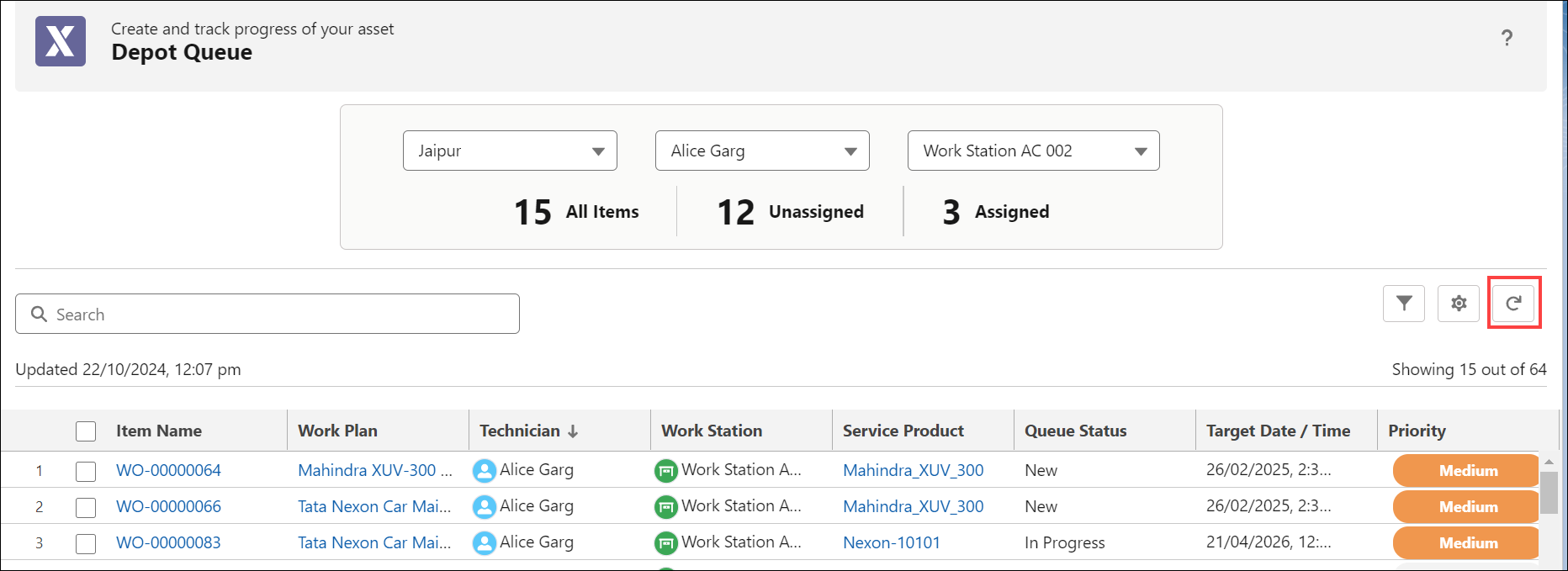 and hovering over the icon shows the Last refresh timestamp (Date and Time)
 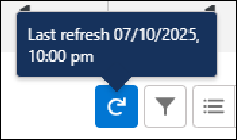 .
.
and hovering over the icon shows the Last refresh timestamp (Date and Time) .By default, the Queue Overview page automatically refreshes every 3 minutes. In the setting, SET003, you can configure the auto-refresh interval based on your requirements.
To refresh the page:
1. Go to the Depot Queue tab and select Summary mode. For more information, see Viewing Queue Items in Summary Mode.
2. Click .
.The Depot Queue page refreshes and displays the latest data.
Reference Topics