Viewing Task Status in Summary Mode
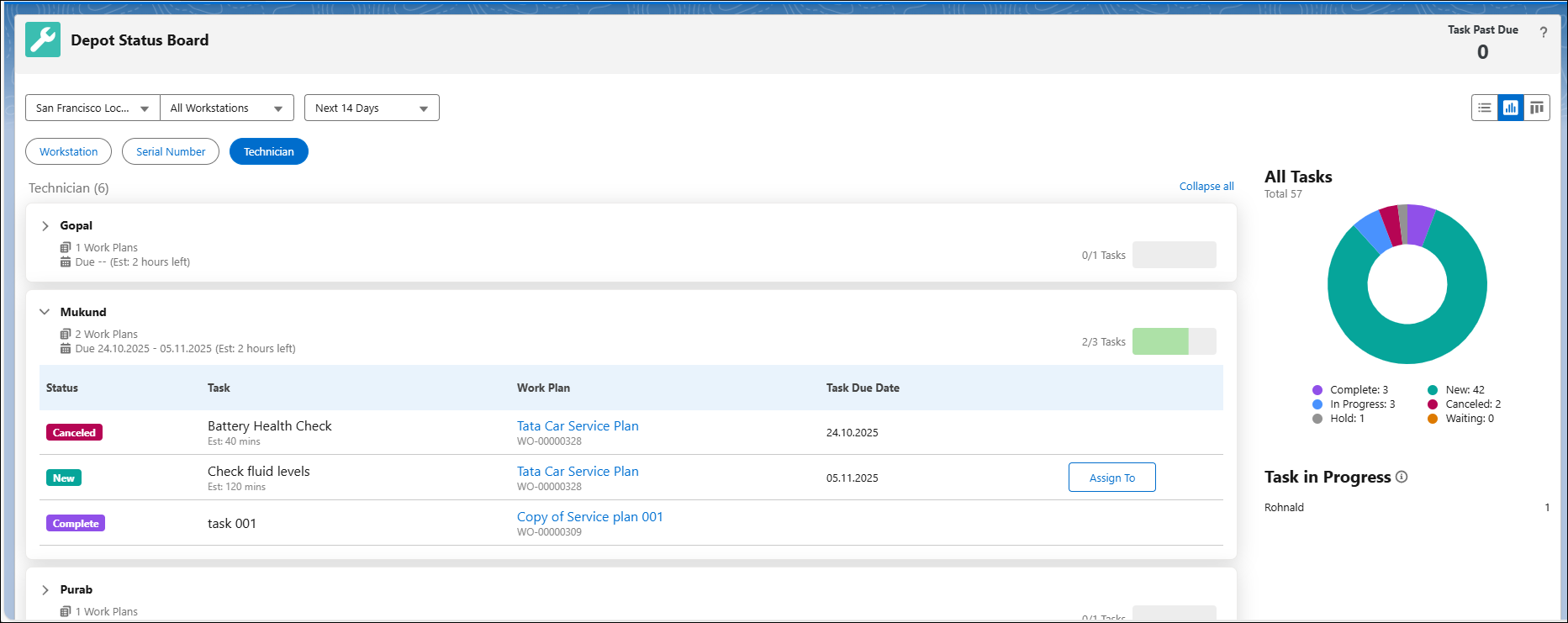
The Technician card under Summary mode helps technicians track the progress of the task related to queue items. For more information, see Viewing Queue Items in Summary Mode.
This is important to quickly identify the number of tasks that are pending, completed, on hold, and so on. lists the following fields:
• Status
• Task
• Work Plan
• Task Due Date
 |
This also lists a column to assign technicians to their relevant tasks. You can assign technicians using the Assign To button.
|
Summary Chart
The status values are color coded to differentiate between the various statuses and indicate the progress of a task. These values cannot be modified by supervisor or technician as these are automatically populated based on the progress of the queue items in a workstation. The Summary Chart under All Tasks header is a pie-chart that displays the count of tasks and their status values in numeric and graphical form. It also lists Task in Progress with the Technician name. The following values are supported for the status field:
• Complete
• In Progress
• Hold
• New
• Canceled
• Waiting
• Others
|
|
Any other status values that are not added to the pre-configured picklist values are displayed as Others.
|
The various statuses under each Technician card.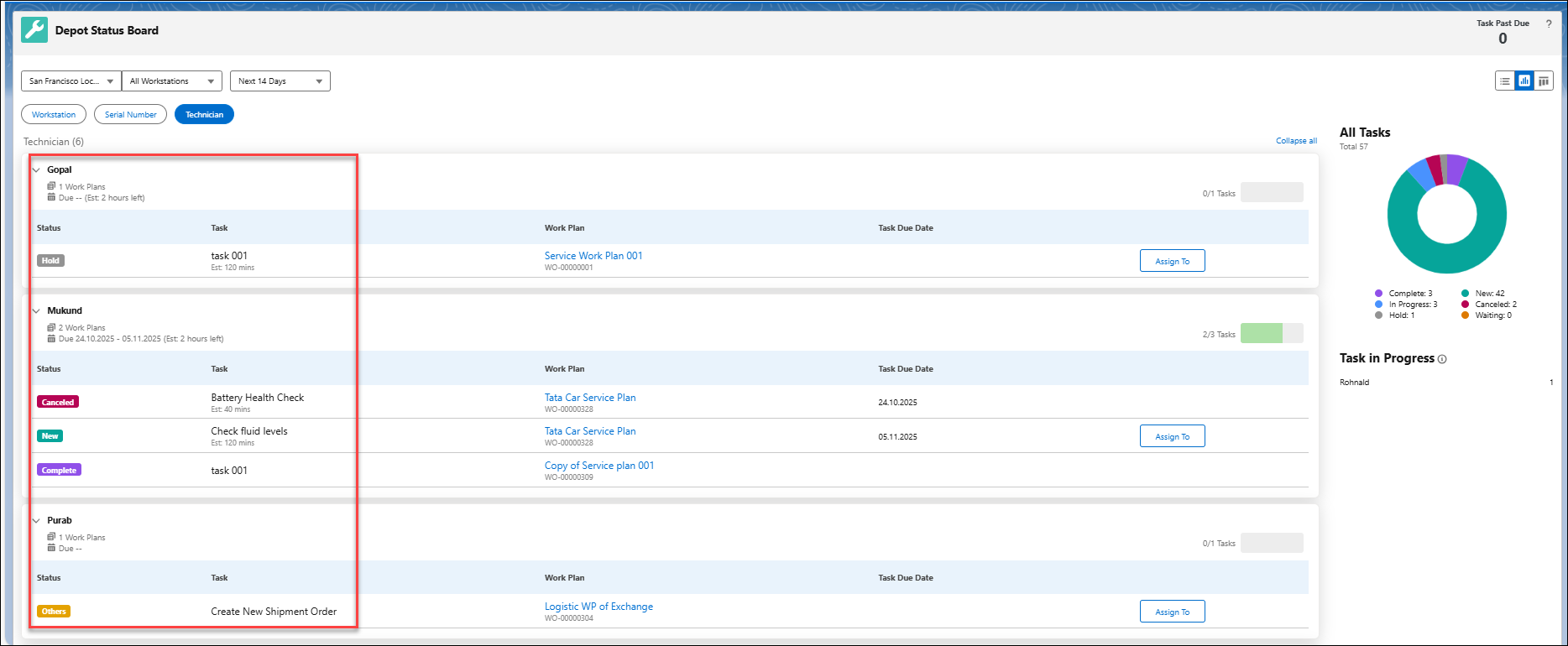
|
|
The status values are automatically populated and cannot be modified because it is linked to the progress in a workstation.
|
Color Coding for Task Status
The color coding for different task status are defined in the system to distinguish them on the pie-chart. The following color codes applies to various tasks status:
• Purple: Complete
• Blue: In Progress
• Grey: Hold
• Yellow: Others
• Green: New
• Maron: Canceled
• Orange: Waiting
The Summary Chart and various color coding applicable to different task status. 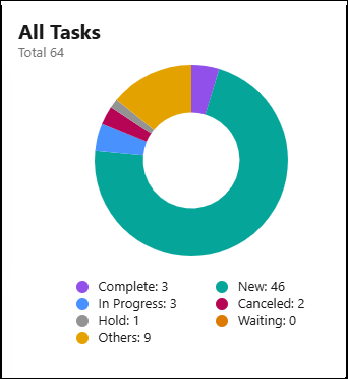
Reference Topics