Creating a Depot Request Rule in 25.1
In the Depot Configuration, you can create a rule to define expressions, field mappings, and other service request settings based on your requirements. For more information, see Configuring Depot Request Settings.
To create a Depot Service Request Rule:
1. From the Home page, go to ServiceMax Setup > Depot Service Manager > Depot Configuration Rules.
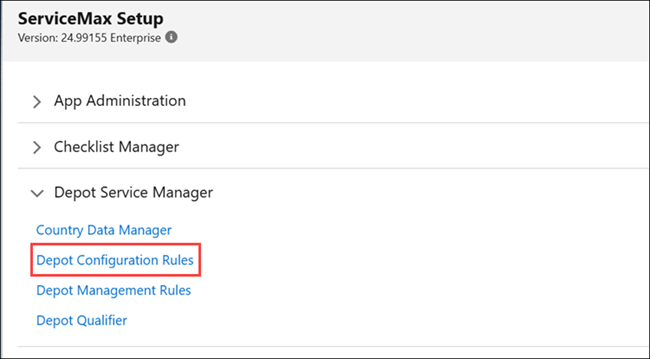
The Depot Configuration page is displayed.
2. Click New Rule.
The Manage Depot Request Configuration pop-up window is displayed with the Details tab.
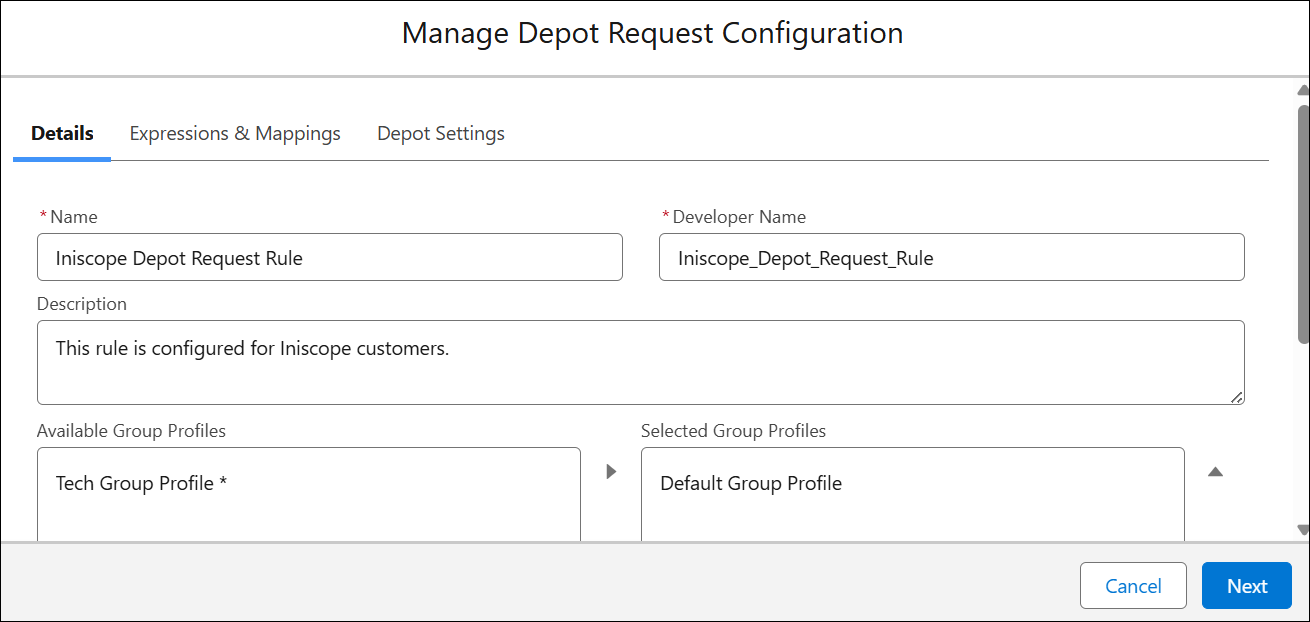
3. In the Details tab, configure fields described in the following table:
|
Field
|
Description
|
|---|---|
|
Name
|
Enter the rule name.
|
|
Developer Name
|
Enter a unique ID of the rule.
|
|
Description
|
Enter a brief description for the rule.
|
4. From the Available Group Profiles, select a profile and move it to the Selected Group Profiles to assign it to the rule.
 |
A group profile can be assigned to only one rule.
|
5. Go to the Expressions & Mappings tab and configure the following:
|
Section
|
Description
|
|---|---|
|
Expressions
|
Select required expressions for fields such as Customer Location, Customer Contact, and so on. These expressions control the options displayed on Depot Service Request page. This allows you to customize options based on end users context or region.
For example, you can define an expression for Customer Location to display only Indian states as selectable options
|
|
Mappings
|
Select a field mapping to map fields from Service Request Lines to Work Orders. By default, most fields are mapped. Use this section to add additional field mappings.
|
6. Go to the Depot Settings tab and configure the fields described in the following table:
|
Field
|
Description
|
|---|---|
|
Default Logistics Plan
Select a default logistics plan to be displayed on the Depot Service Request for added products.
|
|
|
Logistic Enabled Work Plans
|
Select a Logistic Work Plan that includes the tasks required to complete logistics services. For example, “Return the Laptop” work plan facilitates laptop collection from customer to depot.
|
|
Depot Locator Match Settings
To identify a suitable depot in the Depot Service Request, select and sort the appropriate object for data matching, whether it is an address or a product. If multiple options are available, sort them to establish priority for data matching. Data is retrieved from the product or address based on these settings and matched with the attributes configured in the Depot Qualifier for various depots. The most suitable depot is then assigned to the products added in the Depot Service Request.
|
|
|
Available Product Data Match Sources
|
Select Service Request Line > Installed Product > Product and move it to the Selected Data Match Sources. The Product data is matched based on this sequence and appropriate depot is assigned.
|
|
Available Address Data Match Sources
|
Select the required Source and move it to the Selected Address Data Match Sources list. The engine retrieves address data from the configured source and assigns appropriate depot based on the data match. You can configure the following options:
• Service Request: Retrieves the address data from a Service Request and matches the depot.
• Service Request > Location: Retrieves the Location address data from the Service Request and matches the depot.
• Service Request Line > Installed Product: Retrieves the Installed Product’s Location associated with the Service Request Line and matches the depot.
|
7. Click Save.