Configuring Geographical Attributes for Qualifying Depot
Using the Depot Qualifier, you can configure Geographical attributes such as Country, City, State, Zip Code, and Zip Range. While submitting a Depot Service request, the engine automatically assigns the most suitable depot based on the defined attributes.
The following topics are covered in this article:
Configuring Address Attributes to a Depot
To define the address attributes to a depot:
1. From the Home page, go to ServiceMax Setup > Depot Service Manager > Depot Qualifier. The page is displayed with the list of Depot configured in your org.
2. Click a depot for which you want to define the attributes. For example, San Francisco Location.
3. In the Geographical tab, click Add Associations > Add Address.
The Manage Geographical Attributes pop-up window is displayed.
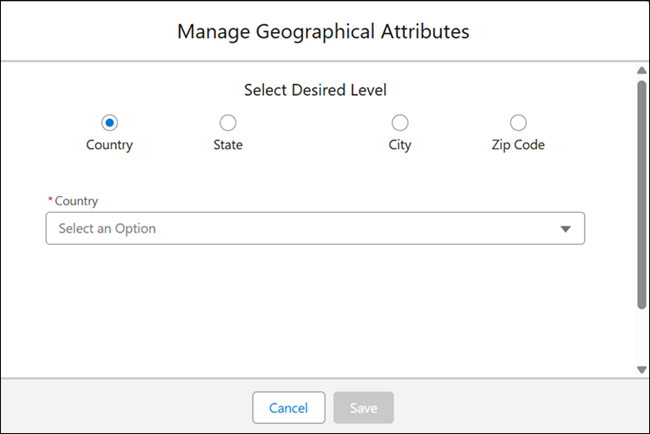
4. Select the Desired Level for which you want to associate the depot. You can associate a Country, State, City, or Zip Code. For example, for the San Francisco depot, if you want to associate the Zip Code 94016, you must configure the Country as United States, the State as California, and the Zip Code as 94016.
5. Enter the following fields as described in the following table:
|
Field
|
Description
|
|---|---|
|
Country
|
Select the country for which you want to associate the depot.
|
|
State
|
Enter the state for which you want to associate the depot.
|
|
Zip Code
|
Enter the appropriate Zip code of the place you want to associate the depot. The Zip Code values are listed based on the Country or State selection.
|
6. Click Save.
Configuring Zip Range to a Depot
You can configure a Zip Range for a depot to automatically assign it to a product if the Zip Code of the installed product’s location falls within the range.
To configure the Zip Range:
1. From the Home page, go to ServiceMax Setup > Service Org > Depot Qualifier. The page is displayed with the list of Depot configured in your org.
2. Click a Depot for which you want to define the attributes.
3. In the Geographical tab, click Add Associations > Add Zip Range.
The Manage Range Attributes pop-up window is displayed.
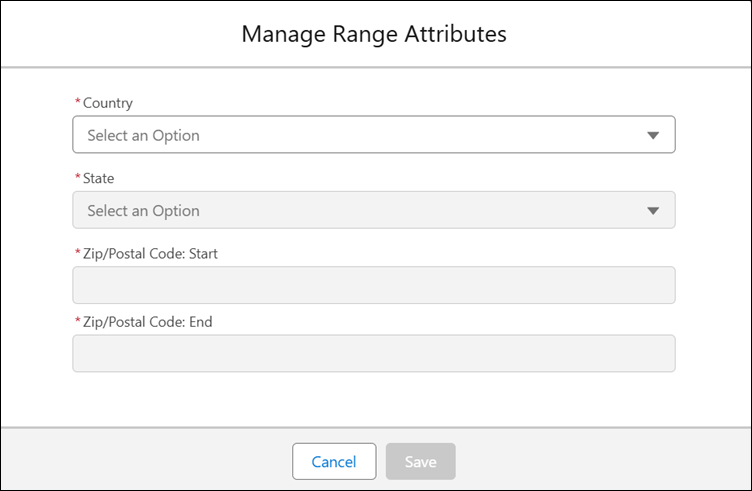
4. Enter the following fields as described in the following table:
|
Field
|
Description
|
|---|---|
|
Country
|
Select the country for which you want to associate the depot.
|
|
State
|
Enter the state for which you want to associate the depot.
|
|
Zip/Postal Code: Start
|
Enter the starting value of the Zip Code.
|
|
Zip/Postal Code: End
|
Enter the ending value of the Zip Code.
|
5. Click Save.