Assigning Workstation in Summary Mode
You can assign a new workstation to or modify the existing workstation of a queue item in the Workstation and Serial Number cards under the Summary mode.
 |
You cannot assign a workstation in the Technician card under the Summary mode.
|
To assign a workstation to a queue item in Workstation card under Summary mode:
1. Go to the Depot Queue tab and select Summary mode. For more information, see Viewing Queue Items in Summary Mode.
2. Navigate to the relevant cell you want to update under the Current Workstation column.
3. If there is no workstation assigned, click Assign. The Add Workstation search bar displays a list of available workstations.
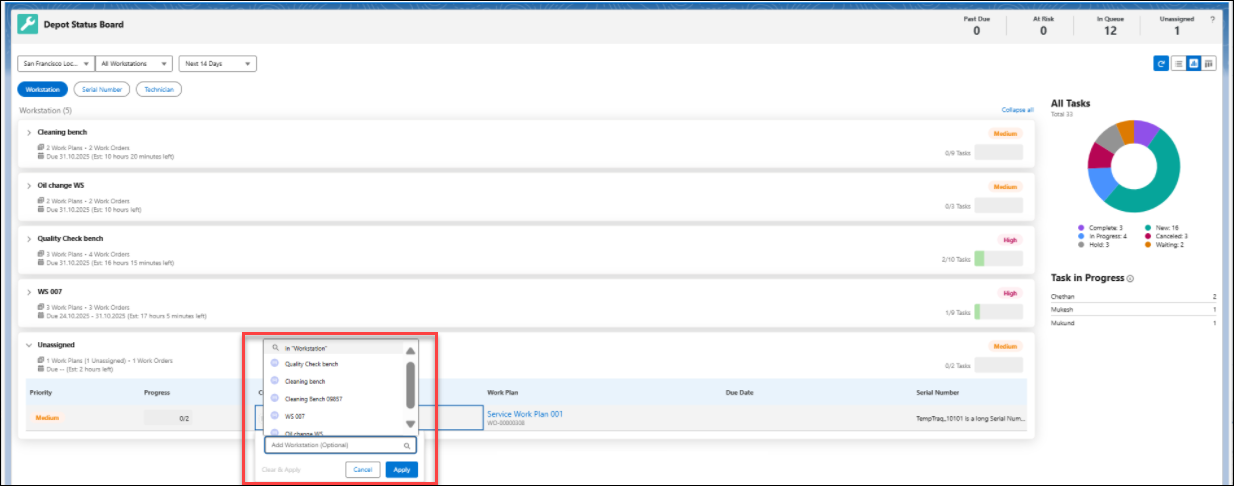
4. If there is a workstation assigned, click the workstation and click x to remove the selection and get a list of available workstations. The Add Workstation search bar displays a list of available workstations.
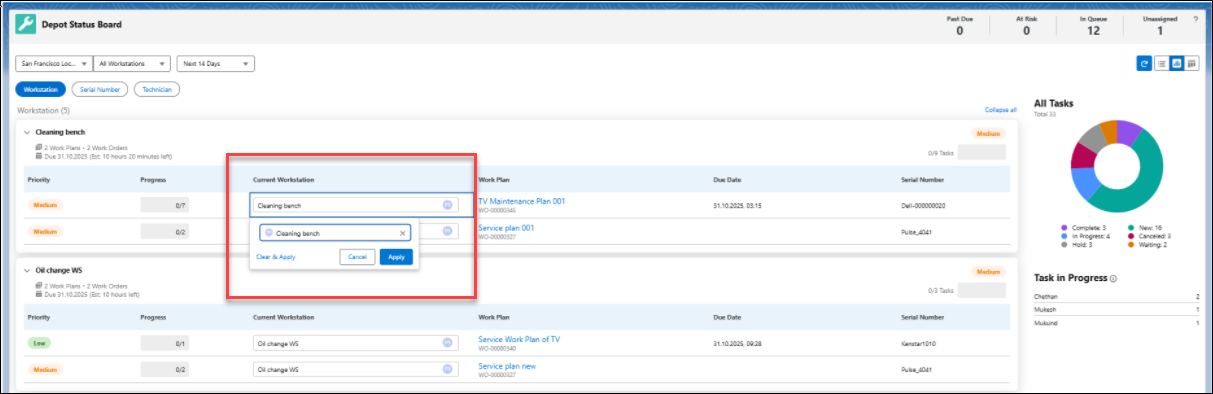
5. Select the workstation.
6. Click Apply. The selected workstation is assigned to the queue item.
|
|
You can perform the same steps to assign workstation by selecting the Serial Number card. You can remove the workstation from the queue item using Clear & apply or click Cancel to exit from the selection pop-up window.
|
Reference Topics