Updating Due Date in Summary Mode
You can update the due date of a queue item in Workstation and Serial Number cards under Summary mode by selecting a relevant date and time from the Calendar and Clock icons, respectively. The Due Date column is not displayed under the Technician card in the Summary Mode because it is task-centric card. Instead of Due Date the Task Due Date column is displayed, which is a read-only column. The value in the Task Due Date gets populated based on the tasks performed in a workstation. The queue items that are Past Due are highlighted in red.
To update the due date of a queue item in Workstation card under Summary mode:
1. Go to the Depot Queue tab and select Summary mode. For more information, see Viewing Queue Items in Summary Mode.
2. Navigate to the relevant cell you want to update under the Due Date column.
3. If there is no due date added, click Add due date.
4. Click Calendar and Clock icon to select the date, month, and year and time you want to update.
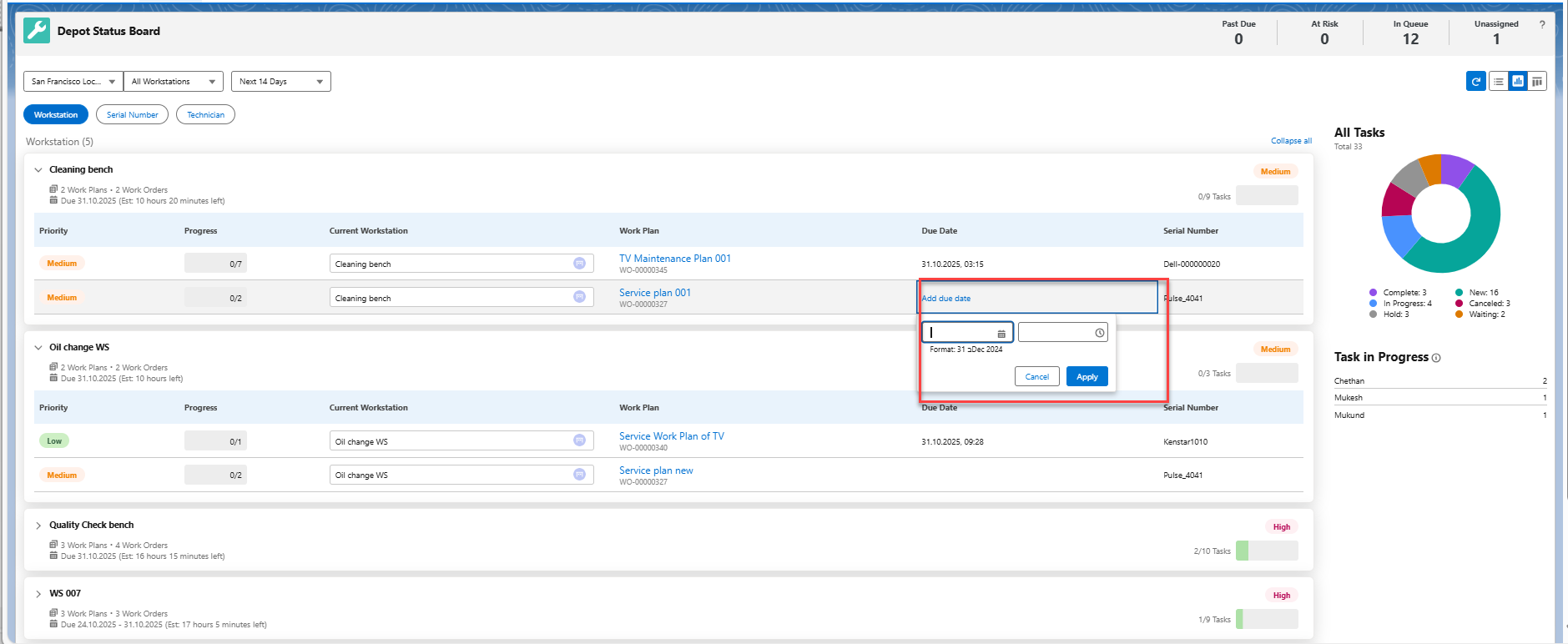
5. Click Apply to save your changes. The due date and time gets updated for the queue item.
 |
You can replicate the same steps to update the due date under Serial Number card under Summary mode. You can also exit the selection pop-up window using Cancel.
|