Assigning Workstation in Kanban Mode
You can assign a new workstation to or modify the existing workstation of a queue item in the Kanban mode by dragging and dropping any queue item card to the Workstation column
To assign workstation from the “On Hold” column in the Kanban mode:
1. Go to the Depot Queue tab and select Kanban mode. For more information, see Viewing Queue Items in Kanban Mode.
2. Select a depot location and a workstation. This displays the queue items in three column layouts:
◦ Awaiting Assignment
◦ Workstation Name
◦ On Hold
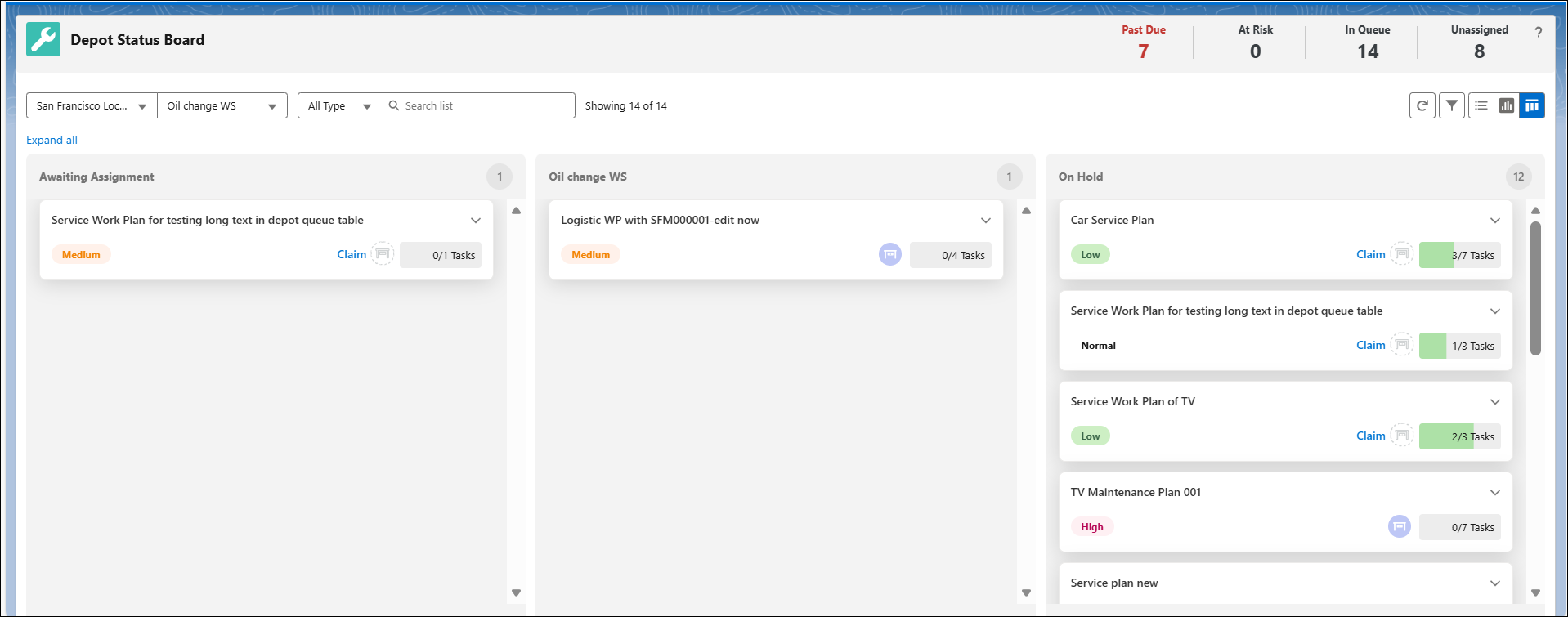
3. Select the queue item card from the On Hold column for which you want to assign workstation.
4. Drag and drop the queue item card from On Hold column to Workstation column.
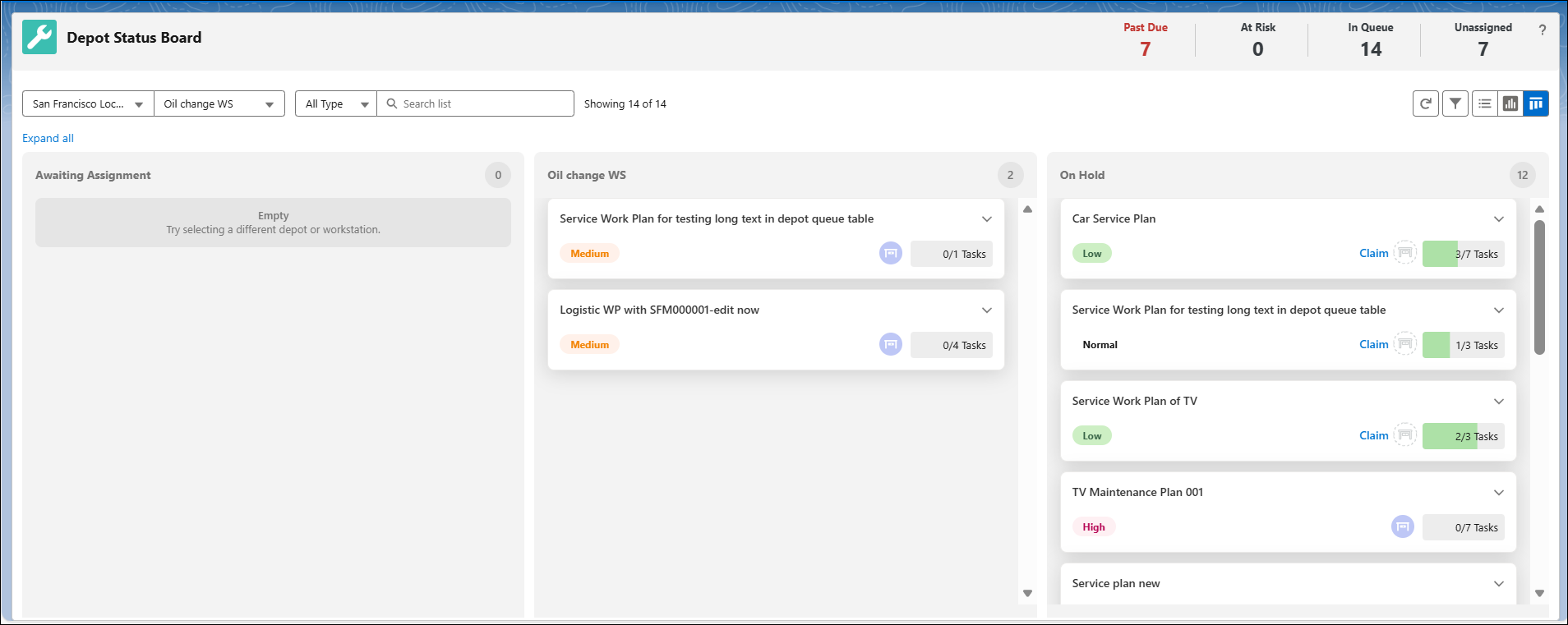
This updates the Workstation column with the new queue item card.
To assign workstation from the “Awaiting Status” column in the Kanban mode:
1. Navigate to the queue item card for which you want to assign workstation.
2. Click Claim.
This updates the Workstation column with the new queue item card.
Reference Topics