Configuring Schedules
In the Schedule tab of the Condition-Based PM Plan Template wizard, you can configure the following:
• Add condition rules to create PM plans based on different conditions. You can define conditions for various attributes such as technical attributes, date attributes, and Install Base attributes. The attributes available for the condition might vary based on the template’s condition type. For more information, see Adding Condition Rules.
• Associate either Work Plan or Task Template as the Default Purpose of Visit to the Condition-Based PM Plan Template to generate recommended parts, service tasks, and tools on PM Work Orders. The Default Purpose of Visit applies to all forecast schedule outputs generated based on the defined conditions.
• Modify the Purpose of Visit for an individual Schedule Output line in the generated Forecast Schedule based on defined conditions. For more information, see Modifying the Purpose of Visit for a Schedule Output Line in the Forecast Schedule.
• Configure Dynamic Adjustment to reschedule the future PM visits based on the early or delayed PM completion of the current PM Work Order. For more information, see Performing Dynamic Adjustments for PM Plans.
 |
• If a Condition-Based PM Plan template has more than one product associated with it, and those products have different technical attributes, then technical attributes are no longer available to be added as condition lines. This is because attributes are specific to the technical attribute template assigned to a product. If multiple products use different technical attribute templates, it could result in duplicate attributes or too many confusing attributes.
• The Expression Display Value is aligned with the Expression Internal Value. The Expression Display Value is updated when the Expression Internal Value is updated based on dynamic adjustments or conditions or time-frequency changes.
|
To configure the Schedules tab:
1. In the New Preventive Maintenance Plan Template wizard, go to the Schedules tab.
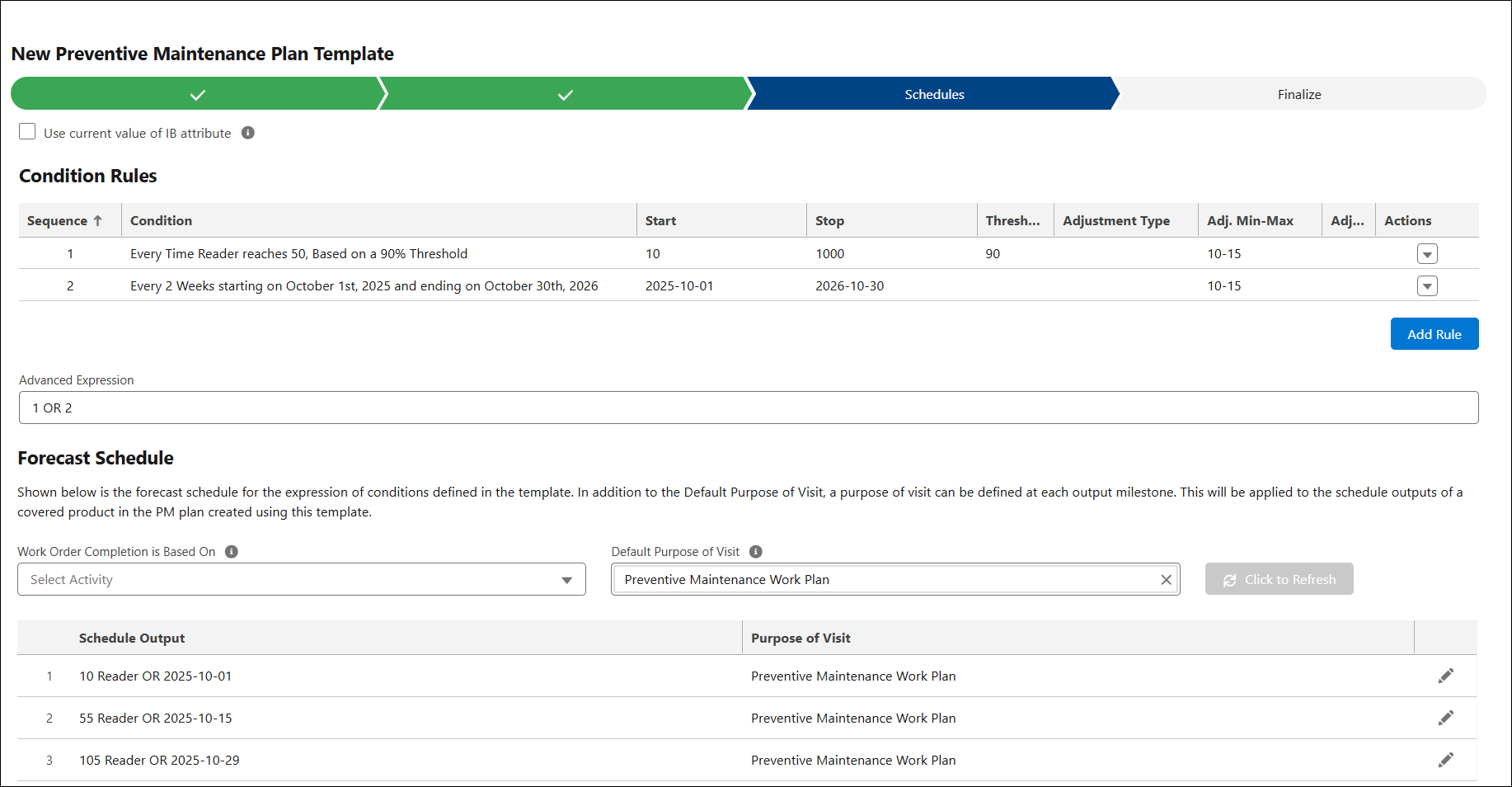
2. Provide details for the following fields:
|
Field
|
Description
|
||
|---|---|---|---|
|
Use current value of IB attribute
|
Select this checkbox to ensure that PM Plans created using this template acknowledge the current attribute values of the covered installed product(s).
|
||
|
Condition Rules
Define condition rules using different attributes and configure advanced expressions to generate scheduled PM Work Orders accordingly.
|
|||
|
Add Rule
|
Click the Add Rule button to launch a modal for creating a condition rule on the PM Plan Template. In this condition rule, you can define the attribute and value for generating PM Work Orders from a Condition-based PM Plan. For more information, see Adding Rules.
|
||
|
Advanced Expression
|
If you have multiple condition rules configured, you can define an advanced condition based on the execution sequence of these rules. This allows you to control how rules interact using logical operators.
For example, (1 OR 2) AND 3 indicates:
• Rule 1 or Rule 2 must be met.
• In addition, Rule 3 must also be met for the condition to apply.
|
||
|
Forecast Schedule
Displays the forecast schedule based on the conditions defined in the template. Along with the Default Purpose of Visit, you can set the Purpose of Visit for each output milestone, which applies to the schedule outputs of covered products in PM plans created from this template.
|
|||
|
Default Purpose of Visit
|
In the Default Purpose of Visit, assign one of the following:
• Work Plan: In the Work Plan tab, select the Work Plan to automatically generate service tasks, recommended parts, and tools for the associated PM Work Orders. The list of Work Plans is displayed based on the Products, Product Line, and Product Family added in the Applicable Products tab. For more information, see Work Plan.
• Task Template: In the Task Template tab, select the Task Template to assign specific tasks to the owner of the PM Work Orders. For more information, see Task Templates.
When a work order is created from the PM Plan’s condition, the Purpose of Visit record provides vital tasks or parts information needed for the PM Work Order.
|
||
|
Work Order Completion is Based On
|
Indicates the selected Work Order date or date/time field on the PM Work Order that will be considered the completion date. This is used for Dynamic Adjustment.
|
||
Related Topics