Performing Included Service Entitlement for Product Service Lines
You can entitle individual Product Service lines on a Work Order by selecting an included service from a Service Contract during interactive entitlement.
|
Prerequisites
|
|---|
|
• The Work Order has at least one Product Service (PS) line added as a Work Detail line with the record type set to Products Serviced.
• A valid Service Contract with included services is associated with the account or installed product on the Work Order.
• The SFM custom action Check Entitlement PS is configured in the SFM wizard for the Work Order.
|
You can select from a list of included services when performing interactive entitlement on Product Service lines on a Work Order. The interactive entitlement screen displays available services, remaining units, and service availability in the Covered Service column for each Service Contract. The service you assign to a PS line is stored in entitlement history, and when you run Get Price on the Work Order debrief, pricing is calculated based on the coverage defined on that service. Warranties do not support included service assignment.
For example, you entitle a parts PS line with an included service that defines coverage at 15% for parts, 100% for labor, and 100% for expense. A technician adds a $100 part to the Work Order debrief for that PS line. Running Get Price applies the coverage from the entitled service on the PS line: 15% of $100 is covered by the contract, and the remaining $85 is billed to the customer. Labor and expense debrief lines for the same PS line are fully covered, so those lines have no customer charge.
To perform included service entitlement for a Product Service line:
1. Open a Work Order record that contains Product Service lines.
 |
Verify that the Work Detail record type is Products Serviced before proceeding.
|
2. Click Check Entitlement PS from the SFM wizard.
The entitlement screen lists matching warranties and Service Contracts.
3. Click Settings to configure validity, matching, product attributes, and entitlement criteria for the entitlement results.
4. Click Apply to save the settings.
5. Select a Service Contract from the list.
The Select Warranty/Contract popup window opens and lists the available Service Contracts. Contracts that have included services defined display the service name and available units in the Covered Service column. If the Covered Service column is not visible, right-click any column header, select Columns, and enable Covered Service.
|
|
Select Not Covered if the PS line is not covered by any warranty or Service Contract.
|
6. Select the radio button next to the Service Contract that has included services available.
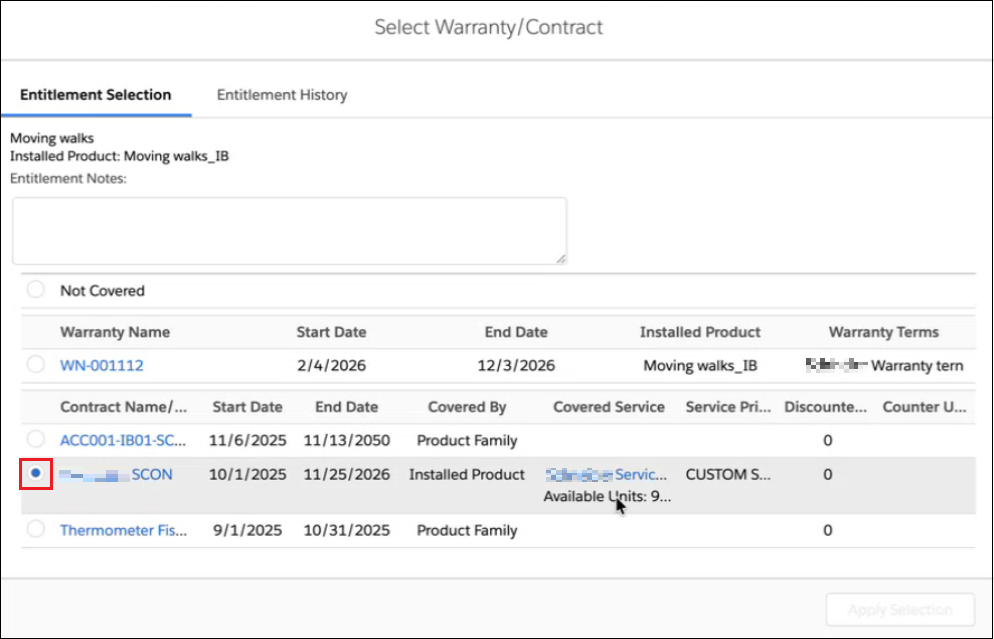
The Included Services popup window opens, listing the available services for the selected Service Contract.
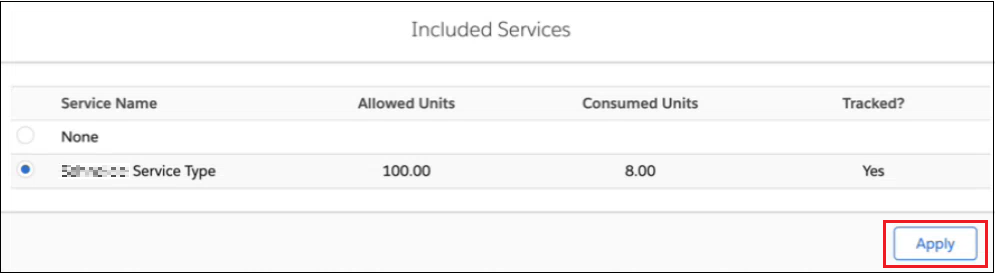
The following table describes the columns shown in the Included Services popup window.
|
Column
|
Description
|
|---|---|
|
Service Name
|
The name of the included service defined on the Service Contract.
|
|
Allowed Units
|
The total number of service units allocated for this service.
|
|
Consumed Units
|
The number of service units already used.
|
|
Tracked?
|
Indicates whether unit consumption is tracked for this service.
|
7. Select the radio button next to the service you want to assign to the PS line.
|
|
To entitle the PS line at the contract level without assigning a specific service, select None.
|
8. Click Apply.
The selected service is assigned to the PS line.
|
|
Switching between services in the window does not reassign entitlement; the assignment happens only when you click Apply. Closing the popup window without clicking Apply discards the selection.
|
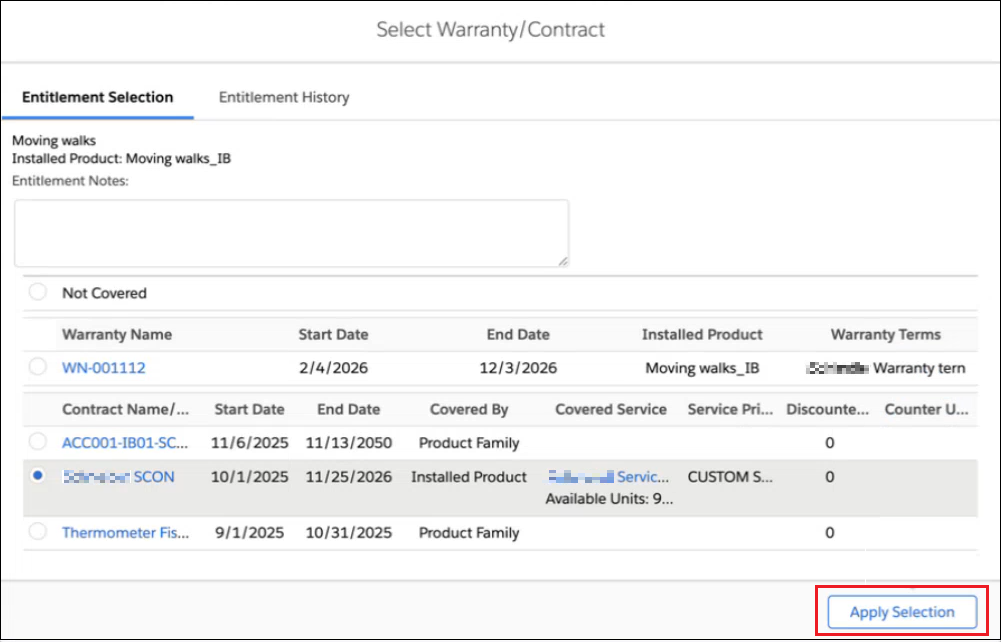
9. Click Apply Selection on the Select Warranty/Contract popup window.
10. Click Save Entitlement on the entitlement window.
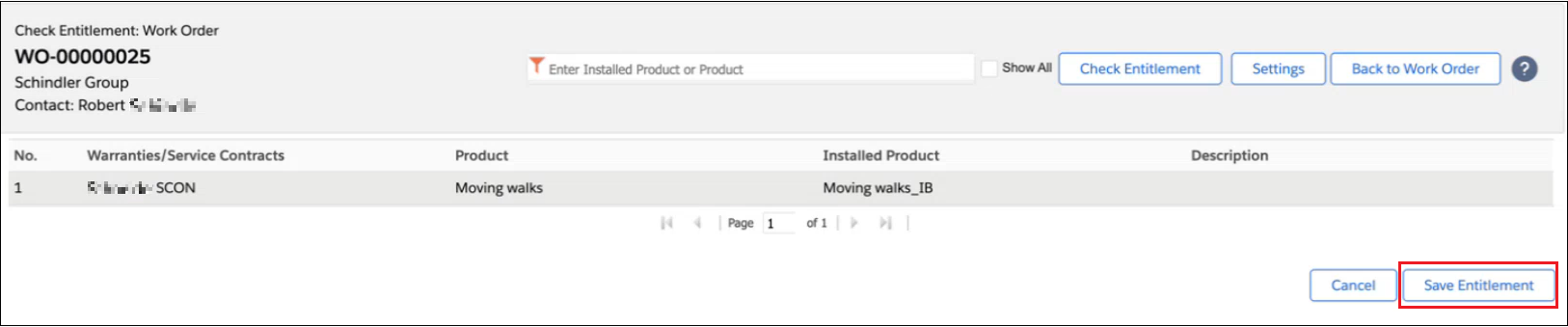
The installed product on the PS line is entitled based on the included service you selected.
When you run Get Price on the Work Order debrief lines, the pricing engine applies the coverage percentages (parts, labor, and expense) defined on the entitled service. The Billing Information section on the Work Detail page reflects the pricebook from the Service Contract. For more information, see Initiating Price Calculation.
You can view the entitlement history for a PS line under the Entitlement History section on the Work Detail's Related tab. Each record shows the entitled service, contract, and date of assignment.
Related Topics