Configuring Filters and Mapping to Create Time Entries Automatically
In the Autofill tab, you can configure field maps to automatically create Time Entry records from Work Detail, Task, or Event records.
To configure filters and mapping in the Autofill tab:
1. Go to > > .The Timesheet list view is displayed.
2. Click +New Template to create a new Timesheet Configuration Template or select an existing Timesheet Configuration Template from the list view. The Templates Detail page is displayed.
3. Go to the Autofill tab.
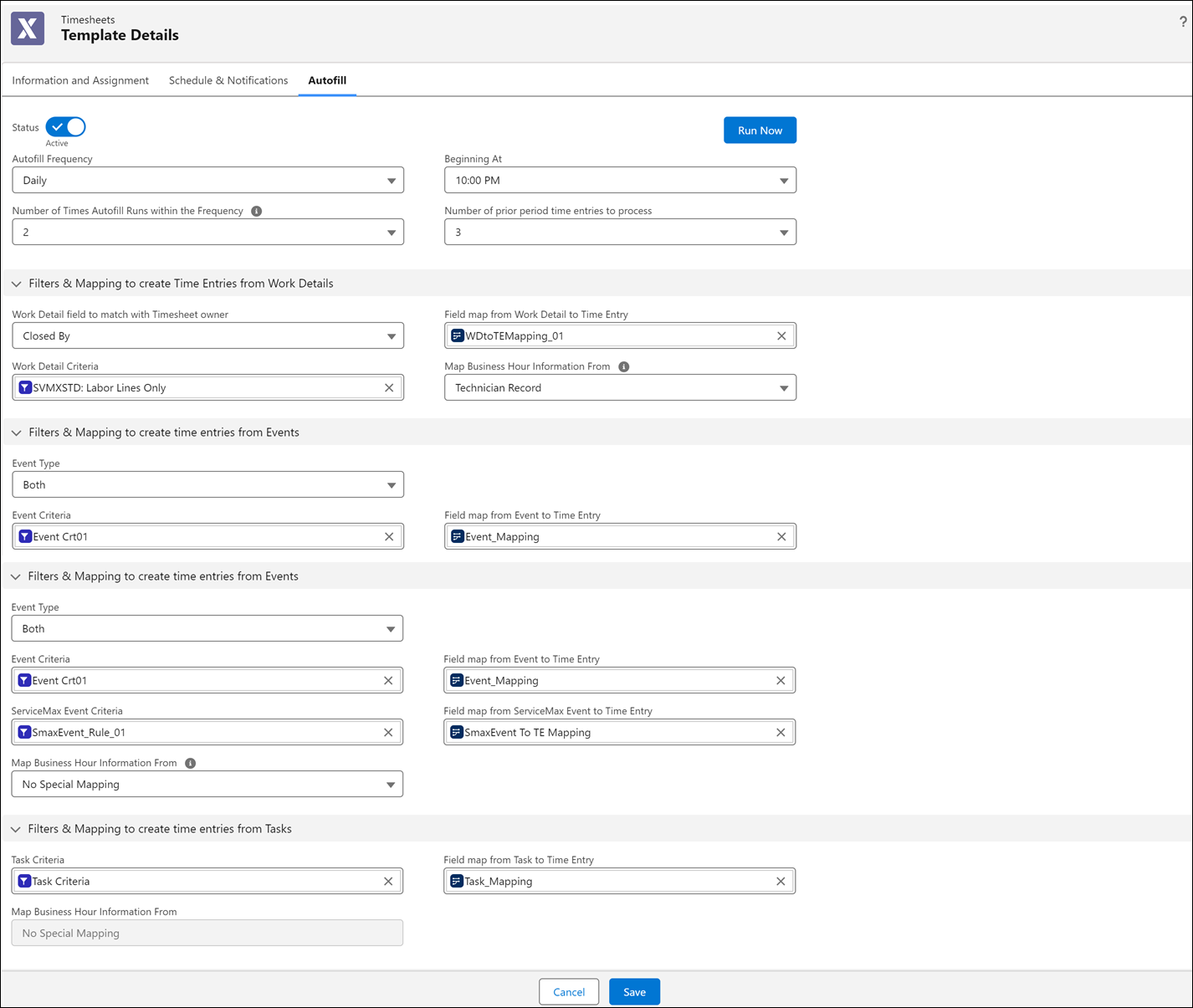
4. Enter the details for the fields as described in the following table:
|
Fields
|
Description
|
Additional Information
|
||||
|---|---|---|---|---|---|---|
|
Filters & Mapping to create Time Entries from Work Detail
Identifies the criteria to filter Work Detail records that need to be considered for conversion into Time Entry records.
|
||||||
|
Work Detail field to match with Timesheet Owner
|
This drop-down field is used by the timesheet autofill process to determine which field on the work detail line is indicative of the User whose timesheet should be processed with the corresponding time entries. The options reflect the user or the technician lookup fields on the work detail record, and whichever field is selected is matched with the user or technician's associated timesheet, in order to process the appropriate Work Detail records into time entries.
|
|||||
|
Work Detail Criteria
|
Filter criteria applied (in addition to ownership) to identify which Work Detail records should be considered for autofill processing into time entries.
|
|
||||
|
Field map from Work Detail to Time Entry
|
Field mapping can be applied when creating Time Entry records from Work Detail records. Map Work Detail’s Record ID field with Time Entry’s Work Detail field. This is to ensure that only one-time entry is created per work detail.
[Start Time and End Time] OR [Start Time and Duration] fields must be mapped from Work Detail.
|
For example, Start Date and Time & End Date and Time fields in Work Detail can be mapped to the Start Time & End Time fields in Time Entry respectively; Line Qty field can be mapped to Duration field.
If the Duration field is not mapped or if the field value is blank (null, not 0), then it is automatically populated as the difference in hours between Start Time and End Time field values, taking into consideration the related Timesheet record’s business hours.
The Duration field must be mapped only from a Number field that stores the value in hours. If it is mapped from a field that stores the value in any other units such as minutes, the resulting Time Entry record Duration field value will be incorrect, as no conversion is done when Time Entry records are created.
|
||||
|
Map Business Hour Information From
|
Indicates how timezone and business hours information is mapped for source records associated with a work order. When work order Business Hours are chosen, all work detail lines, tasks, and events on a work order are mapped with the timezone from the business hours indicated on that work order. Tasks and Events that are not associated with a work order are not impacted by this setting.
Identifies the timezone information from either the Technician or Work Order record. Use this field only for Work Order-related Time Entries.
|
|||||
|
Filters & Mapping to create time entries from Events
Identifies the criteria to filter Salesforce Event and/or ServiceMax Event records that need to be converted into Time Entry records.
|
||||||
|
Event Type
|
Select the event type from None, Salesforce Event, ServiceMax Event, or Both options. If an org does not have ServiceMax or Salesforce Events, the admin can set the Event Type picklist value to None. This helps the timesheet engine to skip events and reduces the processing time.
|
|||||
|
Map Business Hour Information From
|
Indicates how timezone and business hours information is mapped for source records associated with a work order. When work order Event Business Hours are chosen, all work detail lines, tasks, and events on a work order are mapped with the timezone and business hours from the business hours indicated on that work order. Tasks and Events that are not associated with a work order are not impacted by option. When Technician Record is chosen, all work detail lines, tasks, and events applicable to the technician (regardless of work order) are mapped with the timezone and business hours from the technician’s record.
Use this field only for Work Order-related Time Entries.
|
Non-work order-related events or tasks are processed based on the business hours of the ServiceMax event, Salesforce Event, and Task. A new field called Business Hours is added to the ServiceMax Event. For the Salesforce Event and Task, the admin has to create the custom field called Business Hours in the Activity Object. Post creation of the Business Hours field, the API name of the Business Hours field must be updated in the SET001 setting (Module: Timesheet; SubModule: Timesheet Configuration).
|
||||
|
Event Criteria
|
Filter criteria applied (in addition to implicitly matching the event’s Assigned To with Timesheet’s User) to identify which Salesforce Event records should be considered.
|
|||||
|
Field map from Event to Time Entry
|
Field mapping to be applied when creating Time Entry records from Salesforce Event records.
|
Map Salesforce Event’s Record ID field with Time Entry’s Salesforce Event field. Direct mapping is not possible in this case, so Event’s Record ID should be populated in a custom text field in the Event object, by trigger /workflow rule/Salesforce process. This is to ensure that only a one-time entry is created per event. Map the Start Date Time and End Date Time fields in Event to Start Time and End Time fields in Time Entry, respectively.
|
||||
|
ServiceMax Event Criteria
|
Filter criteria applied (in addition to implicitly matching the ServiceMax event’s Owner with Timesheet’s User) to identify which ServiceMax Event records should be considered.
|
|||||
|
Field map from ServiceMax Event to Time Entry
|
Field mapping to be applied when creating Time Entry records from ServiceMax Event records.
Map ServiceMax Event’s Record ID field with Time Entry’s ServiceMax
Event field. This is to ensure that only a one-time entry is created per event.
Map the StartDateTime and EndDateTime fields in ServiceMax Event to
Start Time and End Time fields in Time Entry respectively.
|
If this field is set to 2 and the Beginning At time field is set to 9 am, then the scheduler will run daily, every 12 hours, two times; first at 9 am and second at 9 pm.
If this field is set to 3 and the Beginning At time field is 9 am, then the scheduler will run daily, every 8 hours, three times; at 9 am, 5 pm, and, 1 am respectively.
If this field is set to 4 and the Beginning At time field is 9 am, then the scheduler will run daily, every 6 hours, four times; at 9 am, 3 pm, 9 pm, and, 3 am respectively.
If this field is set to 6 and the Beginning At time field is 9 am, then the the scheduler will run daily, every 4 hours, six times; at 9 am, 1 pm, 5 pm, 9 pm, 1 am, and 5 am respectively.
|
||||
|
Filters & Mapping to create time entries from Tasks
Identifies the criteria to filter Task records that need to be converted into Time Entry records.
|
||||||
|
Task Criteria
|
Filter criteria applied (in addition to implicitly matching the task’s Assigned To with Timesheet’s User AND applying the hardwired
filter Due Date is >= Timesheet Start Date & <= Timesheet End Date) to identify which Task records should be considered.
|
|||||
|
Field map from Task to Time Entry
|
Field mapping to be applied when creating Time Entry records from Task records.
|
Map Task’s Record ID field with Time Entry’s Task field. Direct mapping is not possible in this case; so
Task’s Record ID should be populated in a custom text field in the Task object by trigger/workflow rule / Salesforce process.
This is to ensure that only a one-time entry is created per task.
For Time Entry Start Time and End Time fields, create custom DateTime fields in Task and map them.
|
||||
|
Map Business Hour Information From
|
Indicates how timezone and business hours information is mapped for Task records associated with a work order.
|
|
||||

Related Topics
You can perform the following actions on this tab: