Creating Replacement Parts for Base Product
You can create replacement parts for a part by creating a Replacement Part record. The replacement parts can be used to track alternate parts when parts are unavailable, parts become obsolete, or to track refurbished parts.
1. Log into your org with your valid credentials.
2. From the app launcher, search and then launch Product Replacements.
3. Click New. The New Product Replacement screen is displayed.
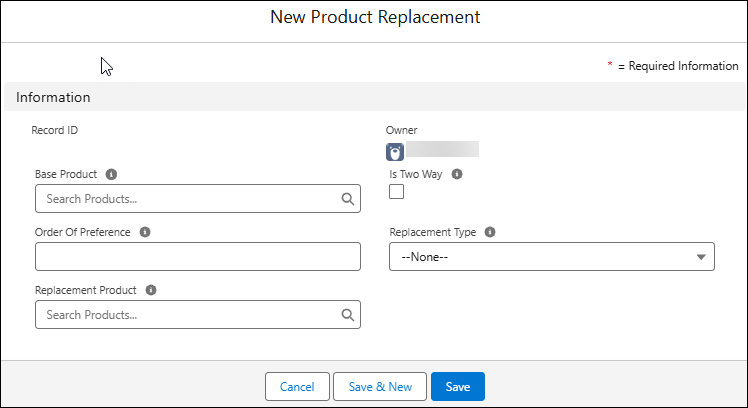
4. Select the base product that you want to be replaced.
5. In the Replacement Product field, select the product you want to install instead of the recommended parts after removing the base product.
6. Optionally, select the Is Two Way checkbox if you want to switch the base product and the replacement product with each other.
7. Select the replacement type, and then click Save.
A confirmation message is displayed, and you are redirected to the product replacement detail page.
You must enable the Replacement Parts option in the Configure Part administrator page so that technicians can find the replacement products while using the recommended parts. For more information on configuring part consumption, refer to Part Setting.