Bulk Uploading Installed Product Criteria to FCO Search
You can bulk upload Installed Product criteria via a CSV file in the Define Search stage of Field Change Order console. The system uses the uploaded criteria to match Installed Product records and generate FCO Search Result Lines.
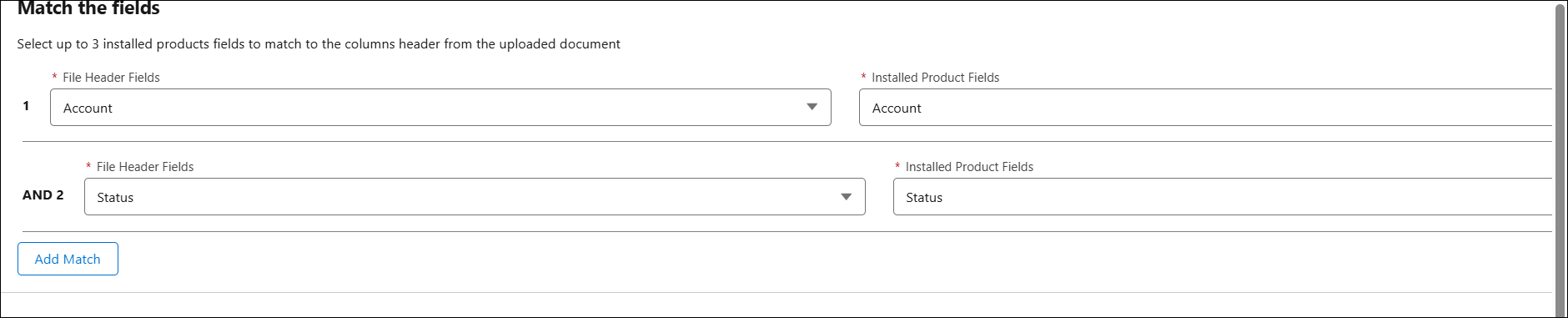
In the CSV file, you can define Installed Products’ attributes data such as Serial Number, Name, Status, Date Installed, and so on. After uploading the file, configure the match fields by mapping the required column headers of the file to the appropriate installed product object fields. You can define up to 3 match fields per file upload. Based on the defined match criteria, the system generates the FCO Results for identified Installed Product records.
The following are the key benefits:
• Eliminates the need to create complex FCO search expressions.
• Improves accuracy by eliminating manual spot checks.
• Saves time by avoiding the removal of non-relevant Installed Products from FCO Result Lines.
• Ensures installed products are not missed by allowing direct upload of known attribute data.
 |
• You can upload a CSV file with up to 6,000 rows and 10 different data types. It is recommended to not upload a file with more than 3,000 rows.
• You can upload a file up to a maximum size of 3 MB.
• You can upload up to three CSV files for an FCO.
.
|
To bulk upload Installed Product criteria to an FCO Search:
1. Go to the Field Change Order tab.
2. In the FCO Console Landing Page, click +New Field Change Order. A blank FCO record opens in the Field Change Order Wizard with the Overview section.
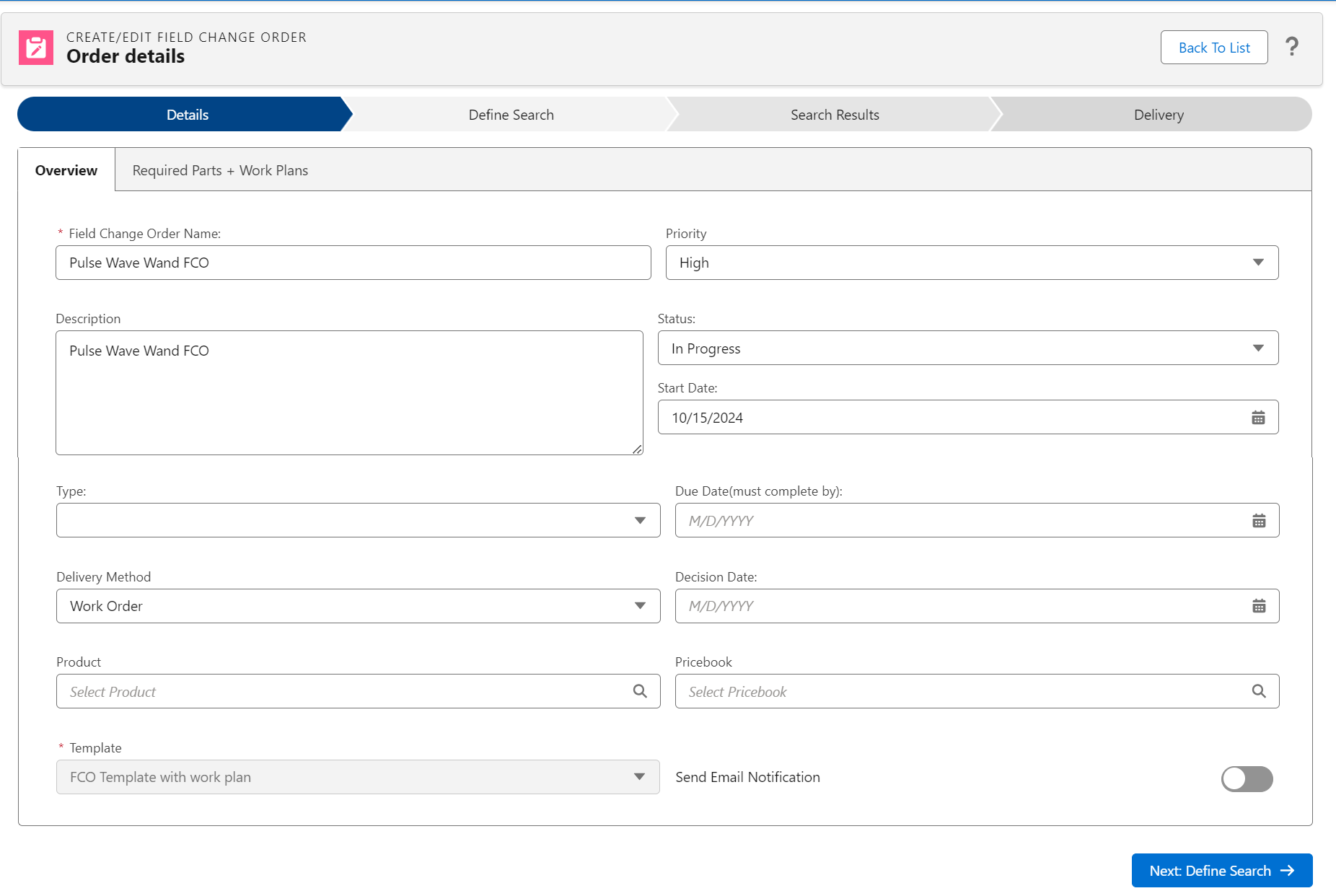
3. Enter the required details and click Next: Define Search to save the FCO Header record. For more information, see Creating a Field Change Order.
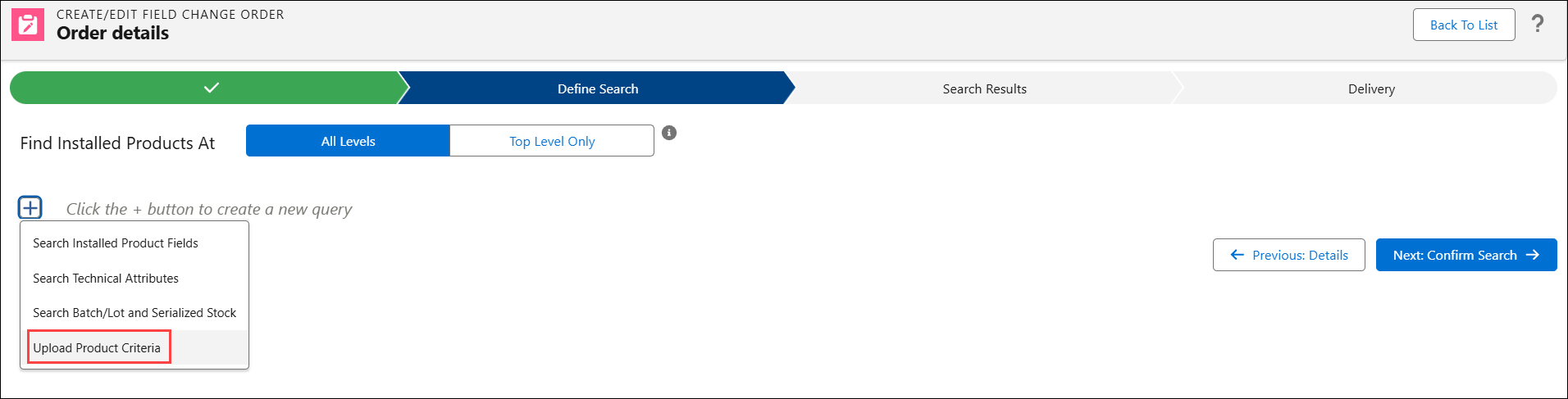
4. Click the + button and select Upload Product Criteria.
The Upload a File into Field Change Order section appears.
|
|
When you select Upload Product Criteria option, you cannot select other search options.
|
5. Click Upload File and select the CSV file from your local folder. Alternatively, you can drag and drop the CSV file.
After the file has uploaded, the file name is displayed and the Match the fields section appears.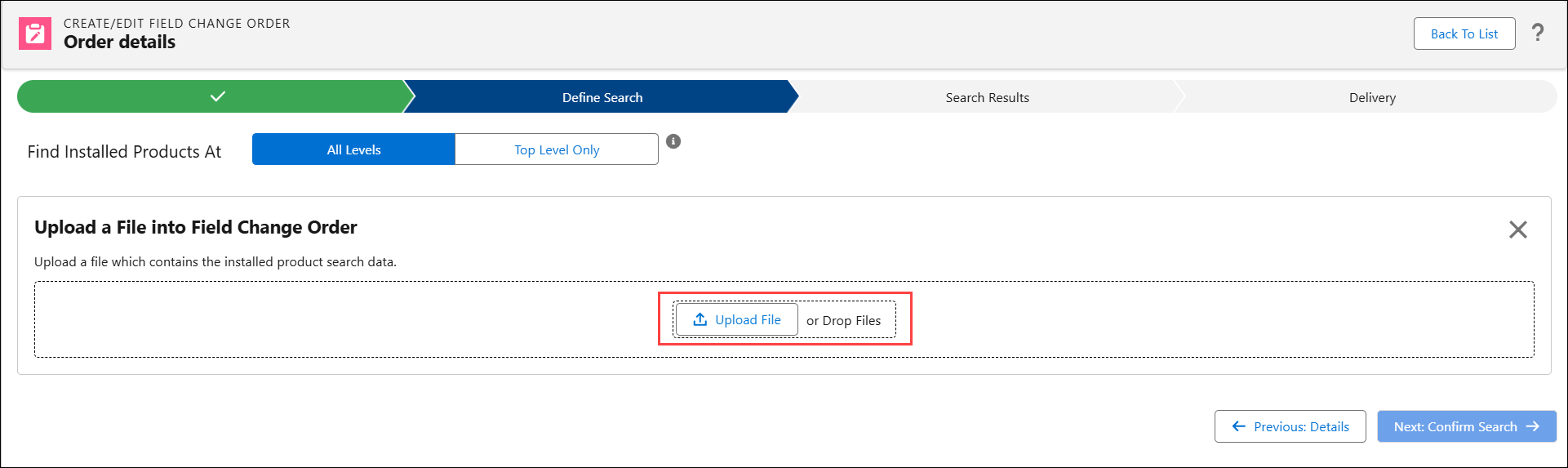
|
|
Click Remove File to remove the uploaded file.
|
6. In File Header Fields drop-down, select a column header from the uploaded file.
7. In Installed Product Fields drop-down, select the Installed Product record field that should match the selected column header.
|
|
You can configure up to three column headers to match the Installed Product record fields.
|
8. Click Next: Confirm Search.
The Ready To Search is displayed with a list of estimated FCO Result Lines based on the match criteria and the number of rows in the uploaded CSV file.
9. Click Run Now to perform the search and generate FCO Result Lines.
The FCO Result Lines are generated for matching Installed Products.
10. In the Search Results stage, review the results, manually add results, or modify Delivery Methods. For more information, see Viewing the FCO Search Results.
11. Click Next: Confirm Results and Generate Output. For more information, see Generating Delivery Output from FCO Results.
|
|
You cannot delete the uploaded CSV file after generating output for the matching Installed Products based on the criteria defined in the uploaded file.
|