Assigning FCOs from an Installed Product Record
You can assign an Installed Product to one or more applicable Field Change Orders (FCOs) from the Installed Product record. In the Installed Product record, you can launch the Assign to Field Change Order wizard step to view FCOs with criteria that matches the IP and assign it to up to three of those FCOs based on your requirements.. The system displays the FCOs whose search criteria match the Installed Product details. After you assign the Installed Product, it will be added as a FCO result line in the assigned FCOs.
Users within a group configuration profile that includes the appropriate permissions can generate output from the Installed Product from the FCOs to which it has been assigned. To enable this capability, set the group-wide setting SET001 (Module: Field Change Order;Submodule: Installed Product Wizard) to True, and assign the group profile to the user. If this is not enabled, the user can add the Installed Product to an FCO but cannot generate output. For more information on accessing settings, see Accessing Settings.
The following topics are covered in this article:
Assigning an Installed Product Record to FCOs
To assign an Installed Product to FCOs and generate output:
1. From the Home page, go to an Installed Product record.
2. In the Service Flow Wizard, click the Assign to Field Change Order wizard step.
The Assign to Field Change Order modal window is displayed. This displays the Available Field Change Orders with In Progress status whose search criteria match the Installed Product details. In another expandable table, the wizard displays FCOs that are already associated with the Installed Product.
 |
In the Assign to Field Change Order, the system displays the available Field Change Orders based on the following criteria:
• Results are sorted by the newest created FCO first, based on the FCO header creation date.
• By default, up to 1,000 matching FCOs are displayed. These FCOs were created within the last five years, have an In Progress status, and have been used in an FCO search at least once.
You can click Load More at the bottom, where the system loads the next set of 1,000 matching records. You can continue clicking Load More to view additional results, up to a maximum of 5,000 records.
|
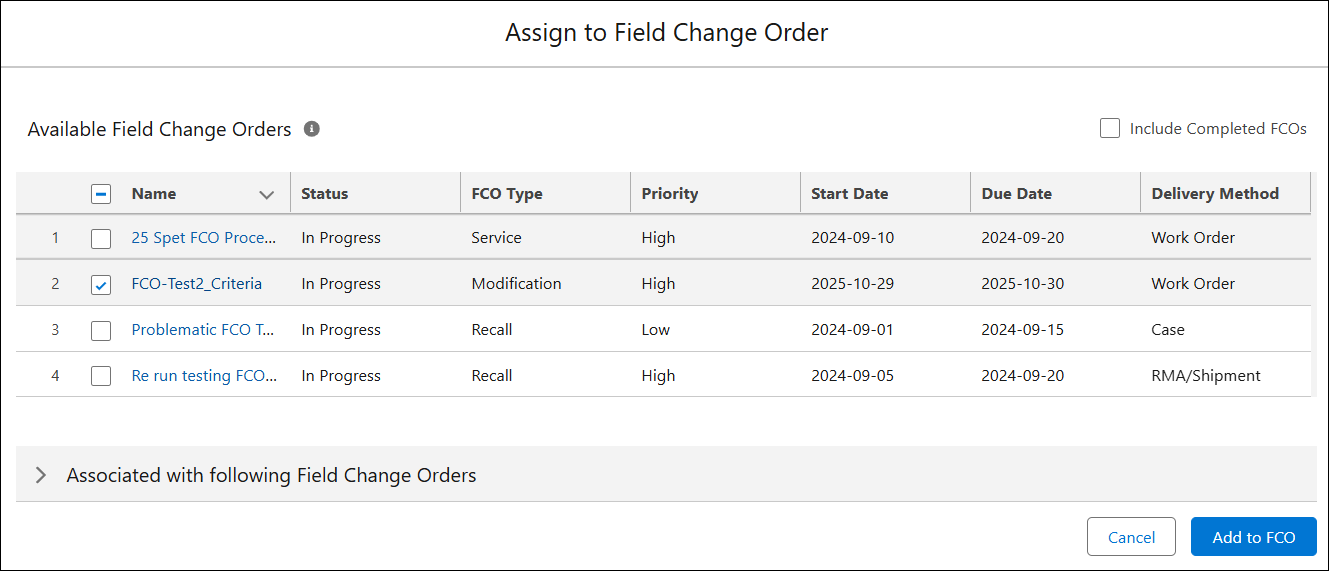
3. Click Include Completed FCOs option to include FCOs with the status as Complete in the Available Field Change Orders list. This step is optional.
4. From the Available Field Change Orders table, select up to three FCOs from the list.
|
|
You can select and add up to three FCOs at a time.
|
5. Click Add to FCO.
A toast message is displayed for each FCO assigned to the Installed Product. You can click the View link to open the corresponding FCO page.
Assigning an Installed Product Record to FCOs and Generate Delivery Outputs
Users within a group configuration profile that includes the appropriate permissions can generate output from the Installed Product. To enable this capability, set the group-wide setting SET001 (Submodule: Installed Product Wizard) to True, and assign the group profile to the user. If this is not enabled, the user cannot generate output.
To assign an Installed Product to FCOs and generate output:
1. From the Home page, go to an Installed Product record.
2. In the Service Flow Wizard, click the Assign to Field Change Order wizard step.
The Assign to Field Change Order modal window is displayed. This displays the Available Field Change Orders whose search criteria match the Installed Product details. In another expandable table, the wizard displays FCOs that are already associated with the Installed Product.
|
|
In the Assign to Field Change Order, the system displays the available Field Change Orders based on the following criteria:
• Results are sorted by the newest created FCO first, based on the FCO header creation date.
• By default, up to 1,000 matching FCOs are displayed. These FCOs were created within the last five years, have an In Progress status, and have been used in an FCO search at least once.
You can click Load More at the bottom, where the system loads the next set of 1,000 matching records. You can continue clicking Load More to view additional results, up to a maximum of 5,000 records.
|
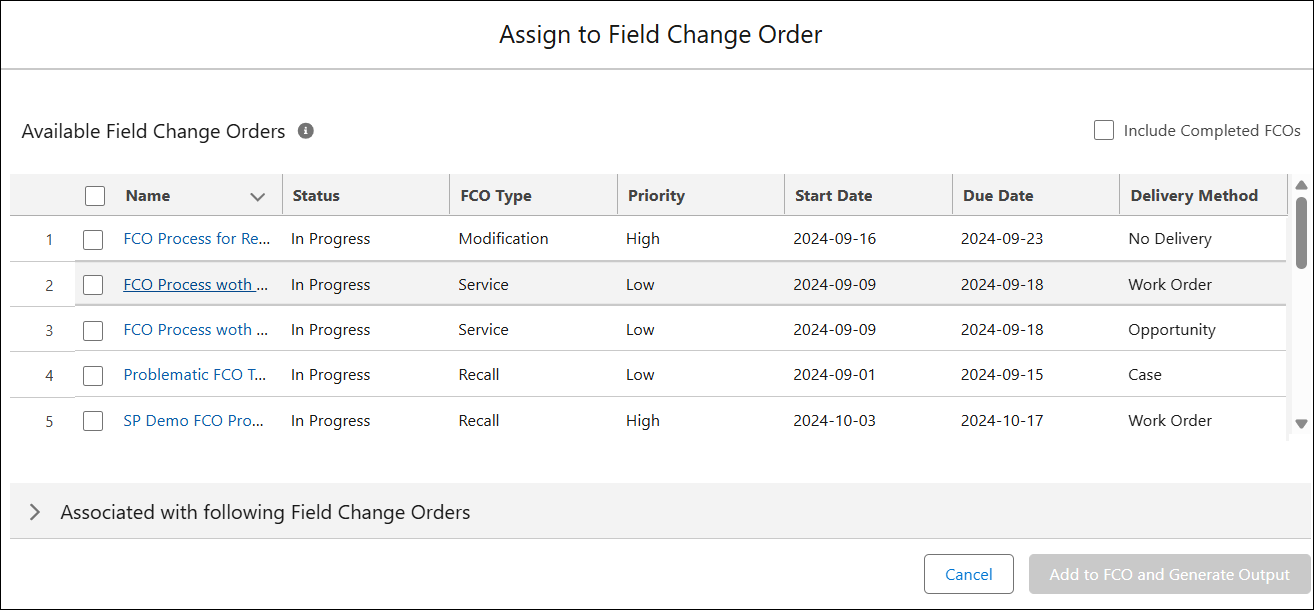
3. Click Include Completed FCOs option to include FCOs with the status as Complete in the Available Field Change Orders list. This step is optional.
4. From the Available Field Change Orders table, select up to three FCOs from the list.
|
|
You can select and add up to three FCOs at a time.
|
5. In the Delivery Method, click Edit icon to modify the delivery output method.
|
|
• The Delivery Output field defaults to the FCO’s indicated default delivery, if available.
• If you do not want to generate output for an FCO, select No Delivery option for the FCO.
|
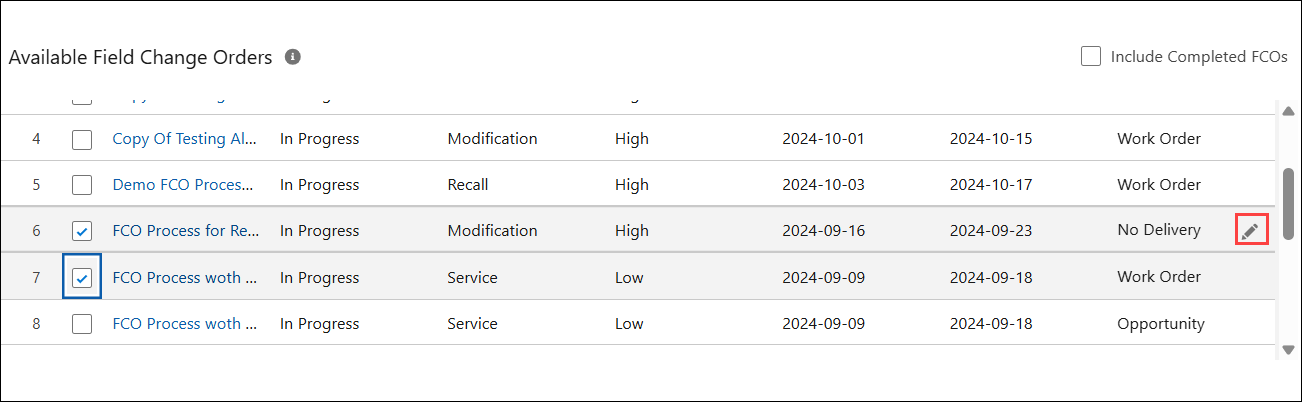
6. Click Add to FCO and Generate Output.
A toast message is displayed for each FCO assigned to the Installed Product. You can click the View link to navigate to the corresponding FCO output record. If output is generated, the FCO page displays the Delivery stage along with a list of outputs.

Reference Video