Adding Travel Policy
You can define how travel charges are calculated for a service contract based on a service plan by configuring the travel policy, including default travel units, travel prices, and time-based billing rules. You can also set up distance-based mileage tiers and zone-based pricing to manage travel costs accurately across different service locations. For more information, see Adding Mileage Tier and Adding Zone Pricing.
To add travel policy:
1. Go to ServiceMax Setup > Warranties & Service Contracts > Service Plans.
The Service Plans page is displayed. By default, the Service Plans page displays only recently viewed service plans.
 |
Alternatively, access the Service Plans page by clicking the App Launcher, typing Service Plans in the search bar, and selecting it from the results.
|
2. To view all service plans, click All Service Plans from the list view dropdown.
3. In the Service Plan Name column, select the required service plan name.
The selected Service Plan record page is displayed.
4. In the Service Flow Wizard, under the Service Plan Pricing section, select Travel Policy.
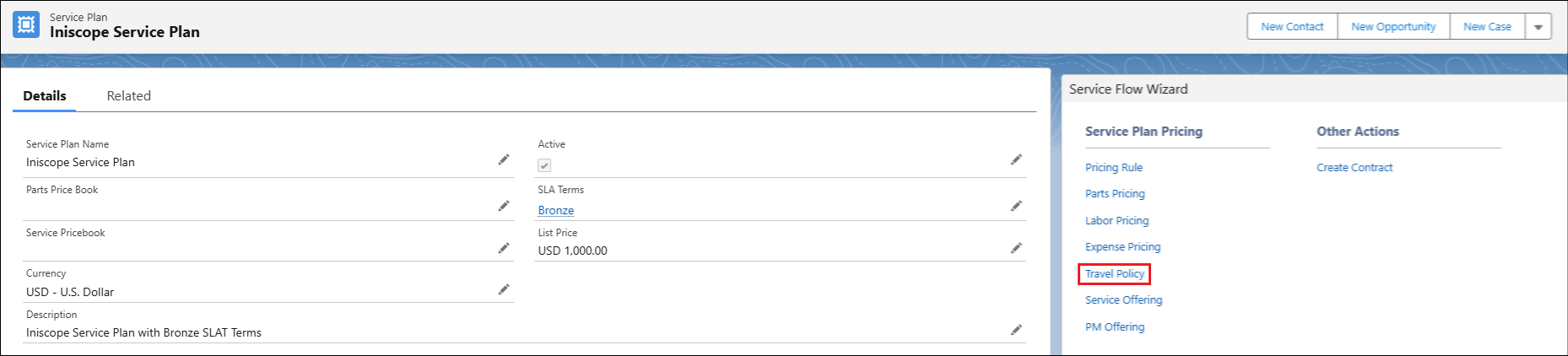
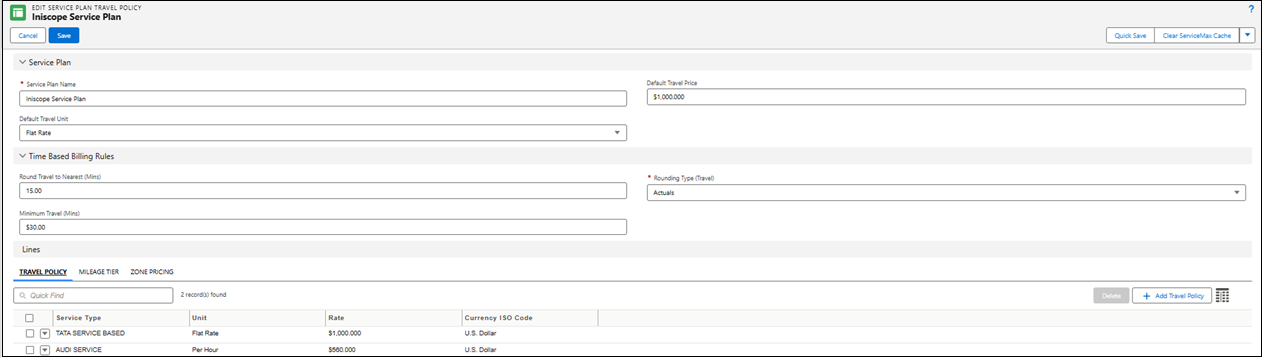
The Edit Service Plan Travel Policy wizard is displayed.
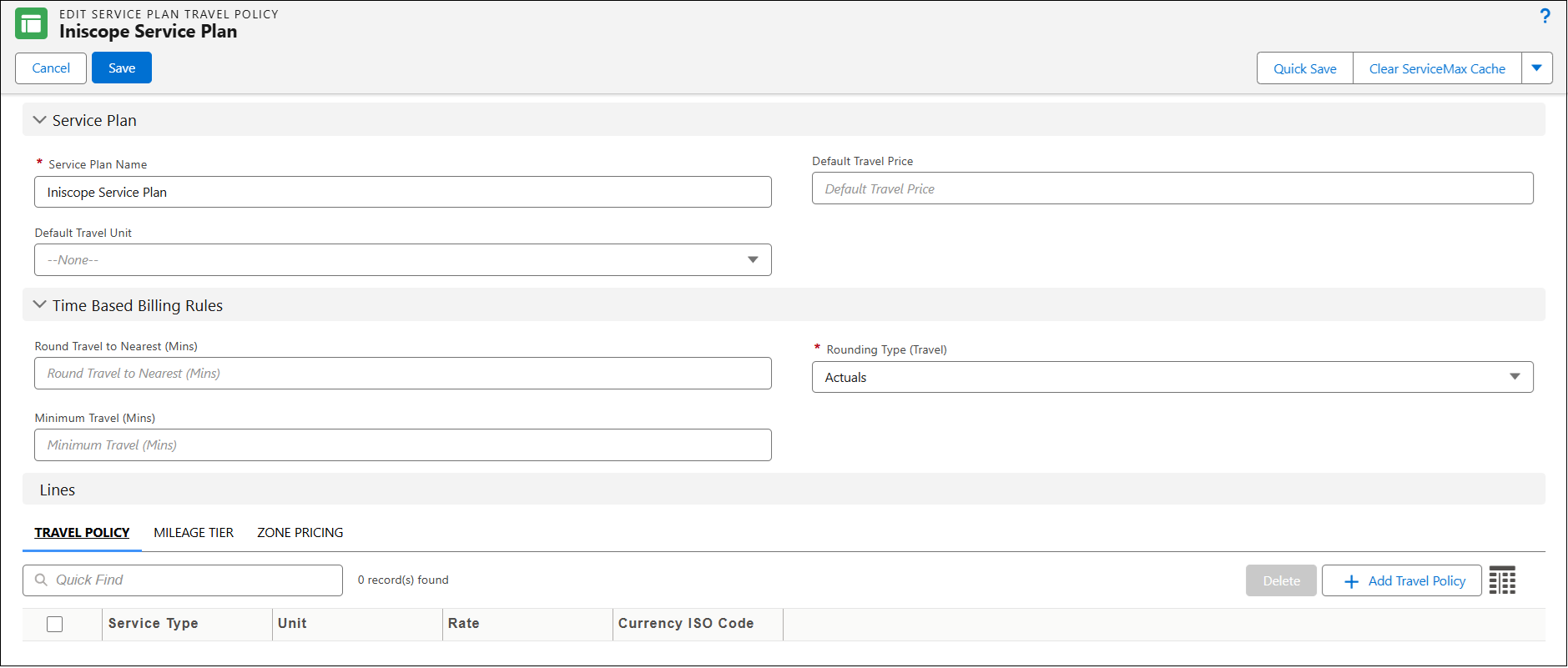
In the Service Plan section, by default the name of the selected service plan is displayed in the Service Plan Name field.
5. From Default Travel Unit lookup field, select the appropriate travel unit.
The available options are:
◦ Flat Rate: Applies a single fixed amount for travel, regardless of distance or duration.
◦ Per Hour: Calculates travel charges based on the total travel time in hours.
◦ Tiered Per Mile/Km: Calculates travel costs using distance-based tiers, where different rates apply for specific mileage or kilometer ranges.
◦ Zone Based: Applies travel rates based on predefined geographic zones.
6. In the Default Travel Price field, enter the default travel price.
In the Time Based Billing Rules section, you can define how travel time is calculated and billed by setting rounding preferences and minimum travel duration. These rules ensure consistent and accurate billing for travel-related activities.
Provide the details for the fields as described in the following table.
|
Field
|
Description
|
|---|---|
|
Round Travel to Nearest (Mins)
|
Displays the interval in minutes to which travel time will be rounded. Enter the rounding interval (for example, 15).
|
|
Minimum Travel (Mins)
|
Displays the minimum travel duration billed for each trip. Enter the minimum number of minutes (for example, 30).
|
|
Rounding Type (Travel)
|
Displays the rounding method applied to travel time. The available options are:
The available options are:
• Round Up: Rounds travel time up to the next interval.
• Round Down: Rounds travel time down to the previous interval.
• Actuals: Uses the exact travel time without rounding.
Select the rounding type based on how travel time should be calculated.
|
7. In the Lines section, under Travel Policy tab, click Add Travel Policy.
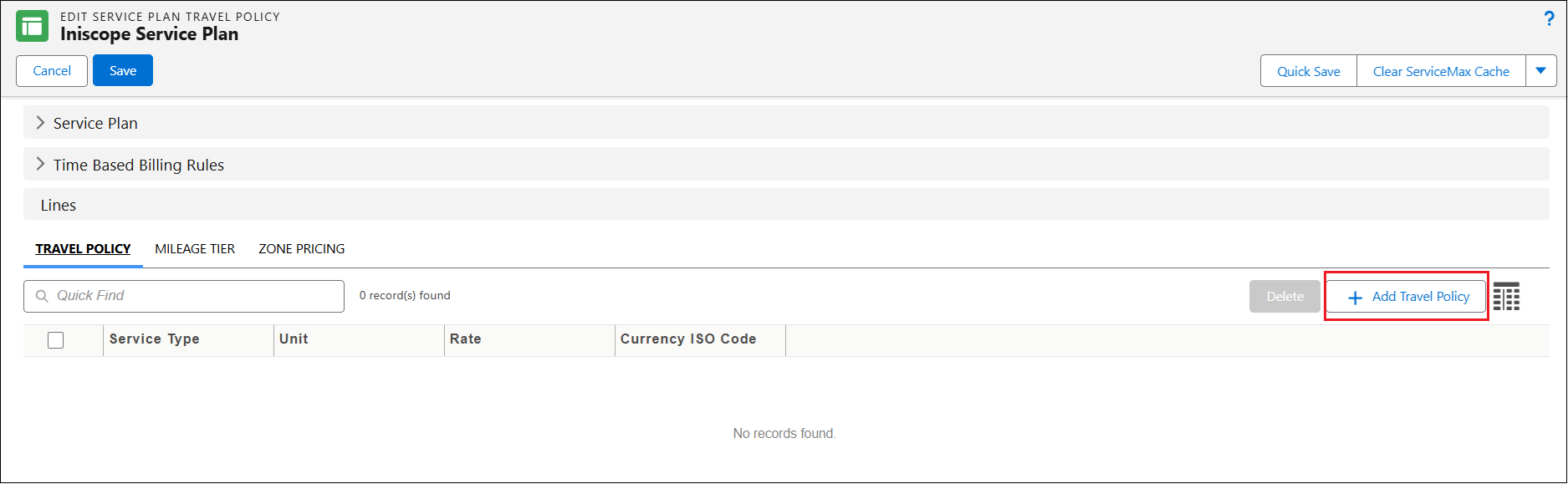
The Service Type Lookup window is opened.
|
|
You can only view the recently viewed service name in the Results section.
|
8. In the Quick Find text box, search for the service name, and then click Search.
|
|
Ensure that the service exists. For more information, see Creating a New Available Service.
|
9. Select the required service name, and then click Add.
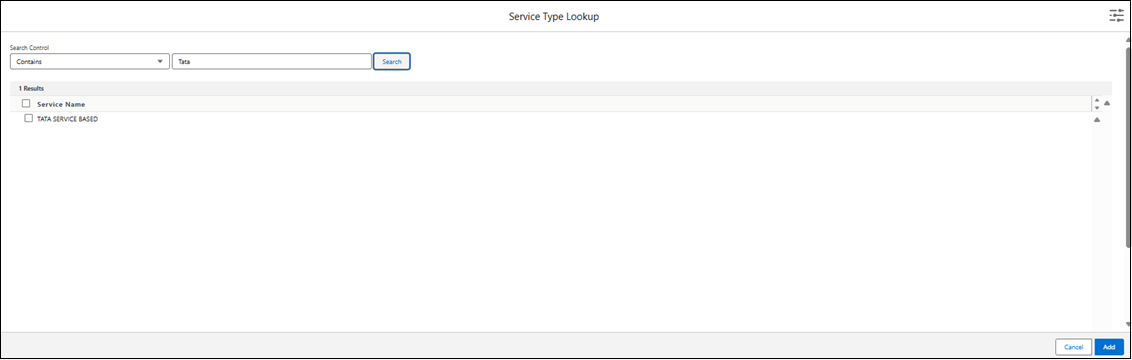
A new row is created in the Travel Policy tab.
10. Provide the details for the fields as described in the following table.
|
Field
|
Description
|
|---|---|
|
Service Type
|
Displays the type of service (for example, Onsite Visit, Field Support) associated with the travel policy. Select or enter the applicable service type.
|
|
Unit
|
Displays the unit used to calculate travel charges. The available options are:
Flat Rate: Applies a fixed travel charge regardless of distance or time.
Per Hour: Calculates travel cost based on travel duration.
Tiered Per Mile/Km: Calculates travel rates using distance-based tiers.
Zone Based: Applies rates based on predefined travel zones.
Select the appropriate unit of measure for the travel charge.
|
|
Rate
|
Displays the travel rate. Enter the rate amount.
|
|
Currency ISO Code
|
Displays the currency used for the travel rate (for example, Australian Dollar, U.S. Dollar). Select the correct currency code from the list.
|
|
|
To add a new row for travel policy, select the Add Travel Policy button and add a service name. Alternatively, in the Travel Policy tab, select the down arrow icon next to an existing travel policy record, and then select Clone. A new row is created, and you can modify the details as needed.
|
11. To save the changes and to stay on the Edit Service Plan Travel Policy page, click Quick Save.
12. To save the changes and navigate back to the Details tab, click Save.
In the Related tab on the Service Plan record, under Travel Policy related list, you can view all travel policies for the selected service plan.