Viewing Translations for a Work Plan
To view translations configured for a Work Plan:
1. From the Home page, go to ServiceMax Setup > Work Plan Management > Manage Translations.
The Manage Translations page is displayed.
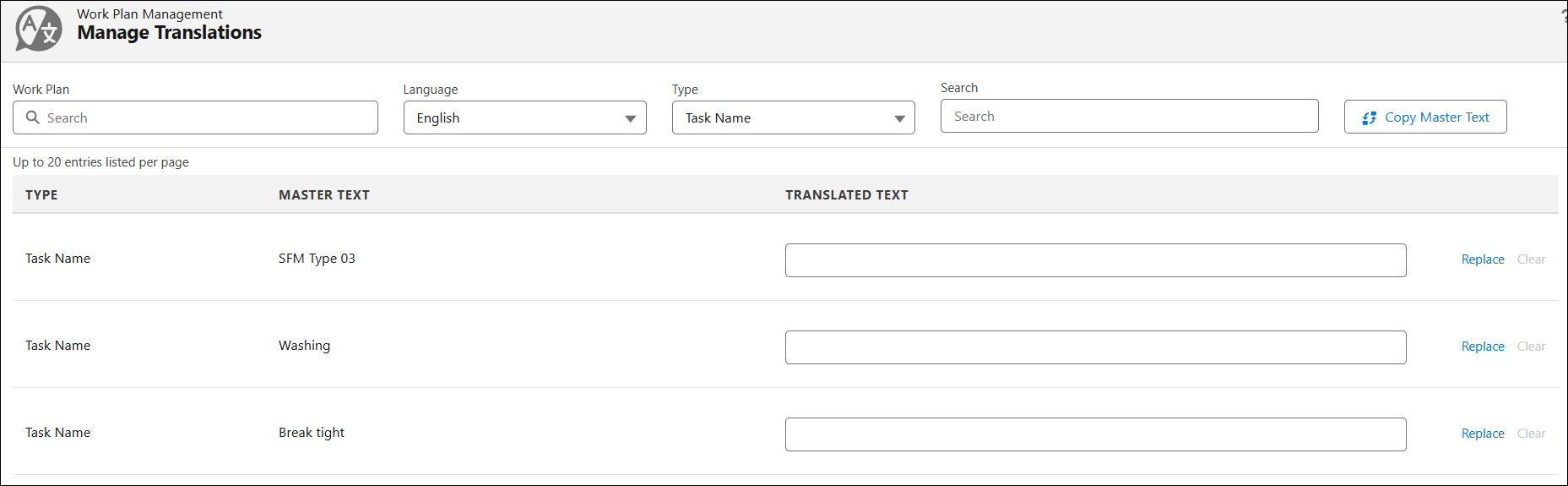
2. Provide values for the fields as described in the following table:
|
Field
|
Description
|
|---|---|
|
Work Plan
|
Search for and select a specific work plan to view or manage translations associated with that work plan.
|
|
Language
|
Select the language for which you want to view the translations. The translated text is displayed based on the selected language.
|
|
Type
|
Filters translation records by type, such as Task Name, Task Instructions, Work Plan Name, Work Plan Description, or All. By default, All is selected after you select a Work Plan.
|
|
Search
|
Search translation records using keywords that displays matching entries based on the master text.
|
Based on the applied filters, the translations are displayed for various types.
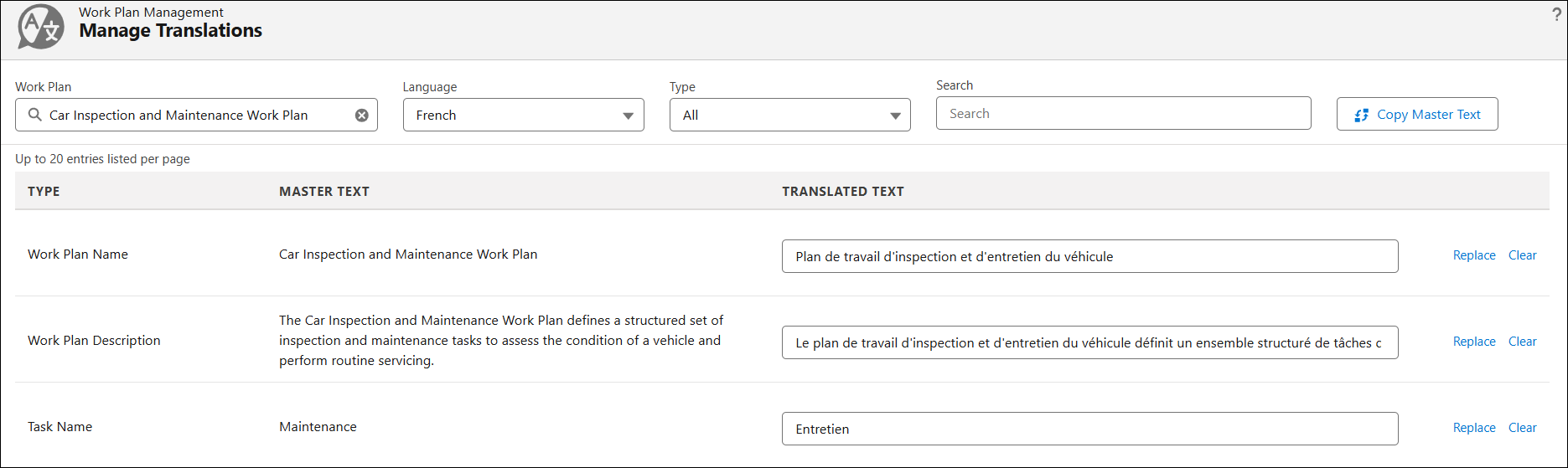
The Manage Translations page displays the following columns:
|
Column
|
Description
|
|---|---|
|
Type
|
Indicates the type of item for which the translation is provided, such as Work Plan Name, Work Plan Description, Task Name, or Task Instructions.
|
|
Master Text
|
Displays the original text for which translation is being defined.
|
|
Translated Text
|
Displays the translated text for the selected language. If left blank, the master text is displayed in the selected language.
|
Available Actions on Manage Translations
On the Manage Translations page, you can perform the following actions:
• Copy the Master Text to the Translated Text to quickly modify the texts instead of entering the translation from scratch using the Copy Master Text button.
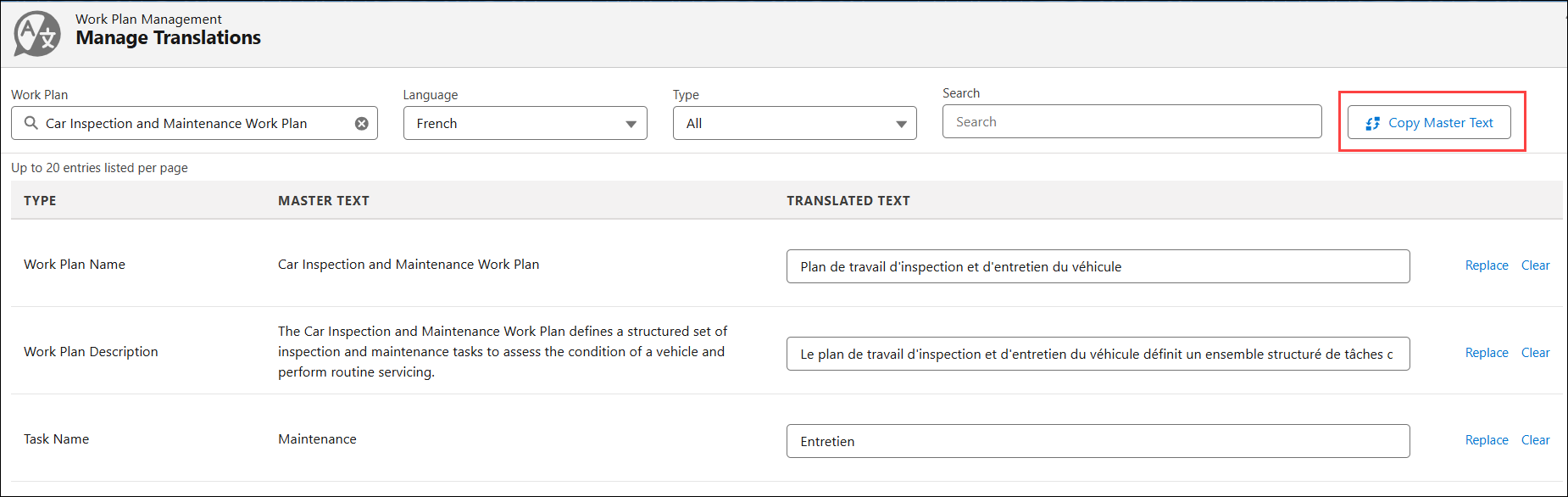
• Replace the translated text with the Master text or Clear the translated text.