Creating a Logistic Work Plan
You can create a logistic work plan by defining logistic tasks that typically involve collecting faulty products or assets from the customer’s location and delivering them to a specified depot for repair. After the service is completed, the items are returned to the customer’s location. Logistic work plans are supported only for Depot Service activities and are not applicable to service-specific work orders or service products. For more information, see Configuring Logistic Services for Depot.
You can identify and create logistic work plans based on the following logistic services:
• Repair and Return: Retrieves IPs from the customer site and ships them to the depot. This process is initiated and completed almost immediately. Sends the repaired IPs from the depot back to the customer. This shipment is generally processed only after the repair is confirmed.
• Return & Exchange: Retrieves IPs from the customer site and ships them to the depot. Processed almost immediately. Sends a replacement device from the warehouse to the customer. This shipment may be processed immediately to ensure quick replacement of the faulty IP.
• Return & Repair with Temporary Replacement (Loaner/Rental): Retrieves IPs from the customer site and ships them to the depot. This RMA is processed almost immediately. Ships a loaner or rental IP from the warehouse to the customer to minimize downtime. Ships the repaired IP back to the customer after the repair is confirmed. Returns the loaner or rental IP from the customer to the warehouse through an RMA, processed promptly to support return planning.
• Return Only: Retrieves IPs from the customer site and ships them to the depot. This RMA is processed almost immediately.
 |
The work plan is set to Active status upon creation. The latest modified plans are displayed on the top of the list view.
|
To create a logistic work plan record:
1. From the Home page, go to the Work Plan Library.
2. Click Create Work Plan.
The Create Work Plan modal window is displayed.
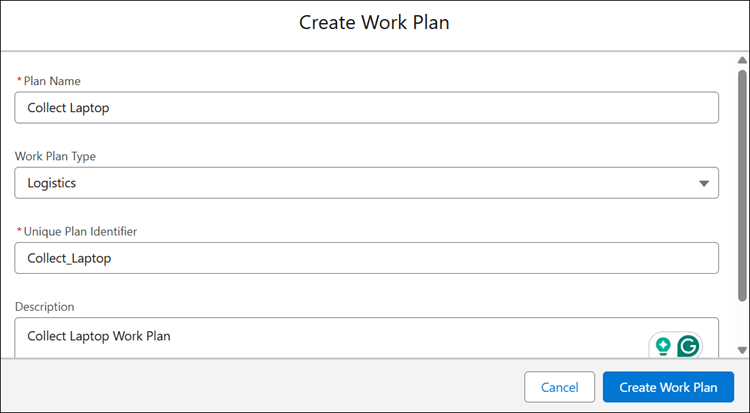
3. Enter the details as described in the following table.
|
Fields
|
Description
|
||
|---|---|---|---|
|
Fields with * are mandatory.
|
|||
|
Plan Name*
|
Enter a name for the work plan.
|
||
|
Work Plan Type
|
Indicates the type of Work Plan. From the drop-down, select Logistic type. This work plan is used for logistic-specific work orders.
|
||
|
Unique Plan Identifier*
|
A unique ID for the work plan is automatically populated, based on the plan name. However, you can change the field value.
|
||
|
Description
|
Indicates a description for the work plan.
|
||
4. Click Create Work Plan.
The Work Plan page is displayed.
5. Configure the following tabs:
|
|
• You can only add SFM and simple tasks to the logistic work plan. The logistic work plan becomes active only after an SFM task is added.
• You cannot configure recommended parts and tools in logistic work plans.
|