Adding a Dependency for a Task in a Work Plan
In a Work Plan, you can add a dependency for a task in the Dependencies tab. When adding a dependency, you can select the primary or blocking task and apply time constraints that control when a task must start or finish relative to its blocking task. This ensures tasks are executed in the correct order with controlled timing.
To add a dependency for a task in the Dependencies tab:
1. From the Home page, go to the Work Plan Library tab.
The Work Plan Library page is displayed with the existing Work Plans.
2. Open a Work Plan.
3. Go to the Dependencies tab.
The list of dependent tasks along with related blocking tasks is displayed.
4. Click Add Dependency.
The Add Dependency(s) window is displayed.
5. In the Secondary Task (Dependent Task) field, select the task for which the dependency must be defined.
Additional dependency fields are displayed.
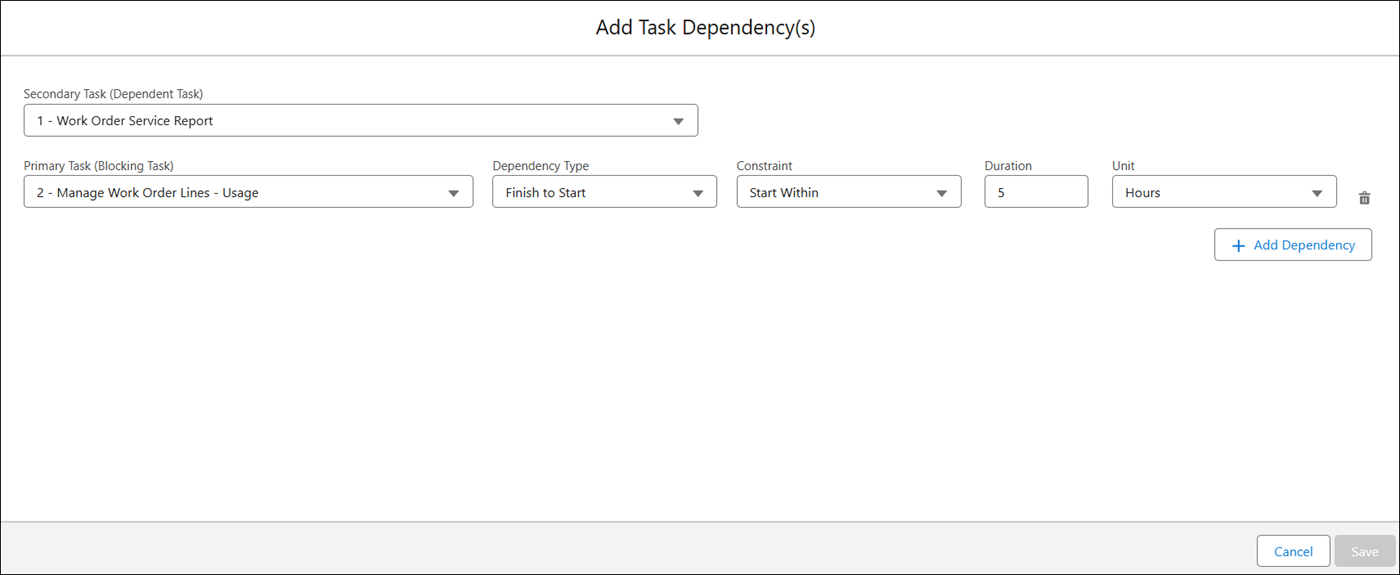
6. Provide details for the fields as described in the following table:
|
Field
|
Description
|
||
|---|---|---|---|
|
Primary Task (Blocking Task)
|
Select the primary (blocking task) task from the drop-down that controls when the dependent task can start or finish. This controls the order of execution.
This field is mandatory to add the dependency.
You can add multiple dependencies for the Secondary Task (Dependent Task).
In the drop-down, the sequence numbers of tasks are displayed along with the task names in ascending order.
|
||
|
Dependency Type
|
Select how the dependent task is related to the primary task. The following are various dependency types:
• Finish to Start: The secondary task starts after the primary task finishes.
• Start to Start: The secondary task starts after the primary task starts.
• Finish to Finish: The secondary task finishes after the primary task finishes.
• Start to Finish: The secondary task finishes after the primary task starts.
|
||
|
Constraint
|
(Optional) Select a time-based condition that controls when the dependent task must start or finish relative to the primary task.
You can configure the following scheduling constraints based on dependency type:
• Finish to Start and Start to Start: Start Within, Start After, and Must Start
• Finish to Finish and Start to Finish: Finish Within, Finish After, and Must Finish
By default, the Constraints is set to None.
|
||
|
Duration and Unit
|
If the Constraints is selected, enter the Duration and select the Unit (Hours, Minutes, or Days) to define the time-based condition.
When the Constraints is selected, it is mandatory to specify Duration and Unit fields.
|

After you add the first task dependency to a work plan, a Dependency Group record is automatically created. The record name follows the format “DG–Work Plan Name”. You can view and manage Dependency Group records in the Dependency Management tab. For more information, see Managing Dependency Group Records.
Use Case
Enforcing task execution sequence with dependencies
Role: Service Planner
A service planner at Iniscope International configures the Soniscape SSI 1000 Installation Work Plan with a Finish-to-Start dependency between the Hardware Installation task and the System Calibration task. The planner sets a Start After constraint of two hours to allow hardware components to stabilize before calibration begins. When a field service engineer opens the work order at ClearPath Diagnostics, the calibration task remains blocked until the installation task reaches Complete status. This prevents premature calibration attempts, reduces rework caused by incomplete hardware setup, and ensures the installation meets the clinical accuracy standards required for the Soniscape SSI 1000.