Adding a Dependency to a New Task in a Work Plan
In a Work Plan, you can add a dependency when adding a new task. When you add a dependency, you select a primary task and define time constraints that control when the current task must start or finish relative to the primary task. This ensures tasks are executed in the correct sequence with controlled timing.
To add a dependency:
1. Go to the Work Plan Library.
The existing work plans are listed.
2. Open the work plan to which you want to add a task.
3. Click Add Task.
The Add Task pop-up window is displayed.
4. Provide the required details in the Details and Instructions tab.
5. Go to the Dependencies tab.
6. Click Add Dependency.
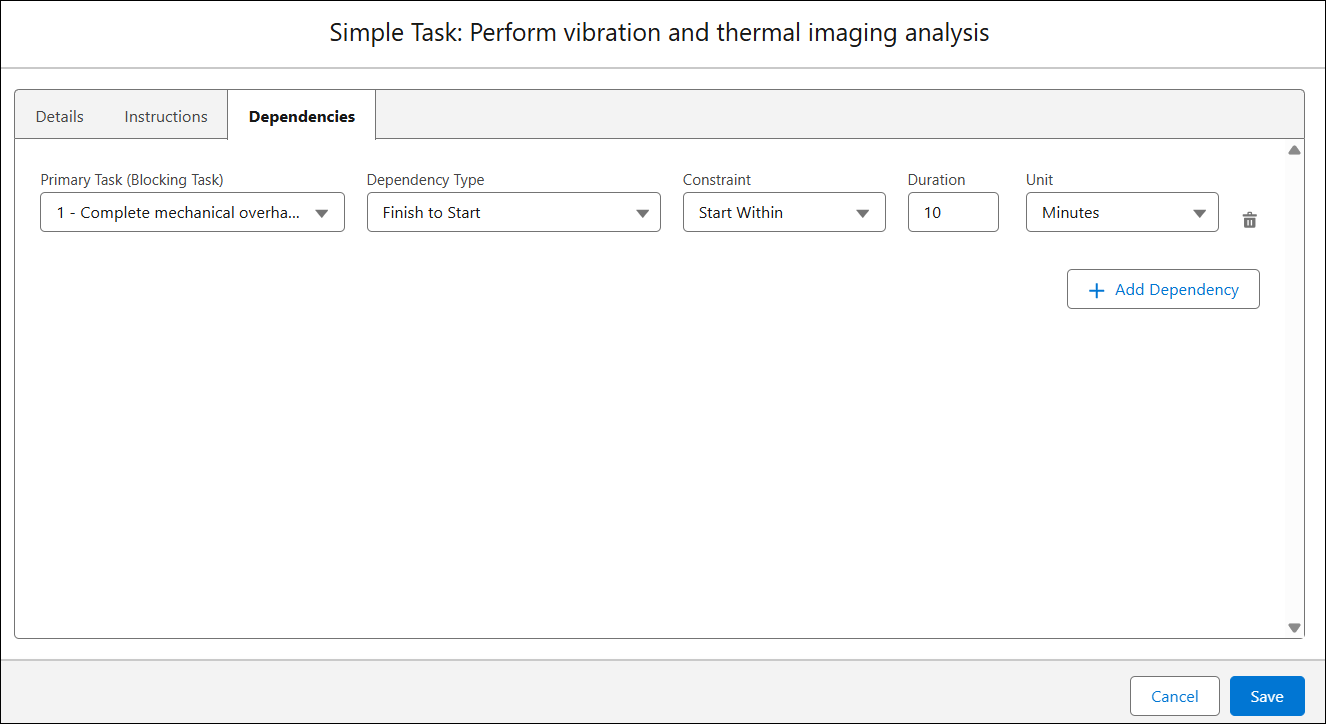
7. Provide details for the fields as described in the following table:
|
Field
|
Description
|
||
|---|---|---|---|
|
Primary Task (Blocking Task)
|
Select the primary (blocking task) that controls when the dependent task can start or finish. This controls the timing and execution of the task.
This field is mandatory to add the dependency.
You can add multiple dependencies for the Secondary Task (Dependent Task).
|
||
|
Dependency Type
|
Select how the dependent task is related to the primary task. The following are various dependency types:
• Finish to Start: The secondary task starts after the primary task finishes.
• Start to Start: The secondary task starts after the primary task starts.
• Finish to Finish: The secondary task finishes after the primary task finishes.
• Start to Finish: The secondary task finishes after the primary task starts.
|
||
|
Constraint
|
(Optional) Select a time-based condition that controls when the dependent task must start or finish relative to the primary task.
You can configure the following scheduling constraints based on dependency type:
• Finish to Start and Start to Start: Start Within, Start After, and Must Start
• Finish to Finish and Start to Finish: Finish Within, Finish After, and Must Finish
By default, the Constraints is set to None.
|
||
|
Duration and Unit
|
If the Constraint is selected, enter the Duration and select the Unit (Hours, Minutes, or Days) to define the time-based condition.
When the Constraint is selected, it is mandatory to specify Duration and Unit fields.
|
8. Click Save.
 |
After you add the first service task dependency to a work plan, a Dependency Group record is automatically created. The record name follows the format “DG–Work Plan Name”. Each task dependency is saved as a Work Order Dependency record and is linked to the corresponding Dependency Group. Each Work Order Dependency record displays the Primary Task, Secondary Task, associated Dependency Group, and dependency details. For more information, see Managing Dependency Group Records.
|