Using Saved Prompts in Go
Field technicians often repeat similar queries during operations, such as calibration steps or troubleshooting instructions. The Saved Prompts feature in the Go app enables users to create, store, and reuse frequently used queries or instructions, improving efficiency and consistency in field interactions. This feature is available on both Android and iOS platforms.
Use Cases
The following list represents some use cases for the Saved Prompts in Go feature:
• Quickly accessing calibration steps for specific equipment models.
• Reusing troubleshooting instructions for common issues.
• Sharing standardized prompts across teams for consistent communication.
|
Prerequisites
|
|---|
|
ServiceMax Go must be connected to the AI chat service.
|
Creating a Saved Prompt
You can save frequently used prompts, such as steps to calibrate a specific model of equipment.
To create saved prompts, perform the following steps.
1. Open ServiceMax AI chat.
2. In the input field, type your questions and tap the Send button. For example, How do I calibrate Model X?
3. Long-press the sent message to open a context menu, then tap Create Saved Prompt.
The Name Saved Prompt pop-up window is displayed.
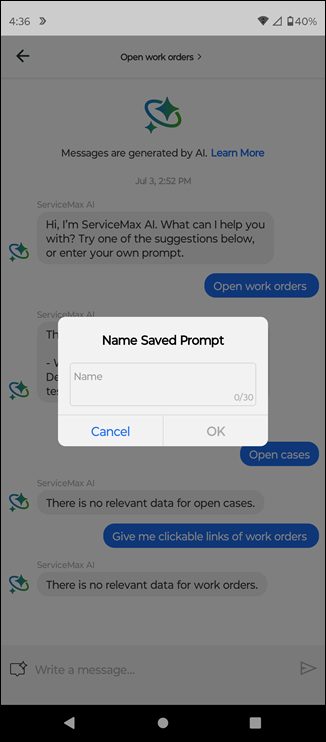
4. Type a unique prompt name and tap OK.
 |
• Prompt title must be between 1 and 30 characters.
• Duplicate titles are not allowed.
• Prompt messages can be duplicated if titles are unique.
• Prompts are not dynamically refreshed across devices; restart the app to sync.
|
A confirmation message is displayed upon successful creation.
Related Topics: