Troubleshooting Agent Workflow
The Troubleshooting Agent process flow includes the following stages: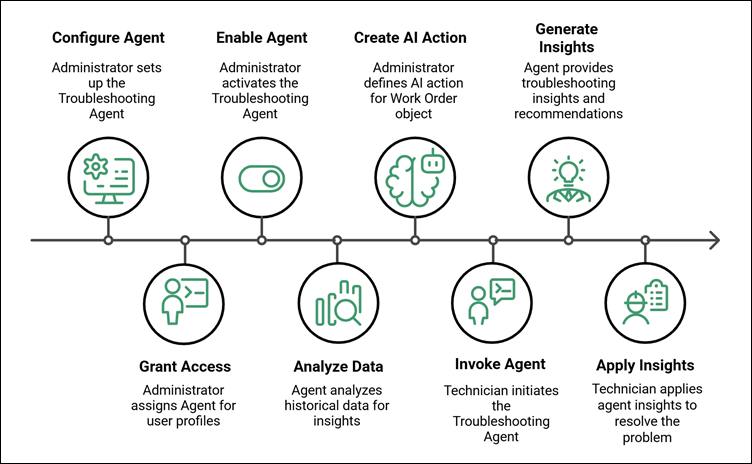
Step 1: Configuring the Troubleshooting Agent
In the AI Console, Administrator configures the following:
• Define data sources, including relevant fields to retrieve data for Problem Overview and Solution Overview from the fields.
• Configure the data scope to control which work orders the Troubleshooting Agent analyzes and uses as references when troubleshooting current issues.
• Define rules and guidelines to control how the Troubleshooting Agent determines relevance when matching current problems with past service issues.
For more information, see Managing Troubleshooting Agent Configurations.
Step 2: Granting User Access
Administrator configures which profiles or users can access the Troubleshooting Agent. For more information, see Enabling User Access for Troubleshooting Agent.
Step 3: Enabling the Agent
Administrator enables the Troubleshooting Agent in the AI Console and verify that required configurations are active. For more information, see Enabling Troubleshooting Agent.
Step 4: Analyzing Historical Data
• The Troubleshooting Agent performs semantic search across closed work orders
• Analyzes AI notes and historical service data
 |
The Salesforce Injection Data Pipeline (SIDP) scheduler connects to your Salesforce org to process recently closed Work Orders and store the generated AI Notes in Snowflake.
To enable this integration, you must create an External Client App (ECA) and provide the Salesforce OAuth Client ID, Username, and instance URL to the ServiceMax team by submitting a Salesforce case. Do not share this information via email due to security risks.
|
• Identifies similar assets, recurring issues, and prior resolutions
For more information, see AI Notes for Troubleshooting.
Step 5: Defining AI Action for the Work Order Object
• Administrator creates an AI action for the Work Order object.
• Embeds the Troubleshooting Agent within the AI action.
• Defines instructions to analyze past work orders based on specific context.
• Configures how the agent retrieves and summarizes historical insights.
For more information, see Defining AI Action for Troubleshooting Agent.
Step 6: Invoking the Agent
Technician opens a work order with an active issue and run the AI action configured for troubleshooting.
Step 7: Generating Troubleshooting Insights
• The Troubleshooting Agent retrieves and ranks similar work orders
• Summarizes key details:
◦ Problem Overview
◦ Solution Overview
◦ Generate consolidated troubleshooting recommendations
Step 8: Applying Insights
• The technician compares the current issue with retrieved insights
• Applies the insights to resolve the issue.
For more information, see Using Troubleshooting Insights.