Selecting AI Actions for MCP Server
You can select an AI action to make it available through the MCP server, ensuring users can access only the relevant and approved AI capabilities needed for their business processes. This helps maintain control, security, and alignment with organizational requirements.
 |
The whitelist or pre-selected AI actions are unaffected when you disable the MCP server. These AI actions and their descriptions are restored automatically when you enable the server again, without any additional setup.
|
|
Prerequisites
|
|---|
|
To enable this feature, ensure the following:
• You must have access to the ServiceMax AI Console with administrator permissions.
• You must have configured atleast one AI action. For more information, see Configuring AI actions.
|
To select available AI actions for the MCP server, perform the following steps.
1. Navigate to > > .
The ServiceMax AI Console is launched.
|
|
You can also log in directly at https://console.servicemax.io/ai with your Salesforce org credentials.
|
2. Navigate to > .
The MCP Server page is displayed.
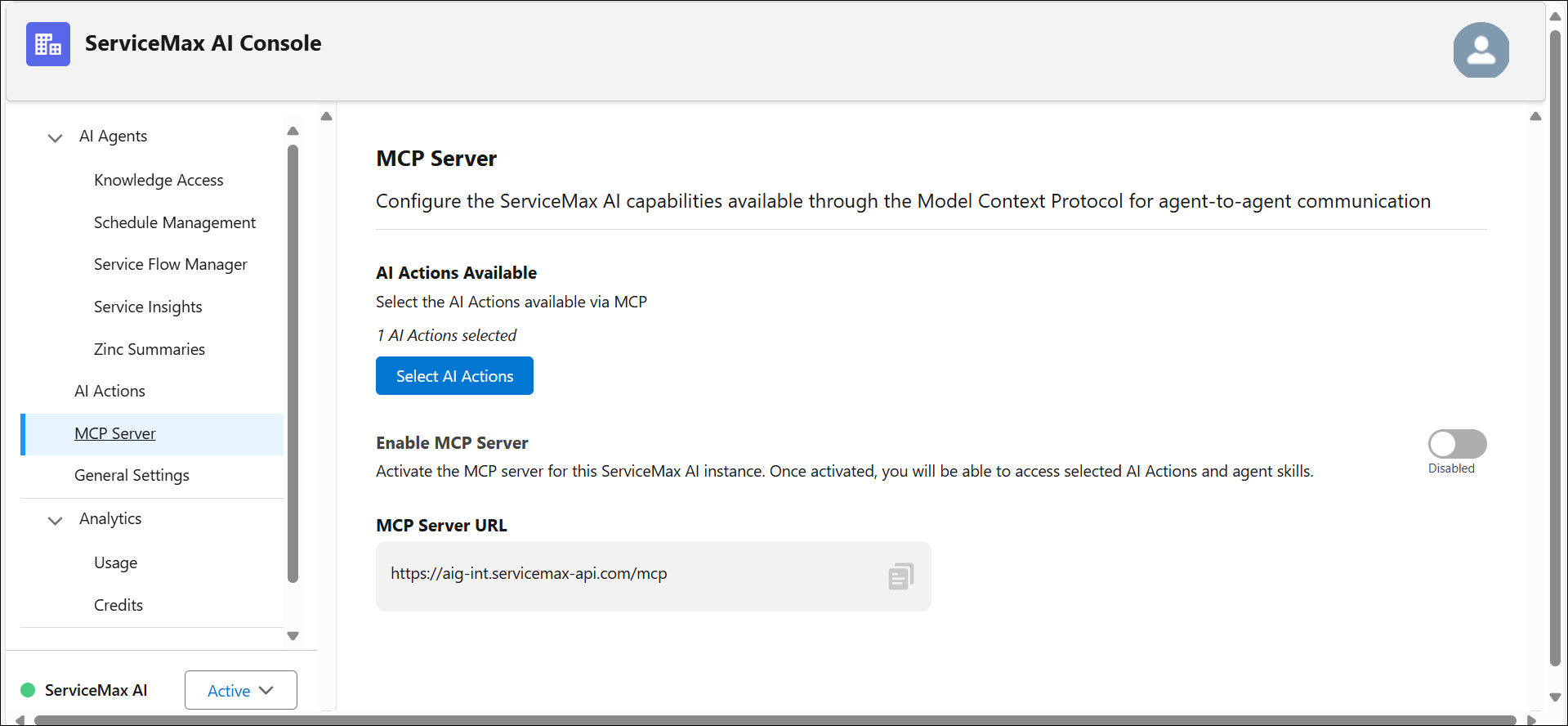
3. To enable the MCP server, toggle the switch to On. A confirmation dialog appears to confirm the action click Turn On.
The server is activated immediately.
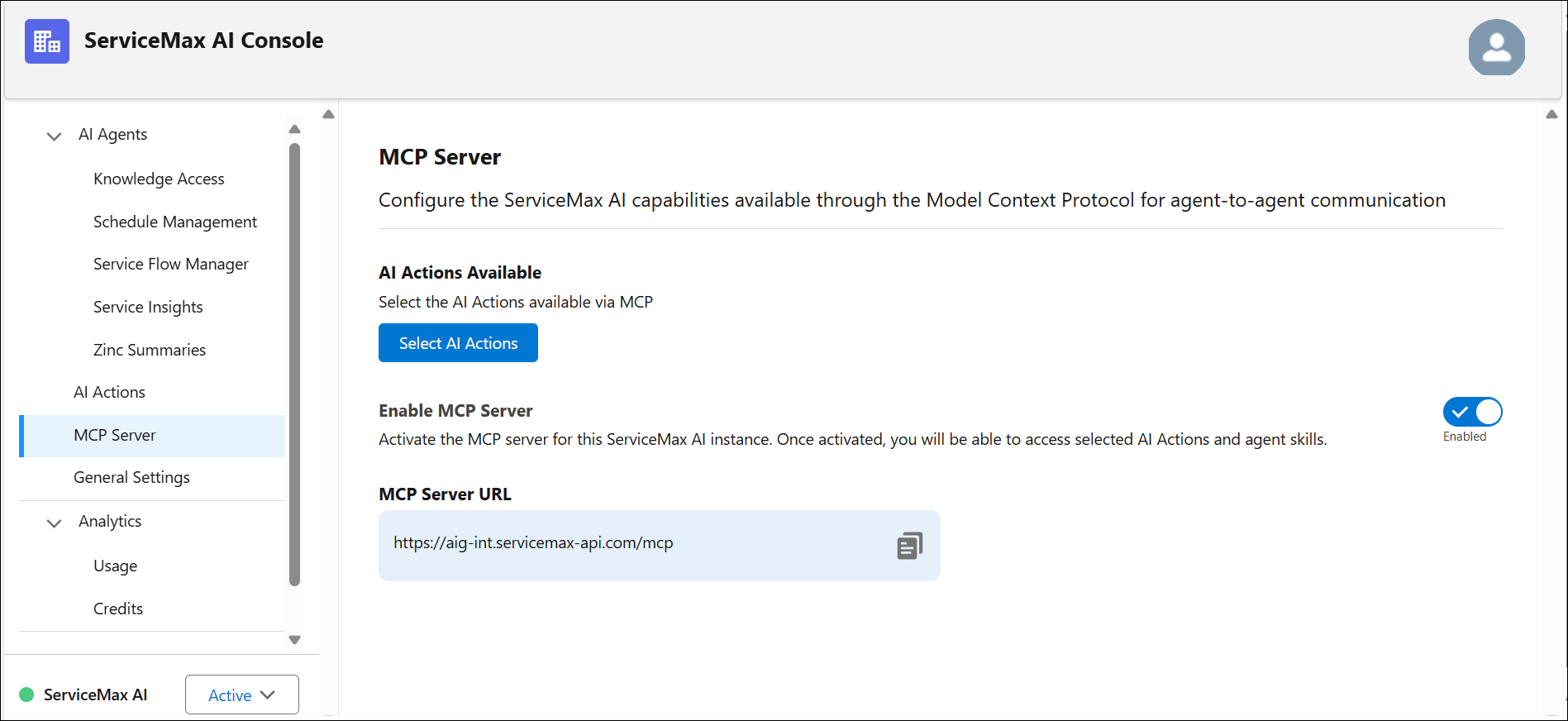
4. Click Select AI Actions.
|
|
By default, no AI actions are available, you must select an AI action to make them accessible through MCP. You can add AI action using the Add AI Action button to view the list.
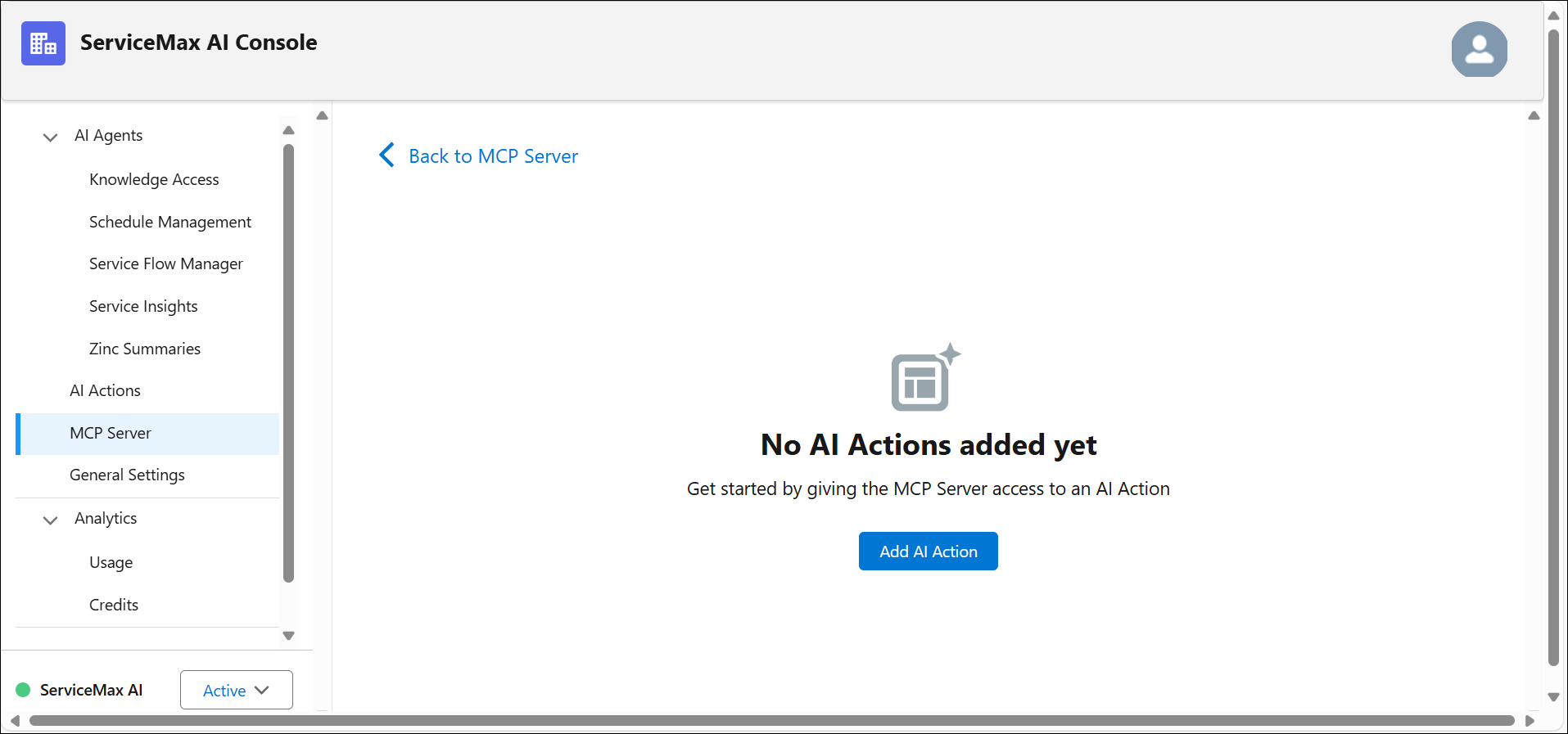 |
5. Select an AI action from the list displayed in the “Select AI action” window. The AI actions are listed alphabetically, and each entry includes Name and Object.
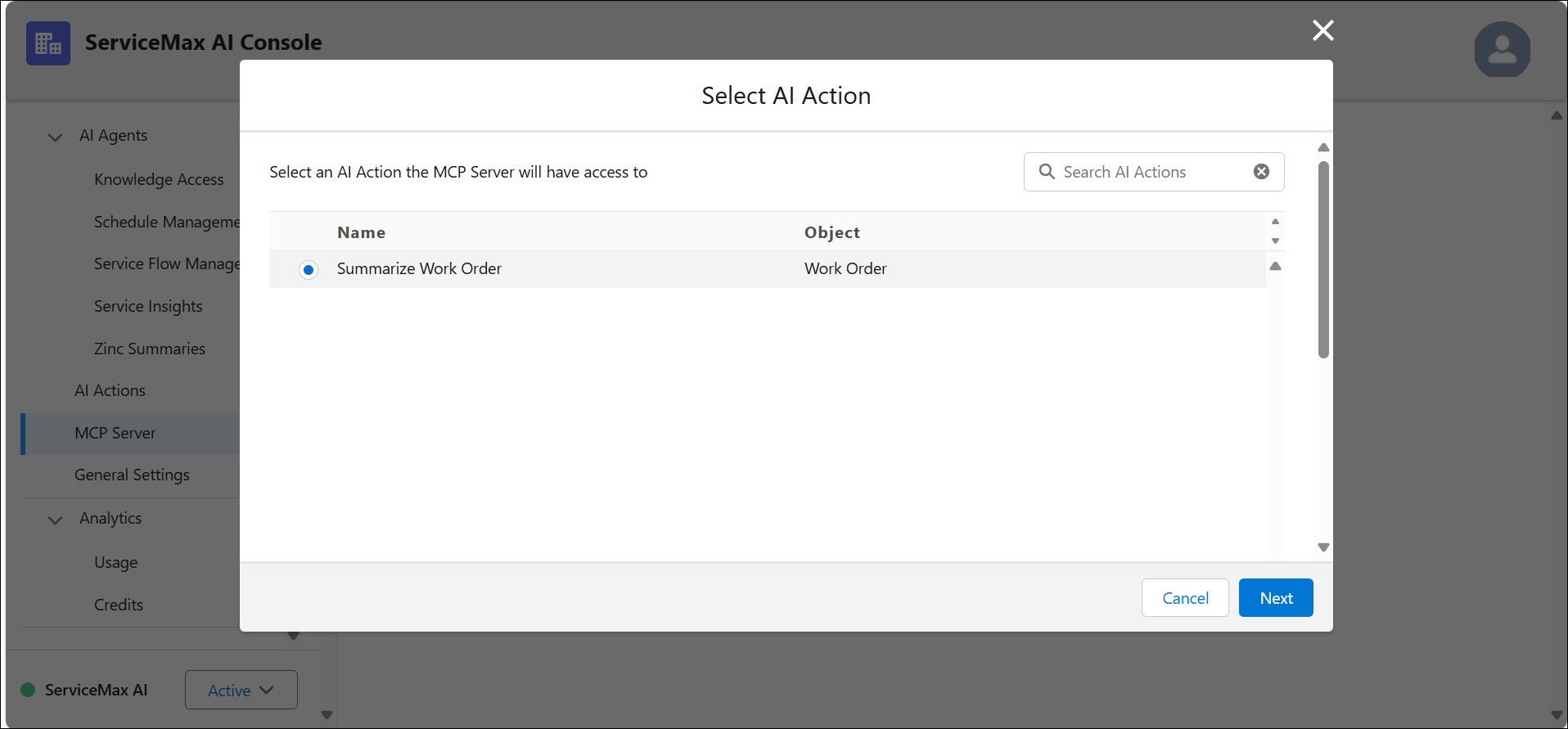
The following table describes each field shown in the Select AI action window.
|
Field
|
Description
|
|---|---|
|
Name
|
Displays the name of the AI action that the MCP server can gain access to.
|
|
Object
|
Identifies the object from which the AI action is invoked.
|
6. Search for and select an AI action from the search bar by typing atleast three characters. This displays AI action.
7. Click Next.
8. Enter MCP Tool Name and MCP Tool Description.
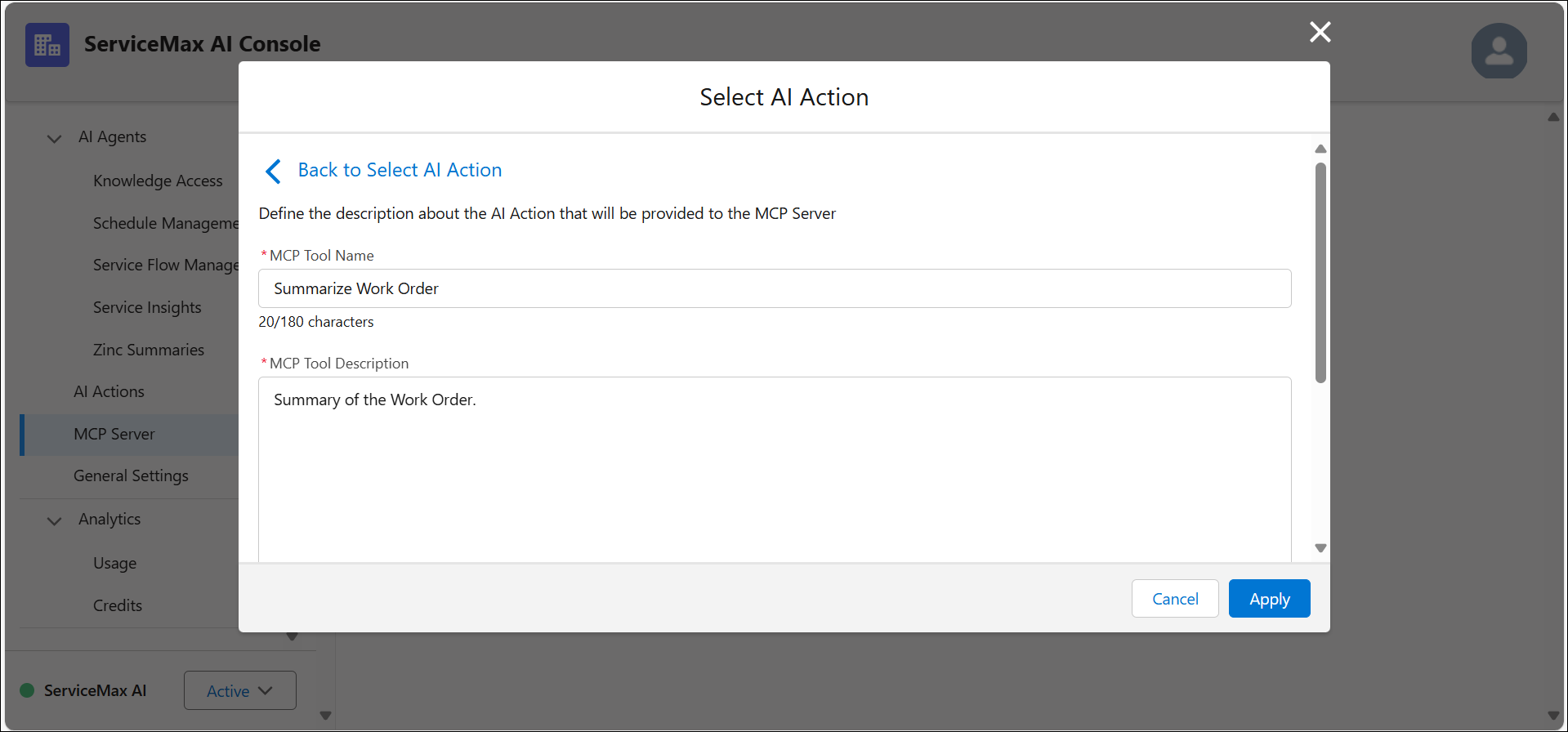
The following table describes each field shown in the Select AI action window.
|
Field
|
Description
|
|---|---|
|
MCP Tool Name*
|
Populates a unique name of the MCP tool which is exposed to the MCP client
|
|
MCP Tool Description*
|
Enter a short description or summary of tool usage, the type of input supported, and the expected outcome.
|
|
* — Indicates field is mandatory.
|
|
|
|
• By default, the MCP Tool Name defaults to the AI action's name which can be used as is without any changes needed. However, if you want to connect to the MCP server from an MCP client that has specific requirements or limitations in tool names, such as it doesn't allow spaces in names, then you can modify the name so that it works with your client. For example, if your AI action's name is "Work Order Brief" and your MCP client doesn't accept server tools with white spaces, then you can change the tool name to "Work_Order_Brief".
• You must enter atleast one character in the MCP Tool description field.
• You can use a maximum of 180 characters to write the MCP Tool Name and 5000 characters for the MCP Tool Description.
|
9. Click Apply.
The Select AI actions page displays the AI action(s) available via MCP. The following details are displayed in tabular format:
◦ AI Action Name
◦ Object
◦ MCP Tool Name
◦ MCP Tool Description
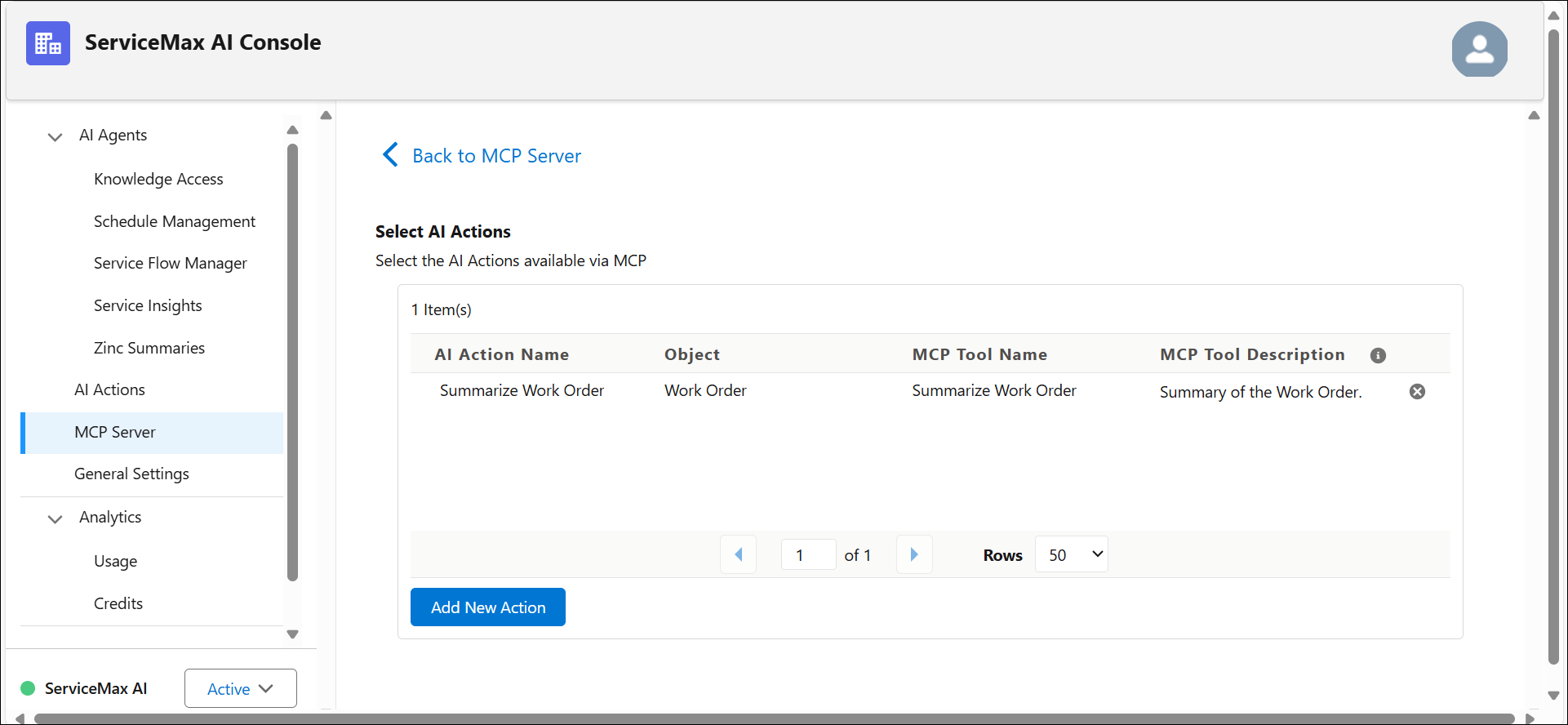
10. If you want to add another AI action, click Add New Action and repeat steps 5 to 9.
The selected AI actions are available via the MCP server.
Related Topics