Configuring Model Context Protocol server in AI Console
 |
This feature is currently available as a beta release.
|
The Model Context Protocol (MCP) server enables seamless integration between AI actions configured in ServiceMax and external MCP clients. End users from departments such as sales, operations, and customer support can securely discover and execute AI actions as MCP Tools via standardised APIs. The MCP server acts as a bridge, providing AI capabilities in a standardized, discoverable, and secure manner for various client applications. When the MCP server is enabled, users gain access to enhanced AI capabilities for diagnostics, scheduling, and service support.
As a ServiceMax administrator, you can configure the MCP server in your ServiceMax AI Console to control when it is enabled to access AI actions and determine which AI actions are accessible. This configuration enables administrators to turn the MCP server on or off as needed, ensuring it operates only when intended.
|
|
The MCP server toggle is off by default and only turns on when an administrator enables it. The toggle reflects the following scenarios:
• If the MCP server is running, the toggle is enabled or turned on.
• If the MCP server is not running, the toggle is disabled or turned off.
|
|
Prerequisites
|
|---|
|
To enable this feature, ensure the following:
• You must have access to the ServiceMax AI Console with administrator permissions.
• Your ServiceMax AI instance must be provisioned with MCP server capabilities.
|
To configure the MCP server toggle, perform the following steps.
1. Navigate to > > .
The ServiceMax AI Console is launched.
|
|
You can also log in directly at https://console.servicemax.io/ai with your Salesforce org credentials.
|
2. Navigate to > .
The MCP server page is displayed.
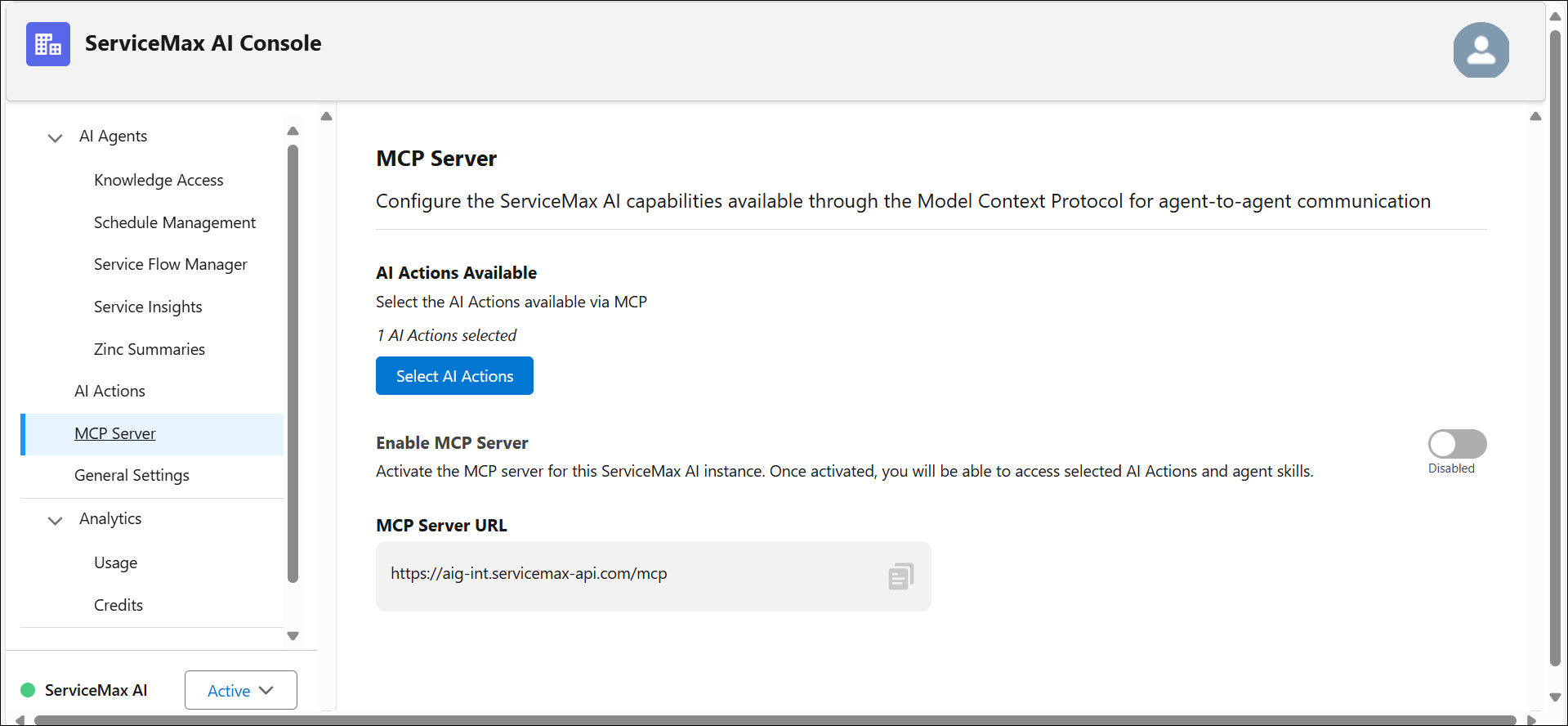
3. Locate the MCP server toggle.
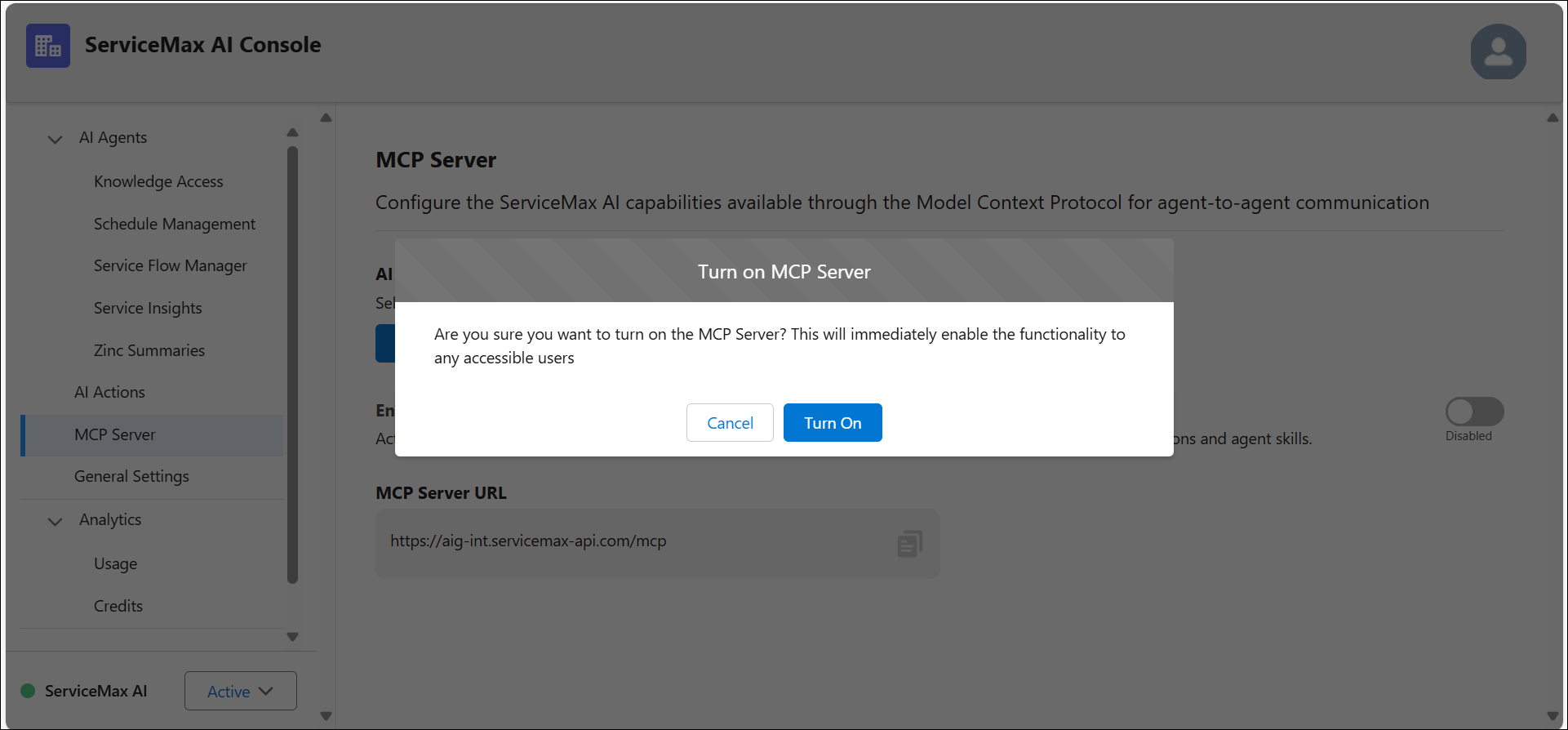
4. Enable the toggle button in the Enable MCP server section to enable MCP. A confirmation dialog appears to confirm the action, click Turn On.
The server is activated immediately.
5. Disable the toggle button in the Enable MCP server section to disable MCP. A confirmation dialog appears to confirm the action, click Turn Off.
The server is deactivated immediately.
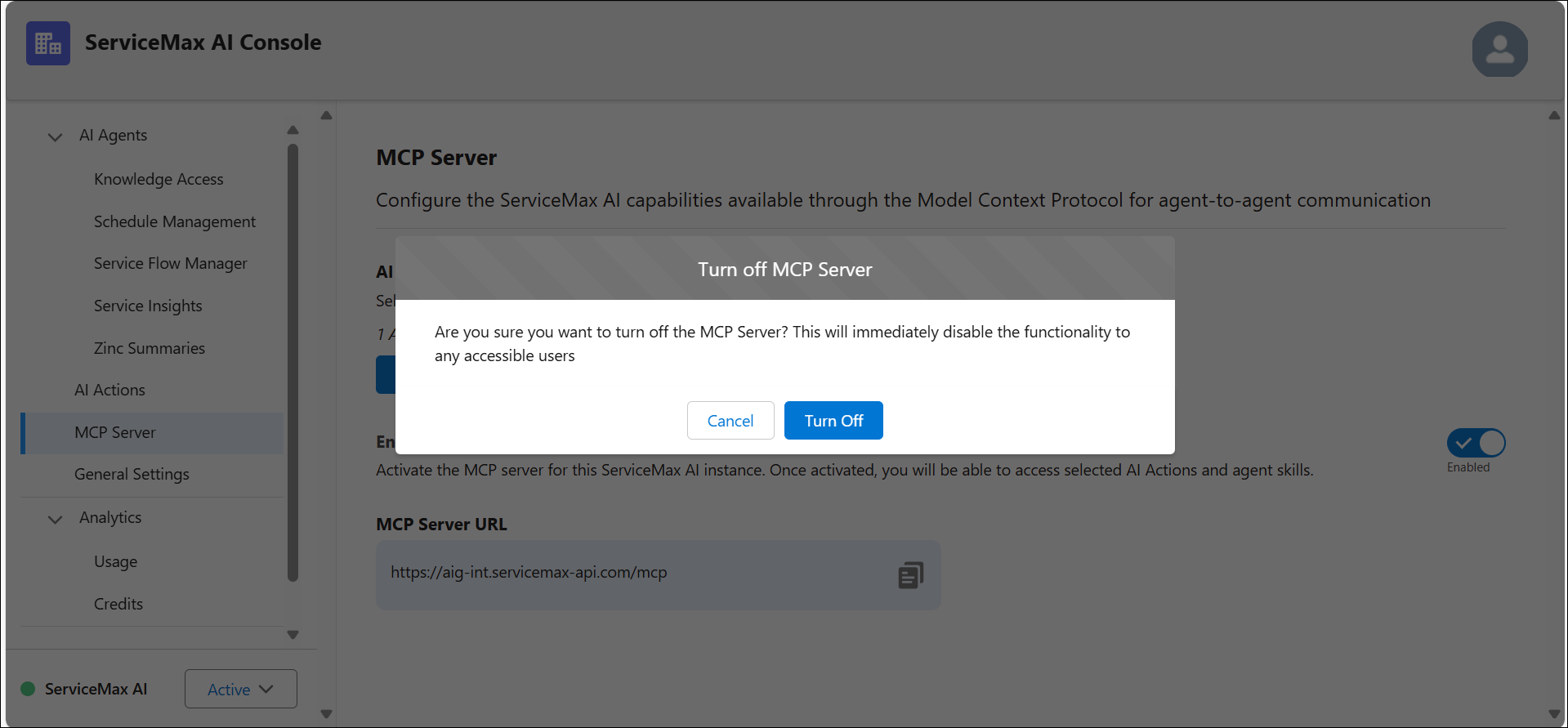
The MCP server Settings are updated.