Defining Rules and Guidelines for Troubleshooting
You can define rules and guidelines to control how the Troubleshooting Agent identifies relevant past work orders and prioritizes them when searching and displaying results.
To define rules and guidelines, perform the following steps.
Example: Define a guideline that instructs the Troubleshooting Agent to:
• Assign higher relevance to past work orders with matching asset type, error code, and reported symptoms
• Prioritize work orders that were successfully resolved
• Deprioritize work orders with incomplete data or unresolved issues
To define rules and guidelines for the Troubleshooting Agent
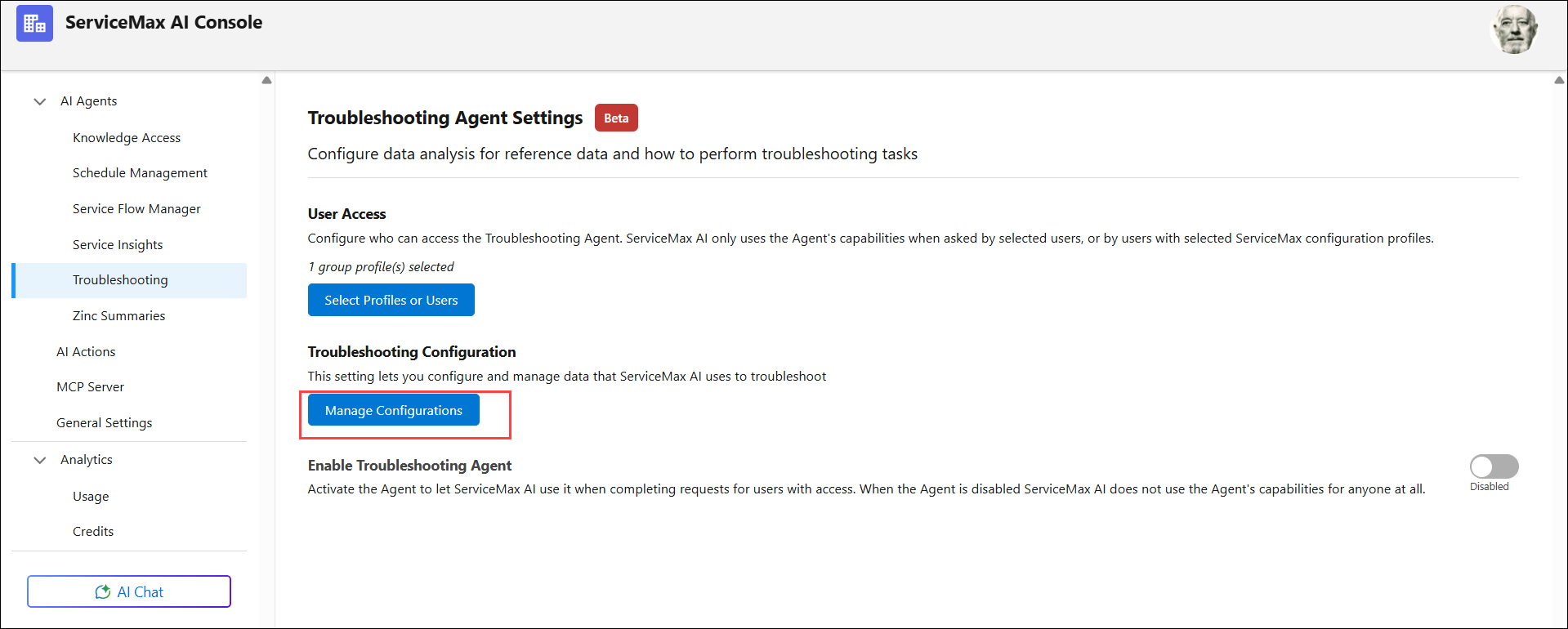
1. Navigate to > > .
The Troubleshooting Agent page is displayed.
2. Click Manage Configurations under Troubleshooting Configuration.The Troubleshooting Configuration Settings page is displayed
3. Select the Rules and Guidelines tab.
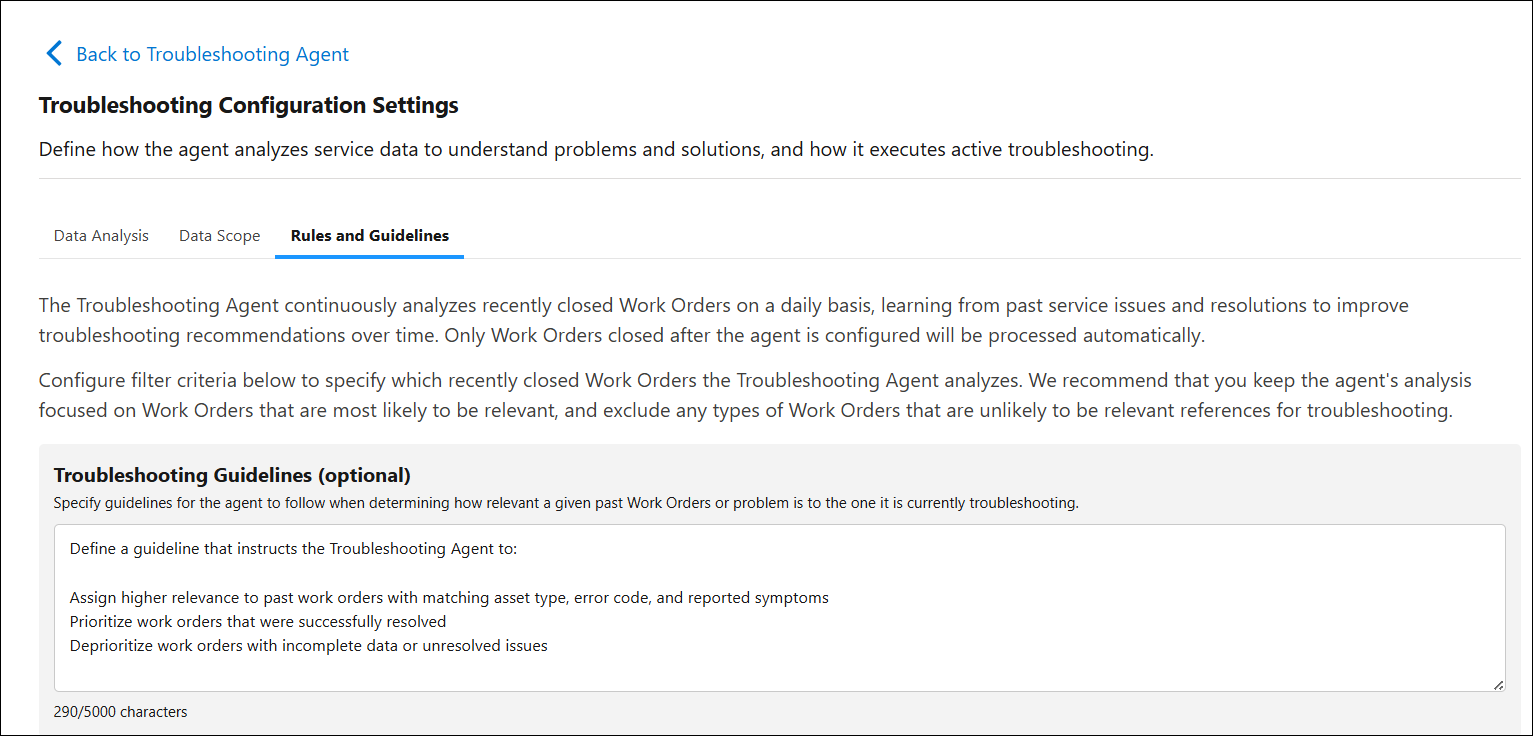
4. In the Troubleshooting Guidelines section, enter guidance that explains how the agent should evaluate relevance.
 |
Troubleshooting guidelines are optional but help improve result accuracy.
|
5. In the Context Data Match Requirements section, select metadata fields that must match exactly between current and past work orders. This is optional.
6. Review the selected fields carefully.
|
|
Work orders that do not match the selected context data fields are excluded from troubleshooting results, even if they are otherwise similar.
|
7. Click Save.
Related Topics