Evaluating Troubleshooting Configuration
You can evaluate the Troubleshooting Agent configuration by running a test work order analysis. The test generates Problem Overview, Solution Overview, and Context Data results without saving them, allowing you to verify that the configuration captures the intended data before enabling or expanding usage.
|
Prerequisites
|
|---|
|
To enable this feature, ensure the following:
• You must save your changes made to the Troubleshooting Agent configuration.
• You must resolve any unsaved changes before running a test.
|
 |
Test analysis results are not saved and are cleared when you close the test window.
|
Run a Test Work Order Analysis
To evaluate the Troubleshooting Agent configuration:
1. Go to > > .
The Troubleshooting page is displayed.
2. Click Manage Configurations under Troubleshooting Configuration.The Troubleshooting Configuration Settings page is displayed.
3. Ensure all required configuration sections are complete and saved. For more information, see Managing Troubleshooting Agent Configuration.
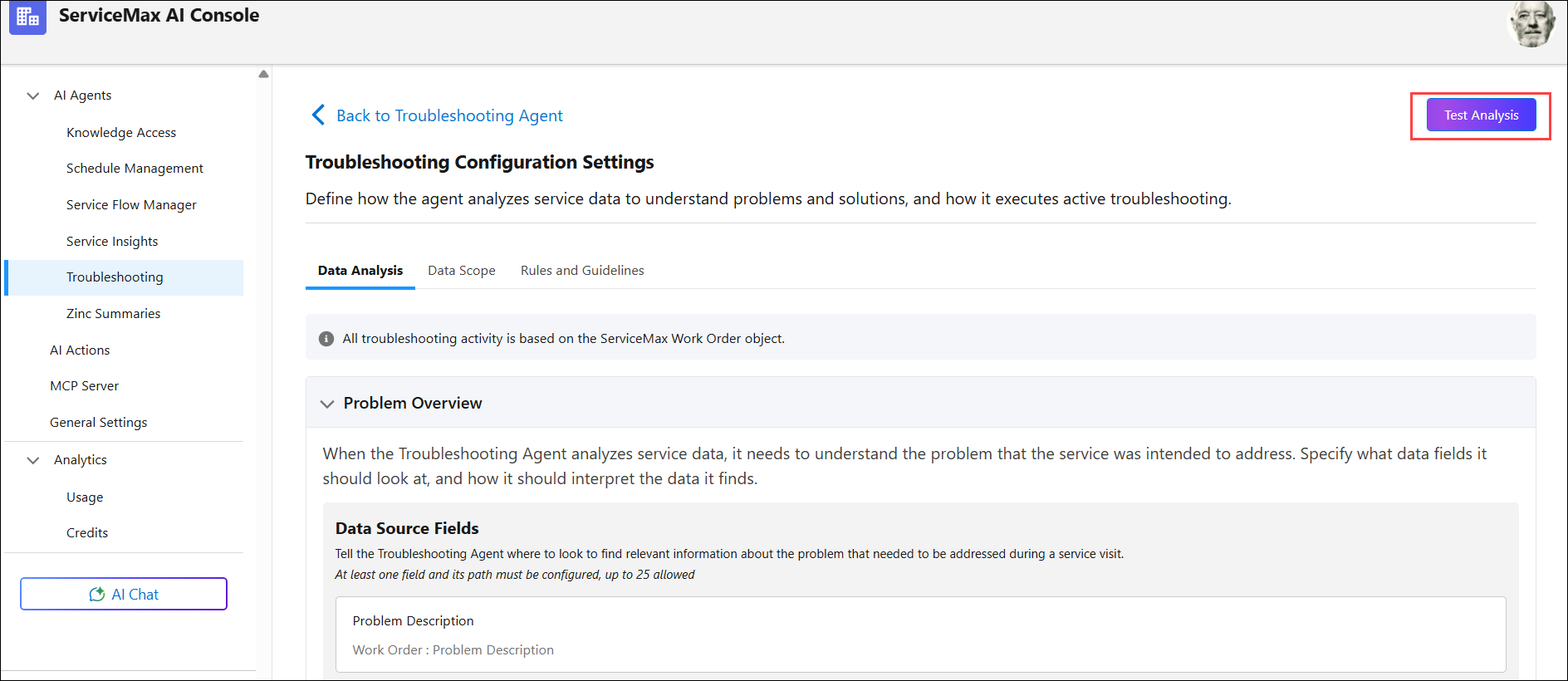
4. On the top-right, click Test Analysis. The Test Configurations sidebar is displayed.
|
|
The Test Analysis option is not available if there are unsaved changes.
|
5. Search for and select a work order to use for testing.
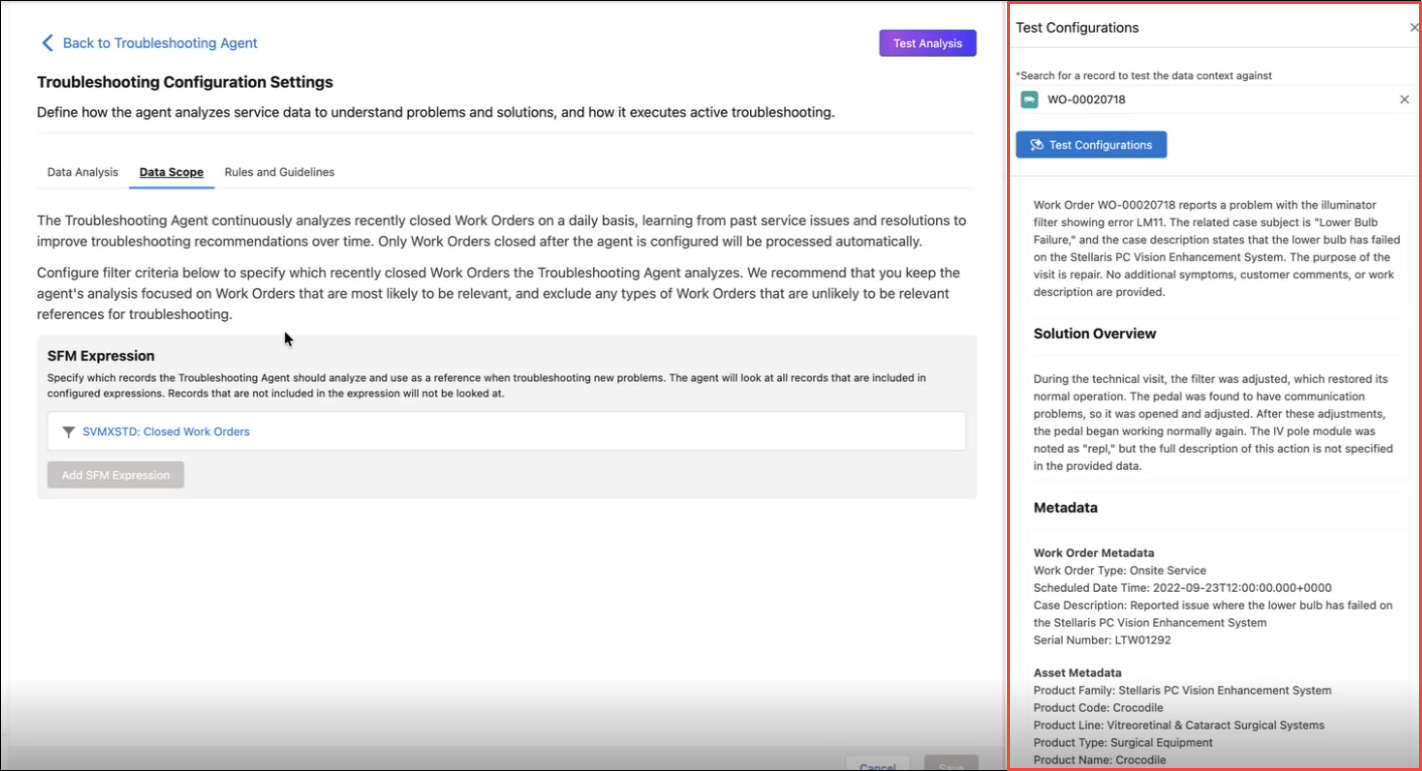
6. Click Test Configurations. The Troubleshooting Agent generates a preview of analysis results based on the selected work order.
Review Test Analysis Results
After the test completes, review the generated sections:
• Problem Overview: Verifies that the agent correctly identifies symptoms, issues, and contextual signals from the configured data fields.
• Solution Overview: Confirms that the agent captures how issues were resolved, including diagnostics, actions taken, and outcomes.
• Context Data: Displays the work order and asset meta data used to determine relevance.
|
|
Review whether the summaries include all expected fields and whether guidance instructions are being applied correctly.
|
Modify Configuration Based on Results
If the test analysis does not meet expectations:
• Update data source fields, instructions, or filters
• Save the configuration
• Re-run the test analysis using the same or a different work order
|
|
Test analysis does not update historical data or generate AI Notes.
|