Asset List View
Browse, search, filter, and manage asset records in a tabular format with customizable columns and pagination.
The Asset List Page in PTC Orbit provides a comprehensive and user-friendly interface for managing and monitoring assets. It displays detailed information for each asset, including name, account name, serial number, product, product family, reviewed status, installation date, location, address (city and country), and vendor details. You can also add custom tags to assets directly from the list view, enabling better categorization and quick identification. The page includes powerful search and filtering capabilities, with dedicated filter fields for each column and a search bar to quickly locate specific assets. Pagination at the bottom allows you to navigate large datasets and customize the number of rows displayed per page. Additionally, the page offers various organizational views, such as Group, List, Location, and Map, for monitoring data based on your preferences. Key actions include adding new assets using the Create button, refining the displayed data through filters, and tagging or editing asset details. The numeric fields and other clickable values likely provide drill-down functionality for accessing detailed data in a secondary view. With intuitive navigation, customizable settings, and multiple data interaction options, the Asset List Page streamlines asset management and enhances operational efficiency.
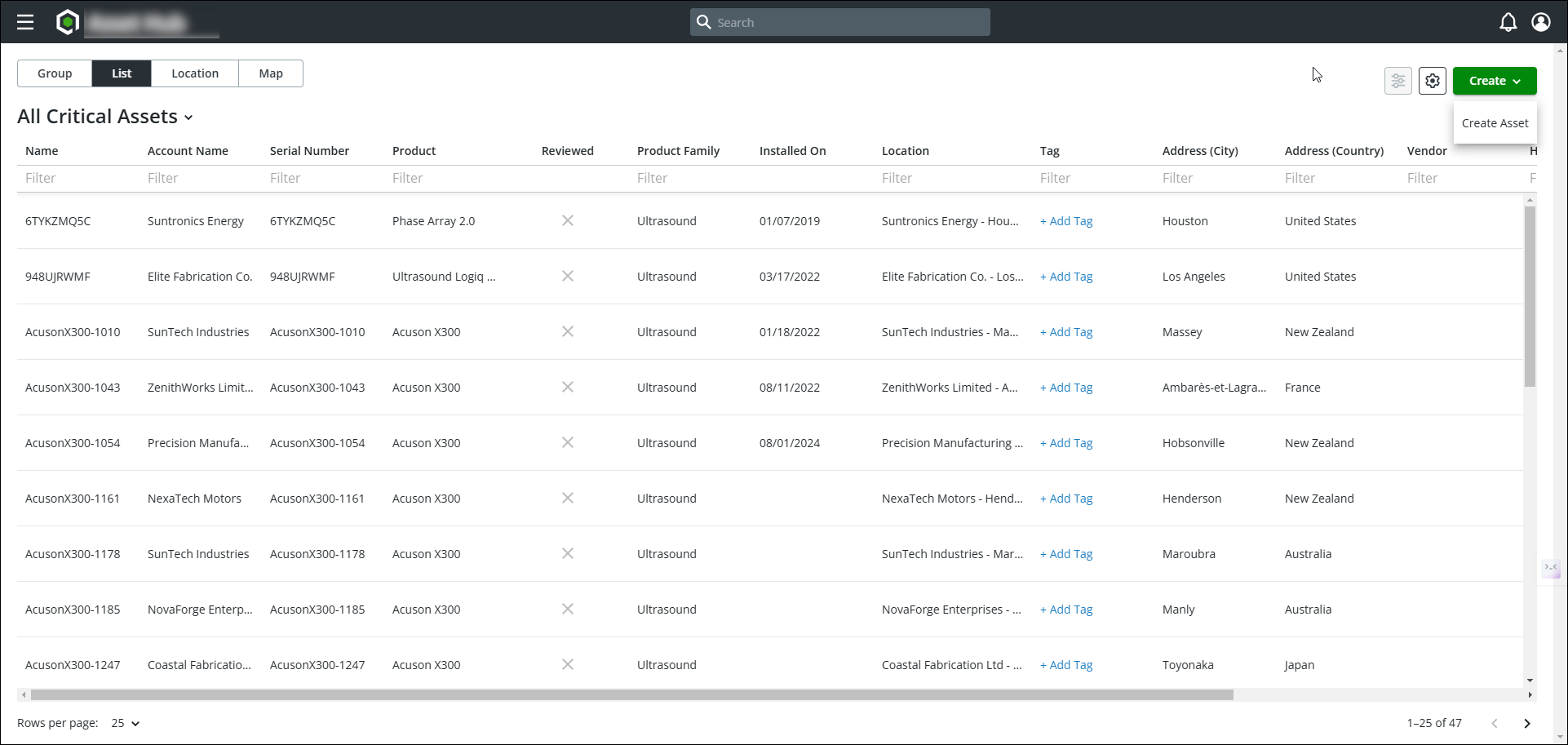
User Actions on the Asset List Page
1. View Asset Details:
◦ You can scan through the list to view high-level information about each asset.
2. Filter Data:
◦ You can utilize the filter fields in each column to narrow down the list based on specific parameters such as location, product type, or reviewed status.
3. Add Tags:
◦ You can add tags to any asset via the + Add Tag link, allowing for easier categorization or searching later.
4. Create a New Asset:
◦ You can click the Create button to add a new asset to the system.
5. Navigate Asset Data:
◦ Switch between views (List, Group, Location, Map) for tailored monitoring.
◦ Use pagination to navigate large datasets.
6. Drill Down into Asset Data:
◦ You can click on a specific asset record row to access the Asset Detail page.
7. Edit or Configure the View:
◦ Through settings or customization options, you can control the displayed data, adjust column visibility, and configure sorting preferences.
Related Topics