Setting an Asset View as the Default View
Set a preferred Asset List View as the default view that loads when you open the Assets page.
You can select an Asset List View as the default view.
Perform the following steps to make an asset view as the default list view.
1. Log in to PTC Orbit and click the  icon to launch the navigation pane.
icon to launch the navigation pane.2. Click Assets. The default Asset List view is displayed with the list of Asset records with the details.
3. Click the list view dropdown. The list of configured Asset List Views is displayed in alphabetical order.
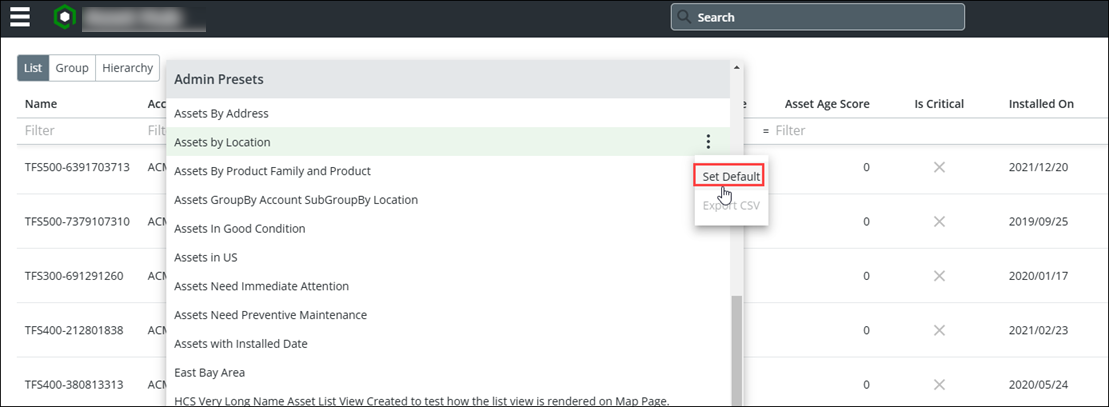
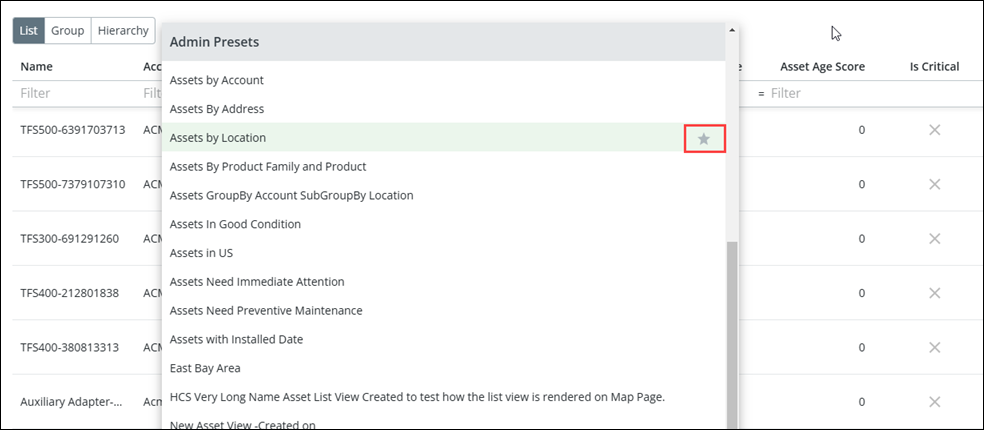
4. For the required Asset List View, click the three dots, and then click Set Default. The Asset List View is set as the default view and is highlighted with a star icon against it.
What To Do Next