Managing the Asset View Column Display
Show, hide, and reorder columns in the Asset List View to display the fields most relevant to your work.
You can manage the display of the columns on the Asset List View screen based on your requirement.
Perform the following steps to manage the column display.
1. Log in to PTC Orbit and click the  icon to launch the navigation pane.
icon to launch the navigation pane.2. Click Assets. The default Asset List View is displayed with the list of Asset records with the details.
3. Click the gear icon from the upper-right corner of the screen. The list of Asset fields is displayed with the checkboxes.
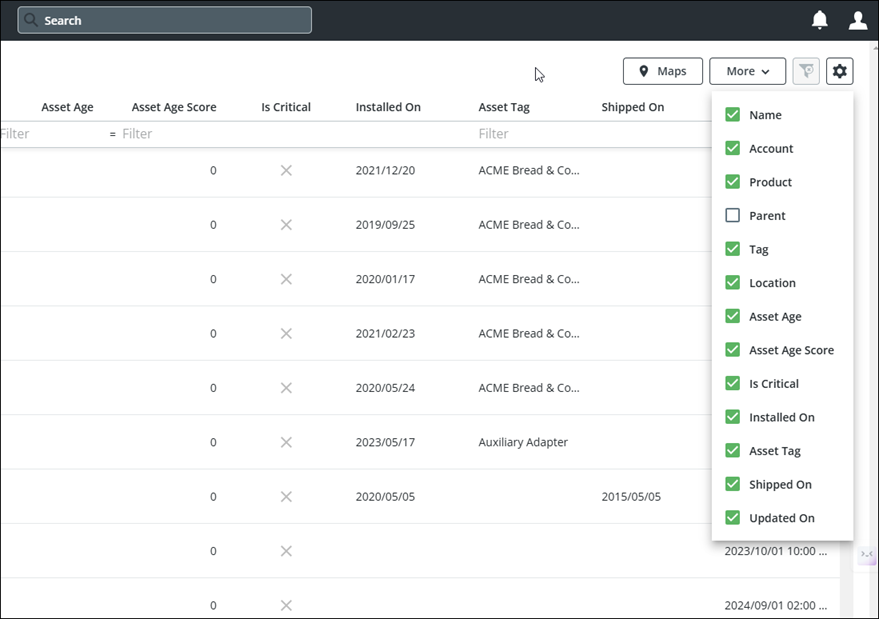
4. Select the required fields from the configured list. The columns in the Asset List View is updated based on the selected fields.
5. Drag and drop a column header to rearrange their placement in the List View.
What To Do Next