Launching the Asset List View
Open the Asset List View to browse, search, filter, and sort asset records in a tabular format.
You can launch the list view of the Asset records to get more details about the Asset. List view is the default asset view when you click Assets from the PTC Orbit left navigation pane.
Perform the following steps to view the Asset details in a list view.
1. Log in to PTC Orbit and click the  icon to launch the navigation pane.
icon to launch the navigation pane.2. Click Assets. The Asset List View page is displayed with the list of Asset records with the details.
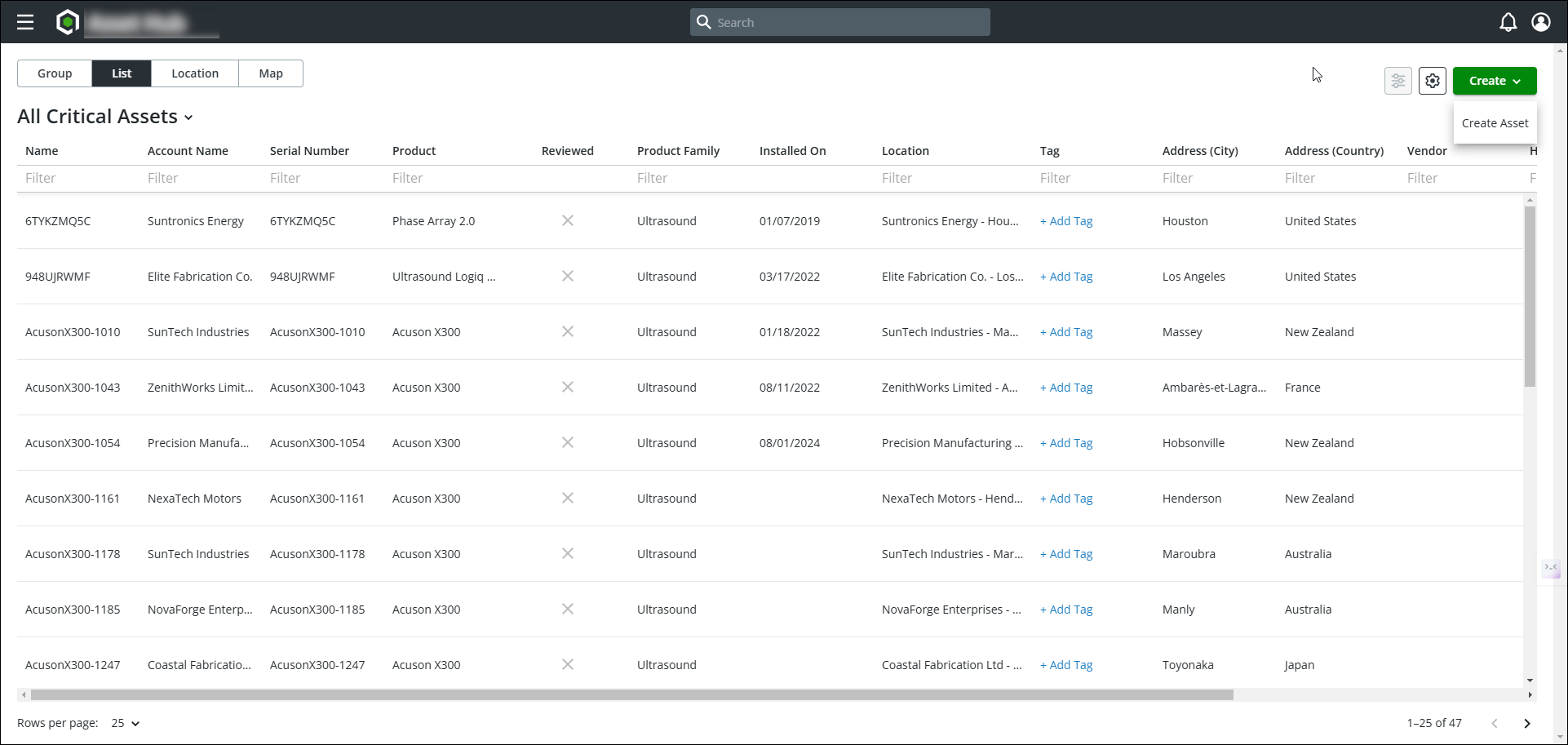
3. Click the asset view dropdown to select a different Asset List View configured for you.
4. Click the arrow on a column header to sort the list on ascending or descending order of the column values.
5. To filter the list, enter the search keywords in the Filter text box on each column and press Enter. You can also click outside the field. The asset list is updated based on the filter applied to the column values.
 |
To remove the filter, do one of the following:
• Click the close option in the filter field.
• Delete the text from the field and click anywhere outside the field.
|
What To Do Next