Search Results
When you click Search on the Duplicate Part Search page, the Duplicate Search Results page opens. On this page, you can review and analyze parts identified as duplicates based on shape similarity.
This page shows the number of potential duplicate parts organized into a defined number of groups.
For example, this page identifies 1,461 potential duplicate parts across 9 groups. The ongoing search indicates progressive loading. As the search for each part and group completes, the identified parts and groups are dynamically added to the total count. This process continues until all eligible (as per criteria selected) groups are displayed. For the part groups whose search was completed, you can perform actions on individual parts or open the group in a new window to compare its parts. This is possible even while the search is still in progress for the remaining parts.
You can use the following features to improve your search experience:
• Wildcards Search—You can refine your search using wildcard characters (for example, *) in your search queries to match partial part names or numbers. The wildcard search remains active during an ongoing group search. Filtered results are displayed immediately as the search progresses.
• Pagination—You can use pagination to navigate large sets of search results easily. If the number of duplicate part groups exceeds 20, the results are divided across multiple pages. Each page displays up to 20 groups. For example, if there are 85 groups, the first four pages will show 20 groups each, and the fifth page will display the remaining 5 groups. Use the Previous Page and Next Page buttons at the bottom of the page to navigate the content. You can also use Jump to Page to go to a specific page without scrolling through all pages. However, before using the Jump to Page option, you should navigate sequentially through the pages at least once.
Note that the search results on this page are based on the criteria you specified on the Duplicate Part Search page. For example, there may be 30 groups of potential duplicate parts in total. But if only 5 groups match your selected criteria, such as Product Context, Classification, or Nodes, only those 5 groups will be displayed here.
The following conditions apply when displaying duplicate part groups based on the selected criteria:
• Only those groups that contain parts matching the specified criteria are displayed.
• A group is displayed only if it contains at least two matching parts. If only one part in the group meets the criteria, that group is not displayed.
• A group can contain a maximum of 1,024 parts. If the number of parts in a group exceeds this limit, the group is split into two or more subgroups, with each subgroup containing an equal number of parts. For example:
◦ A group of 1,200 parts will be split into two subgroups of 600 each.
◦ A group of 4,096 parts will be split into four subgroups of 1,024 each.
 |
A higher shape similarity threshold may reduce the number of the retrieved similar parts and improve search precision.
|
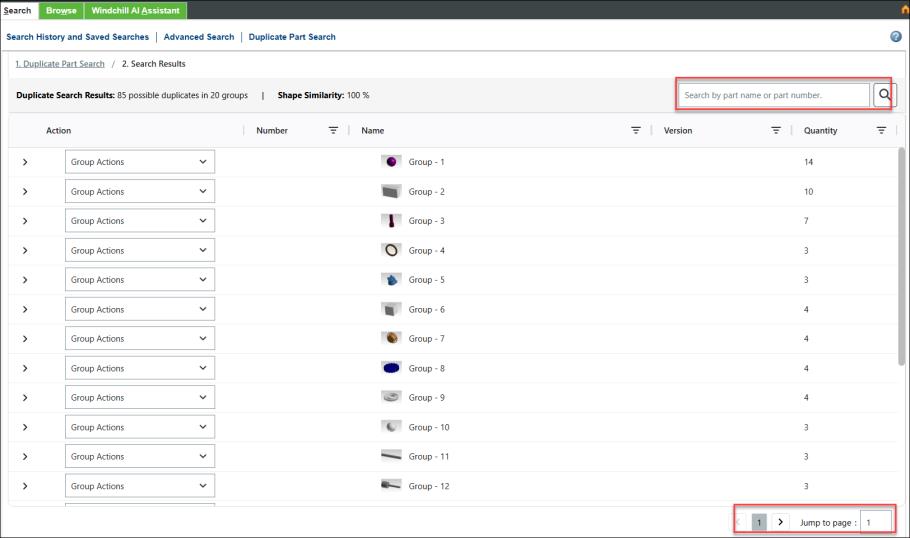
The table below describes the fields available on the Duplicate Search Results page
Fields | Description |
|---|---|
Action | Indicates the action available for the search results. These actions can be for a group of parts or for an individual part. For details, see the Parts Actions and Group Actions sections of this topic. |
Number | A unique numeric identifier of a part. |
Name | A text-based identifier of a part. |
Version | The revision and iteration of a part. |
Quantity | The number of parts in a group. |
Group Actions
The following table describes the actions for a group:
Action | Description |
|---|---|
Move Group to | Move a group to the top or bottom of the list as needed. |
Compare Parts in Group | Open a group in a new window to compare its parts. |
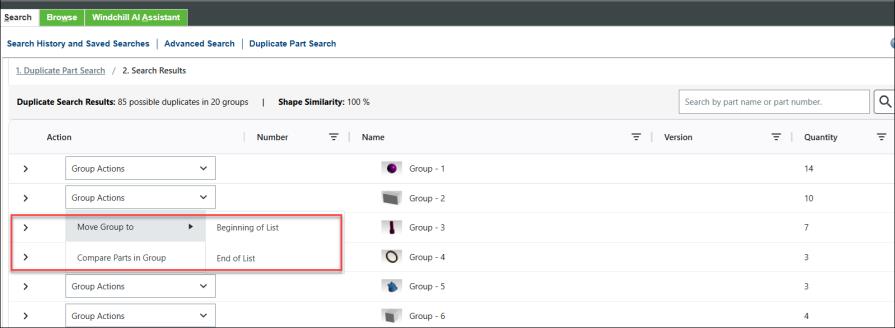
The user can compare 5 parts of a group 8 using the Group Actions option Compare Parts in Group, or perform other actions such as creating a problem report, change request, change notice, or superseding a part using the Part Actions menu.
Part Actions
The following table describes the actions for the parts in a group.
Action | Description | ||
|---|---|---|---|
Add to Change Notice Add to Problem Report Add to Change Request | Displays the specific subtype of change notice, problem report, or change request that you can access. The administrator has provided the subtype of a change notice, problem report, or change request when configuring the AI Parts Rationalization plugin. for more information, see the Configure AI Parts Rationalization Plugin section. Select the required change object to open the change notice, problem report, or change request page.
For more information, see Editing a Change Notice, Editing a Problem Report, Editing a Change Request. | ||
New Change Notice New Problem Report New Change Request | Opens a new Change Notice, Problem Report, or Change Request page, with the selected part that is prepopulated as an affected object. For more information on creating a new change notice, problem report, or change request, see Creating a Change Notice, Creating a Problem Report, Creating a Change Request. | ||
Supersede with Existing | Opens the Supersede with Existing page. You can select a part and supersede it with another existing part. For more information see Superseding a Part with an Existing Part. Users can select only those parts to which they have access. |
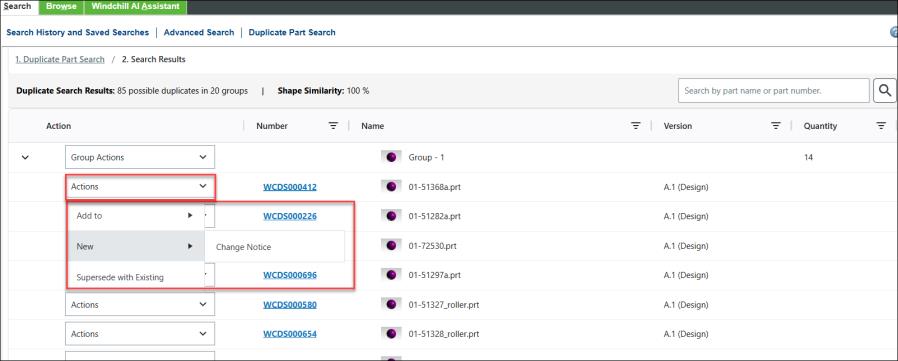
| | The change object information pages open in a new tab in the parent browser. For subsequent launches, the same tab is updated. |