Duplicate Part Search by an Administrator
This topic is intended for the Windchill System Administrator.
Depending on the role of the user, the user interface for the Duplicate Part Search is different for administrator and non-administrator user. When logged in as an administrator, the user interface appears as shown in the image below.
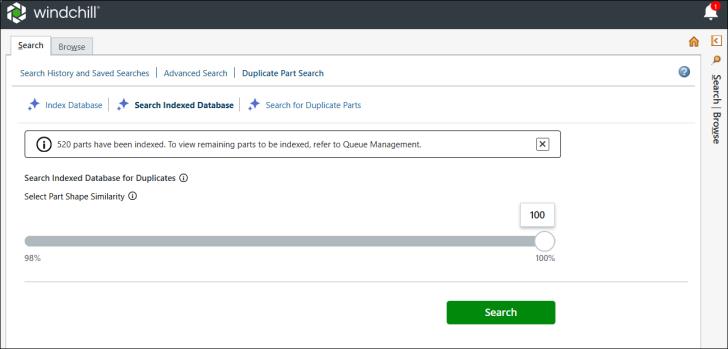
This page enables site administrators to identify and manage duplicate parts in the indexed database based on shape similarity criteria.
 | To enable the duplicate part search, the AI Parts Rationalization Plugin must be configured. For more information on the configuration details, see Installing and Configuring AI Plugin for Parts Rationalization. |
To search the duplicate parts:
1. In Windchill, open the Navigator and select the Search tab. The Search page opens.
2. Click Duplicate Part Search at the top of the tab.
3. Click Initiate Indexing to queue up the parts for indexing. You can pause indexing by clicking Pause Indexing, and then resume it by clicking Resume Indexing. For more information on indexing, see the Indexing the Data topic.
| | The system administrator initiates the indexing process, which may require some time to complete. Once indexing is successful, the system administrator can proceed to search for duplicate parts. |
4. Click Search Indexed Database and adjust the Part Shape Similarity slider to set the threshold for detecting duplicates. The slider determines how closely parts must match in shape to be considered duplicates. The default position is 100%.
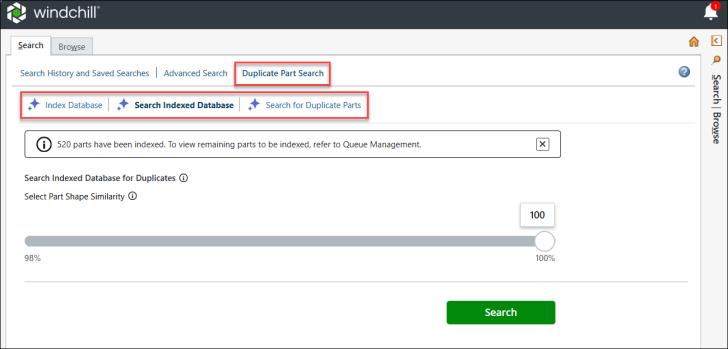
5. Click Search.
Consider this example. The administrator initiated the indexing process, during which 57373 parts have been indexed. Once indexing is complete, the administrator sets the slider to 100% to define the threshold for identifying duplicate parts. As a result, 2976 potential duplicate parts are identified.
As an administrator, if you want to view the interface of a non-administrator user, click Search for Duplicate Parts.
The table below describes the fields on the Duplicate Part Search page available for an administrator:
Fields | Description | ||
|---|---|---|---|
Banner for displaying status of the indexing | Displays the indexing status, such as the number of parts indexed.  | ||
Banner for displaying status of the search | Displays the status of the duplicate part search, such as the number of parts identified as duplicates.  | ||
Search Indexed Database | Prompts the administrator to initiate a duplicate part search across the entire database. After the search is completed, users can apply filters to the results.  | ||
Select Part Shape Similarity | Prompts the administrator to adjust the slider to set the percentage for the degree of shape similarity when searching for duplicate parts. A higher percentage identifies parts that are more similar. | ||
Search for Duplicate Parts | Provides access to the non-administrator user interface. 
| ||
Slider | Displays a slider to adjust the percentage for the degree of shape similarity when searching for duplicate parts. You can adjust the slider for the shape similarity range to 98–100%, 99–100%, or 100%. 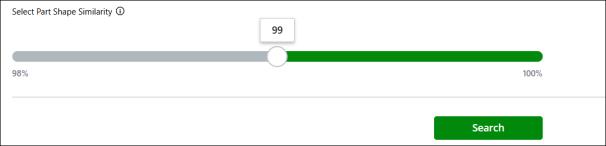 | ||
Index Database | Provides ability to initiate, pause, and resume indexing process.  | ||
Initiate Indexing | Queues up the parts for indexing. | ||
Pause Indexing | Pauses the indexing of parts. When you click Pause Indexing, the indexing process is paused and the tab status changes to Resume Indexing. | ||
Resume Indexing | Resumes the indexing of parts. | ||
Search | Initiates the search process. |