Installing and Configuring AI Parts Rationalization Plugin for the SaaS Environment
This topic is intended for the Windchill+ System Administrator.
The plugin can be installed as an additional component alongside Windchill. The deployment and updates of the plugin are managed by the Plugin Manager available in Windchill.
 |
The AI Part Rationalization plugin is compatible with the Windchill version listed the Supported Windchill Releases section of the Introduction of the AI Parts Rationalization Plugin topic.
|
The plugin integrates with Windchill in a loosely coupled manner. This means that the plugin can be updated and maintained independently without affecting the core functionality of Windchill.
Authentication
The plugin is made available to the site administrator based on PTC SaaS Platform authentication. To view the Windchill plugin, you must be a Windchill site administrator and have a PTC SaaS Platform account with access to the Windchill product. Follow these steps for the PTC SaaS Platform authentication:
1. Log in to your Windchill account as a site administrator.
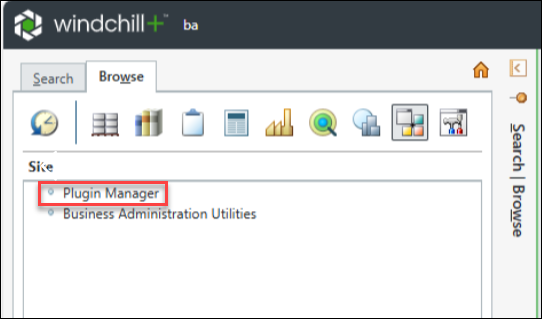
3. Enter your PTC SaaS Platform account credentials. You only need to provide your PTC SaaS Platform credentials once per session. After that, you can continue using the Plugin Manager without re-authenticating. However, re-authentication is required if the session expires.
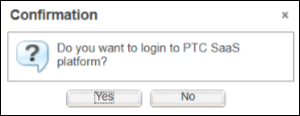
In the Confirmation dialogbox:
◦ If you click No, you cannot view the list of the newly available plugins or the updated plugins. You will continue to see the installed list of plugins and their previous versions.
◦ If you click Yes, you will need to provide your PTC SaaS Platform credentials to proceed. After authentication, you can view the newly listed plugins and the updated versions of existing plugins.
| | These credentials were provided during the onboarding of the Windchill site administrator to the PTC SaaS Platform step 2. Refer to the Note of the section Invite the Windchill Site Administrator for AI Plugin Installation for further information. |
After logging in with your PTC SaaS Platform credentials, you can view the list of available plugins.
Install AI Parts Rationalization Plugin
The Plugin Manager allows you to install and configure the available AI Parts Rationalization plugin.
When you click Plugin Manager, the Windchill Plugins page lists the latest versions of the available plugin from the PTC SaaS Platform storage in a table format. The row in the table displays the name, version, and status (Installed or Uninstalled).
Fields | Description |
|---|---|
Plugin Name | Indicates the name of the plugin. |
Installed Version | Indicates the installed version of the plugin. This field is blank if the plugin is not installed. |
Latest Version | Lists the latest available version of the plugin for installation. |
Description | Provides a short description of the available plugin |
Last Modified | Indicates the date the plugin was last modified. |
Plugin Status | Indicates whether the plugin is installed or not. |
Plugin Server | Indicates the status of the plugin server—operational and running or down. This field is blank if the plugin is not installed. |
To install the plugin, right-click the plugin, and then select Install from the context menu.
If you are a Windchill business administrator installing the plugin on a SaaS environment, a success message will appear. This marks the end of the plugin installation. No further steps are required.

Configure the AI Parts Rationalization Plugin
To configure the plugin, you need to register the Windchill product instance and create service principal. For more information, see the Register a Windchill Product Instance section.
1. To configure the plugin, right-click the Installed plugin and select Configure Plugin.

2. Provide the required details in the Plugin Configurations window and then click Save.
◦ PTC SaaS Platform Service Principal Client ID—Enter the Client ID that was generated and displayed on the Create Service Principal page.
◦ PTC SaaS Platform Service Principal Client Secret—Enter the Client Secret that was generated and displayed on the Create Service Principal page.
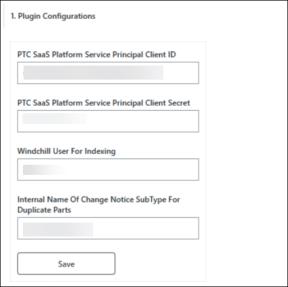
| | The Client ID and Client Secret are automatically generated by the system when you register a Windchill product instance in the PTC Admin Center. For more information, see the Register a Windchill Product Instance section. |
◦ Windchill User for Indexing—Specify the indexing user in the Windchill User for Indexing field. You have already provided the user details in the Configure Indexing User section. It is recommended to avoid changing this user frequently.
◦ Internal Name Of Change Notice Subtype For Duplicate Parts—Specify the internal name of the change notice type to be used for handling duplicate parts. For example: com.ptc.plugins.cn. It is recommended to create a dedicated change notice subtype for the duplicate part search purpose and provide its internal name here. This ensures that change notices related to duplicate parts are consistently created using the specified subtype.
Similarly, you can also specify the internal names of change objects such as problem report and change request type for handling duplicate parts. Configuring subtypes for Change Requests and Problem Reports is optional. However, if these change objects are not configured, they will not be displayed in the user interface.
| | All configuration settings, except for the Windchill User for Indexing, must remain unchanged once indexing has begun. Modifying any of these settings will result in the loss of previously indexed data, and the administrator will have to restart the indexing process from the beginning. The Windchill User for Indexing can be changed as needed. However, that user can only view parts to which they have access. |
After installing and configuring the plugin, the Duplicate Part Search tab appears on the Windchill Search page.

Update Windchill AI Parts Rationalization Plugins
The Update Plugin action is available once the latest version of the plugin is available. To update the plugin, right-click the plugin and click Update Plugin. The plugin version is automatically updated.
Once the latest version of the plugin is updated on PTC SaaS Platform, and in the Windchill Plugins table, you can see the new version number of the plugin. For example, if you previously installed version 0.1.32, and version 0.1.33 is now available on the PTC SaaS Platform. The Latest Version column of the Windchill Plugins table displays the 0.1.33 version.
Best Practices
The following best practices will help you install, configure, update the plugin effectively.
• After completing the installation, manually restart the Apache process on the Windows platform.
• Ensure the appropriate installation directory exists for your platform. The Plugin Manager reports an error if the plugin installation directory is missing.
• All configuration settings, except for the Windchill User for Indexing, must remain unchanged once indexing has begun. Modifying any of these settings will result in the loss of previously indexed data, and the administrator will have to restart the indexing process from the beginning.
The Windchill User for Indexing can be changed as needed. However, that user can only view parts to which they have access.
• During the rehost operations, plugin installed on the target system is retained. After a rehost, you must manually reconfigure the plugin on the target system and use a different service principal for that instance. You must also re‑index the data. While doing so, carefully choose what to index to manage AI credit consumption effectively.
• After rehosting, if you need to change the indexing user from A (source) to B (target), follow these steps:
1. Reconfigure the plugin using indexing user A (source).
2. Save the configuration.
3. Update the indexing user to B (target).
• After updating the plugin, it is recommended to clear the browser cache to ensure optimal performance and prevent any unexpected behavior.
Operations Managed by Plugin
After the plugin is installed using the Plugin Manager, the plugin files are typically downloaded from the PTC SaaS Platform storage and then unzipped into the plugin installation directory on the local server.
The instance operates as a service that handles the AI publishing tasks as outlined below. It provides details of VCS (Visualization Content Service) requests made for the AI publishing jobs, along with the results of polling operations. The instance is responsible for the following tasks:
• Executing indexing jobs.
• Sending requests to the VCS for AI indexing jobs.
• Monitoring and logging of VCS request, polling the VCS to check the status of those jobs (such as, succeeded, failed, or in progress), and logging the details.
• For Windchill business administrator (SaaS Environment): Logs are generated and stored in the <windchillHome>/logs/pluginLogs.
• Updating the status of each job in the queue.
Plugin Certificate Rotation
This topic describes the strategy for managing self-signed certificates used by Windchill plugins. AI plugins rely on self-signed certificates for secure communication. It covers certificate creation, validation, rotation, and integration with Windchill and Apache components to ensure secure communication.
For Windchill+ environments, certificate rotation is automated using a dedicated utility. This utility runs alongside the Windchill certificate rotation utility. In cluster environments of Windchill+, this utility must be executed on every node.