Customer Onboarding to the PTC Cloud Portal and SaaS Platform
 |
This topic is intended for the Windchill Administrator. For Windchill On-premise environment, Windchill Administrator is the Windchill Site Administrator, however, for Windchill+ environment, Windchill Administrator is the Windchill Business Administrator.
|
The plugin is available to users authenticated through the PTC SaaS Platform. To view the Windchill plugin, you must be a Windchill Administrator and have a PTC SaaS Platform account with access to the Windchill product. To install the plugin, you must be onboarded to the SaaS Platform and sign in to the PTC Admin Center.
PTC sends an invitation to the initial administrator with instructions on how to activate their account and access the PTC Admin Center.
To install and set up the plugin in a Windchill environment, the initial system administrator receives an email. To get started, follow these steps:
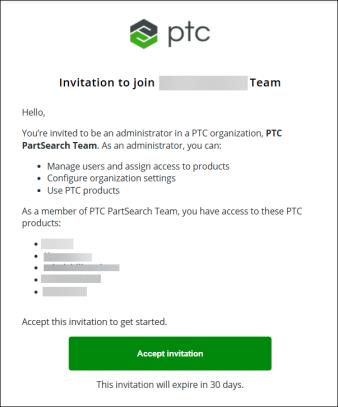
1. Accept the invitation or click the link. The PTC Admin Center page opens.
2. Provide your login credentials.
| | If the initial administrator is also the Windchill Administrator they must provide credentials for authentication during plugin installation. For more information, see the Authentication section. |
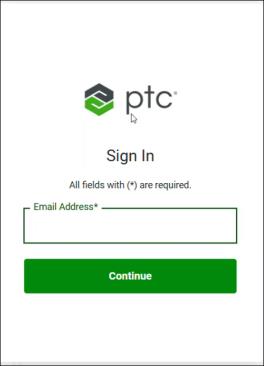
| | If you do not have SSO, your previously accepted password no longer works. You see the Incorrect email or password message on the Sign In page. Click Forgot password?. For more information, see Reset Password. |
3. Click Open and choose an organization to continue. The PTC Windchill Self-Service Portal page opens.
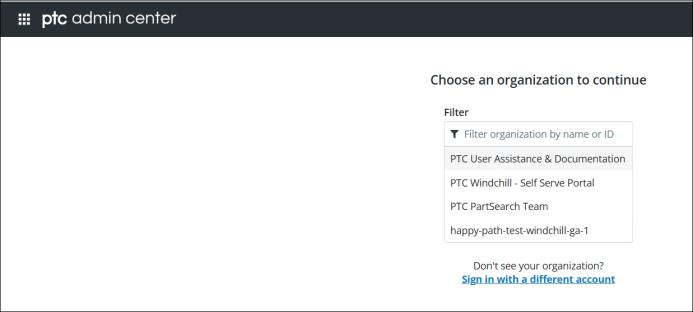
| | If you belong to multiple organizations, a list of those organizations will be displayed on this page. If you belong to only one organization, this page will not appear. |
Once in the PTC Admin Center, the administrator can perform various tasks:
◦ View organization details such as name, ID, preferred region, and so on
◦ Specify a support contact for the organization
◦ Manage service principals
◦ Manage user groups
◦ View the products that the organization is licensed to use
Invite the Windchill Administrator for AI Plugin Installation
If the initial administrator is not the Windchill Administrator who will be installing the AI Plugin, invite the Windchill Administrator using these steps:
1. To add users, on the Users page, click Invite Users.
2. In the Invite Users dialog box, enter the email address of the user you want to invite. You can enter multiple users with comma-separated email addresses.
3. Select the organization role that you want to assign to the new member, for example “Administrator”.
4. In the Products list, select the product and click Invite.
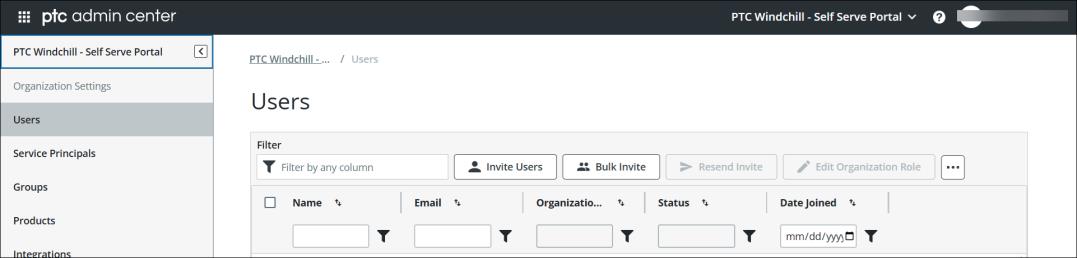
For more information, see Invite Users.
| | When the initial administrator invites the Windchill Administrator to install the plugin, the administrator receives an email invitation. Upon receiving the invitation, the administrator must accept it and provide the required credentials. These credentials are essential for authentication during the plugin installation process. For more information, see the Authentication section. |
About a Windchill Product Instance
A Windchill product instance represents a single deployment of the Windchill system, such as a production, development, or test environment. Each instance must be uniquely registered and associated with a dedicated service principal, which provides the required credentials (client id and client secret) for secure integration with other services like the AI plugin. When configuring the AI plugin, these credentials ensure proper authentication for that specific instance.
Based on the product instance, the plugin ensures that index data is properly segregated for all product instances.
Register a Windchill Product Instance
You can install and download plugins from Plugin Manager after authenticating with your PTC SaaS Platform account credentials. Once authenticated, you can view the list of available plugins on the Windchill Plugins page and install the required ones. However, before configuring any plugin, you must first register a Windchill product instance.
For more information, see Register a Windchill Product Instance.
To use the Windchill AI plugin, you must register the machine or virtual machine on which Windchill is installed.
1. Sign in to the PTC Admin Center and select your organization.
| | You must be a member of the Windchill product for the selected organization. |
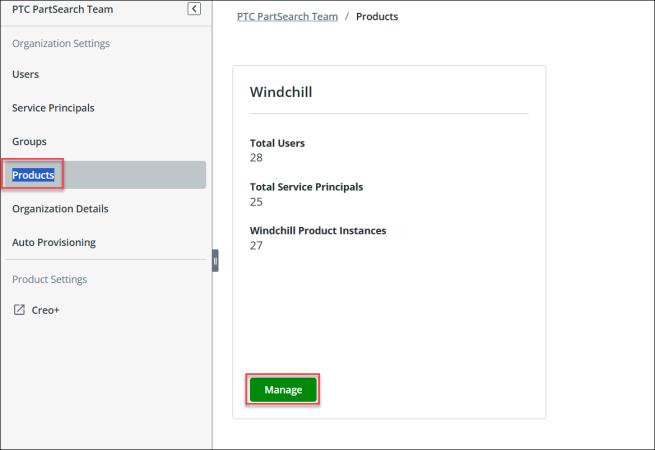
2. In the left navigation pane, select Products. If you belong to multiple products, their cards appear. If you are a member of a single product, only that product card is displayed.
3. In the right pane, on the Windchill product card, click Manage.
The Windchill product page opens.
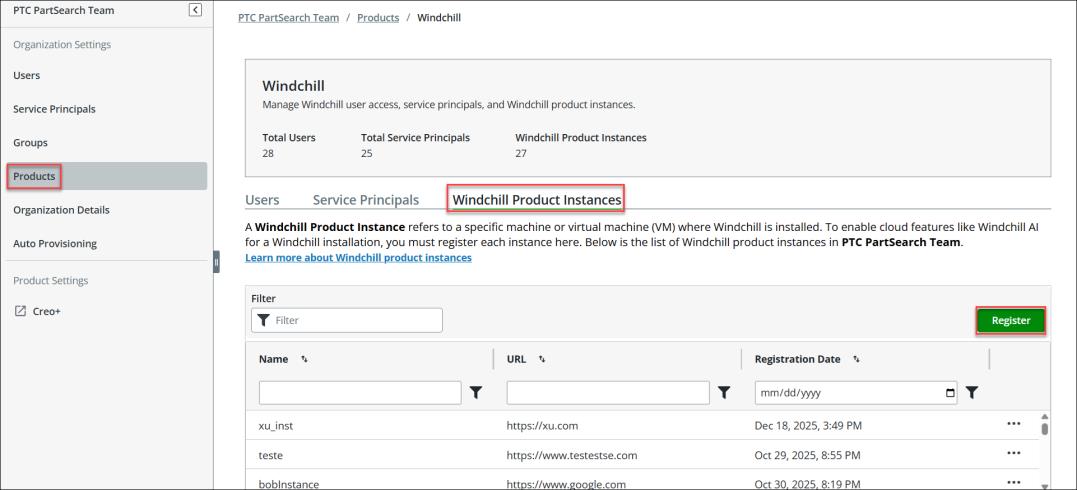
4. Go to the Windchill Product Instances tab and click Register.
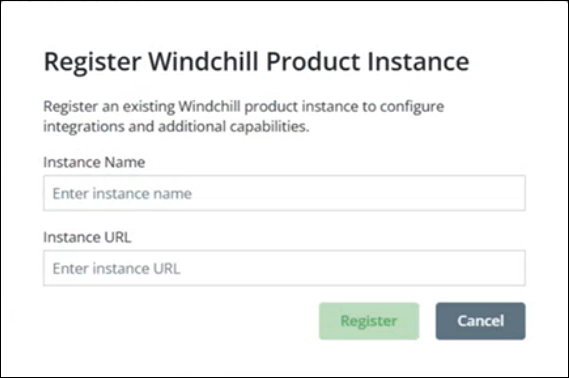
5. Provide the Instance Name and Instance URL in the Register Windchill Product Instance dialog box and then click Register.
A message is displayed confirming that the Windchill product instance is registered and the Connection Details tab on the instance page is displayed, as shown in the following image.
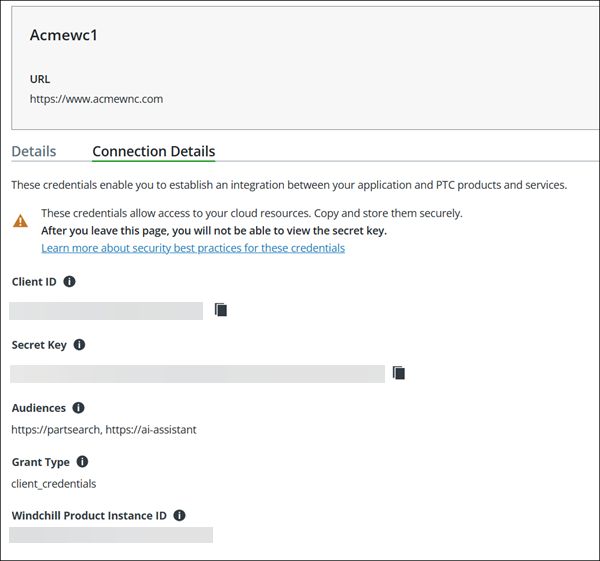
The Connection Details tab contains the necessary credentials required to configure OAuth 2.0 using the Client Credentials flow.
◦ Client ID—A unique identifier for your application, used during authentication to request an access token. Ensure that you copy and store the ID securely.
◦ Secret Key—A secure string used together with the Client ID to obtain an authentication (JWT) token. This key is generated by default. Ensure that you copy and store the key securely.
| | You must provide the Client ID and Secret Key when configuring the Windchill AI plugin on Windchill installations. |
◦ Audience—Specifies the intended recipient (resource URI or server) of the access token. This value is based on the product selected during setup.
◦ Grant Type—Indicates the method used to obtain access tokens for accessing protected resources.
◦ Windchill Product Instance ID—Specifies the unique identifier for the Windchill product instance to authenticate requests with PTC. Ensure that you copy and store the ID securely.
The connection details are used to establish a secure connection that allows services to access data in the Windchill product instance. These details are available only after Windchill AI capabilities are enabled. If the capabilities are not enabled, the connection details are not available.
The Windchill AI is enabled by default, as shown in the Details tab of the instance.
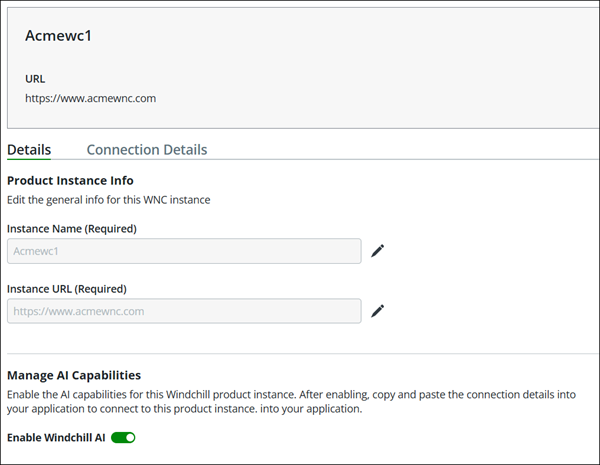
To edit a registered product instance, see Edit a Windchill Product Instance section in Register a Windchill Product Instance.